


How can I delete a specific custom booking form?
If you want to delete a specific custom booking form, first load that exact form in the Form Builder, then use the Delete form option in the Details tab.
This helps you safely remove only the selected custom form from the database.
Step 1. Load the specific custom booking form you want to delete
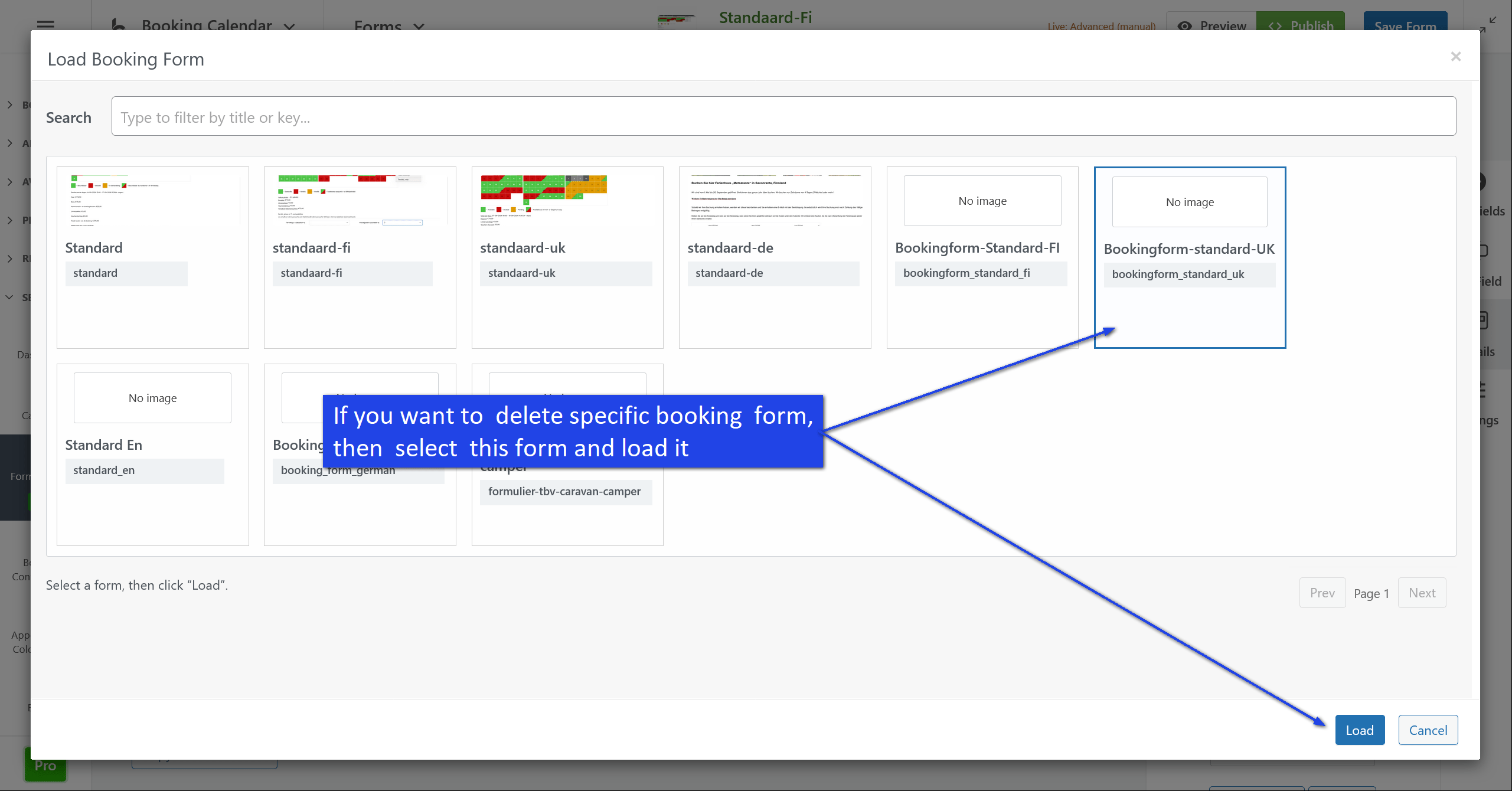
Open the Form Builder (WP Booking Calendar > Settings > Forms Builder page) and click the Forms menu (at top toolbar) and then select Open option. In the popup, find the custom booking form you want to remove, select it, and click Load.
Step 2. Open the Details tab
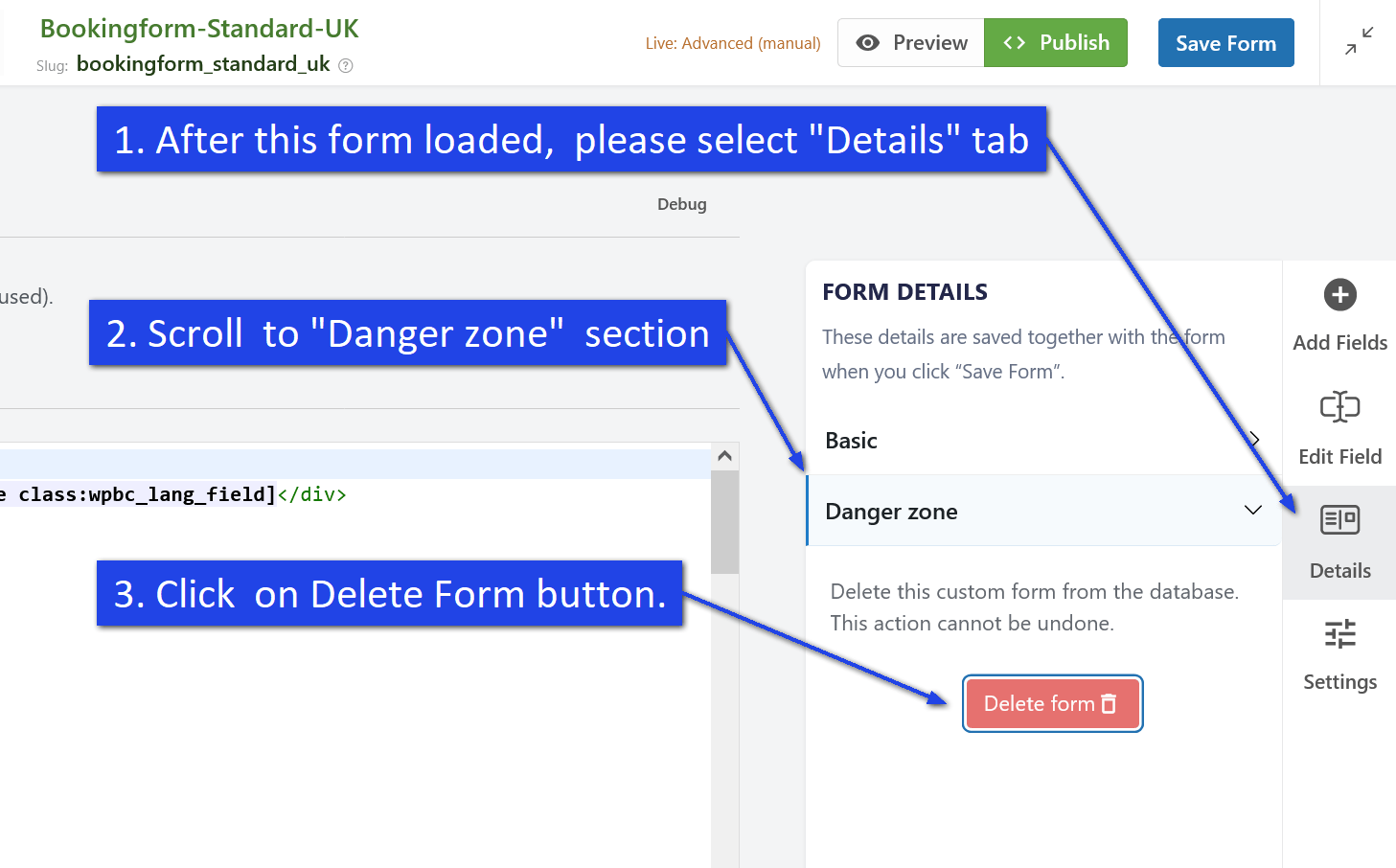
After the selected custom booking form is loaded, open the Details tab in the right sidebar.
Step 3. Scroll to the Danger zone section
In the Form Details panel, scroll down until you see the Danger zone section.
Step 4. Click the Delete form button
Click the Delete form button to remove the currently loaded custom booking form from the database.
Important note
Be sure that you loaded the correct custom booking form before deleting it. The Delete form action removes only the form that is currently opened in the Form Builder.
Warning
Deleting a custom booking form cannot be undone. If you may need this form later, it is a good idea to create a copy or keep a backup before deleting it.
Tip
If you have many custom booking forms, use the search field in the Load Booking Form popup to quickly find the exact form you want to delete.