


If you added a new field or made other changes on the WP Booking Calendar > Settings > Form Builder page, but the changes do not appear when you click the Preview button or view the booking form on your website, the form is probably using the configuration from Advanced Mode (Code).
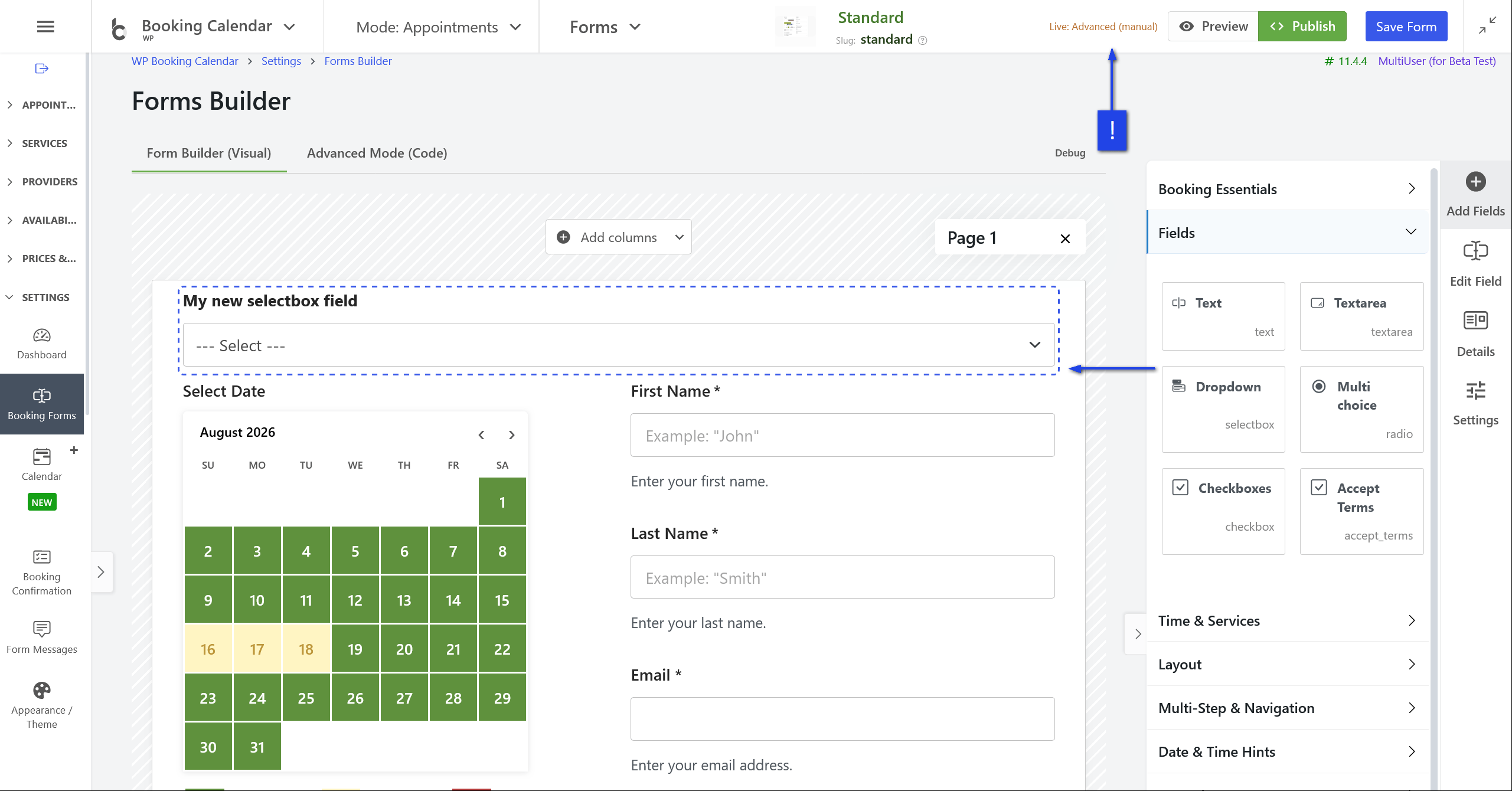
Check the status indicator in the top-right corner of the page. You may see the following orange notice:
Live: Advanced (manual)
This means that the booking form displayed on the front end is generated from the code configured in the Advanced Mode (Code) tab, rather than directly from the Visual Form Builder.
How Synchronization Works
Synchronization works in one direction:
Form Builder (Visual) → Advanced Mode (Code) → Front-end booking form
Therefore, changes made in the Visual Form Builder must be transferred to the Advanced Mode code before they can appear in the preview or on your website.
How to Apply Your Changes
- Open WP Booking Calendar > Settings > Form Builder.
- Open the Advanced Mode (Code) tab.
- Click the Regenerate from Builder button.
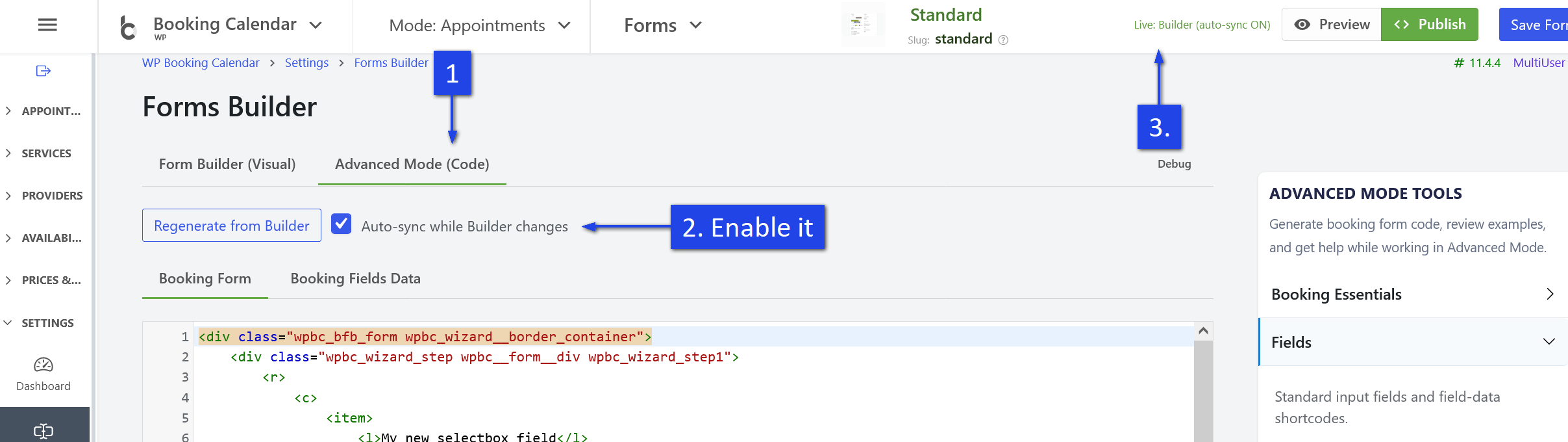
This will regenerate the Advanced Mode code using the current configuration from the Visual Form Builder.
Alternatively, enable the following option:
Auto-sync while Builder changes
When automatic synchronization is enabled, you should see the following green notice in the top-right corner:
Live: Builder (auto-sync ON)
After that, changes made in the Visual Form Builder will be automatically synchronized and displayed in the booking form preview and on the front end of your website.
Important
Clicking Regenerate from Builder may overwrite manual changes previously made in Advanced Mode (Code). If you added custom code manually, save a copy of it before regenerating the form.