


The booking_appointment shortcode creates a Service-first Appointment booking workflow.
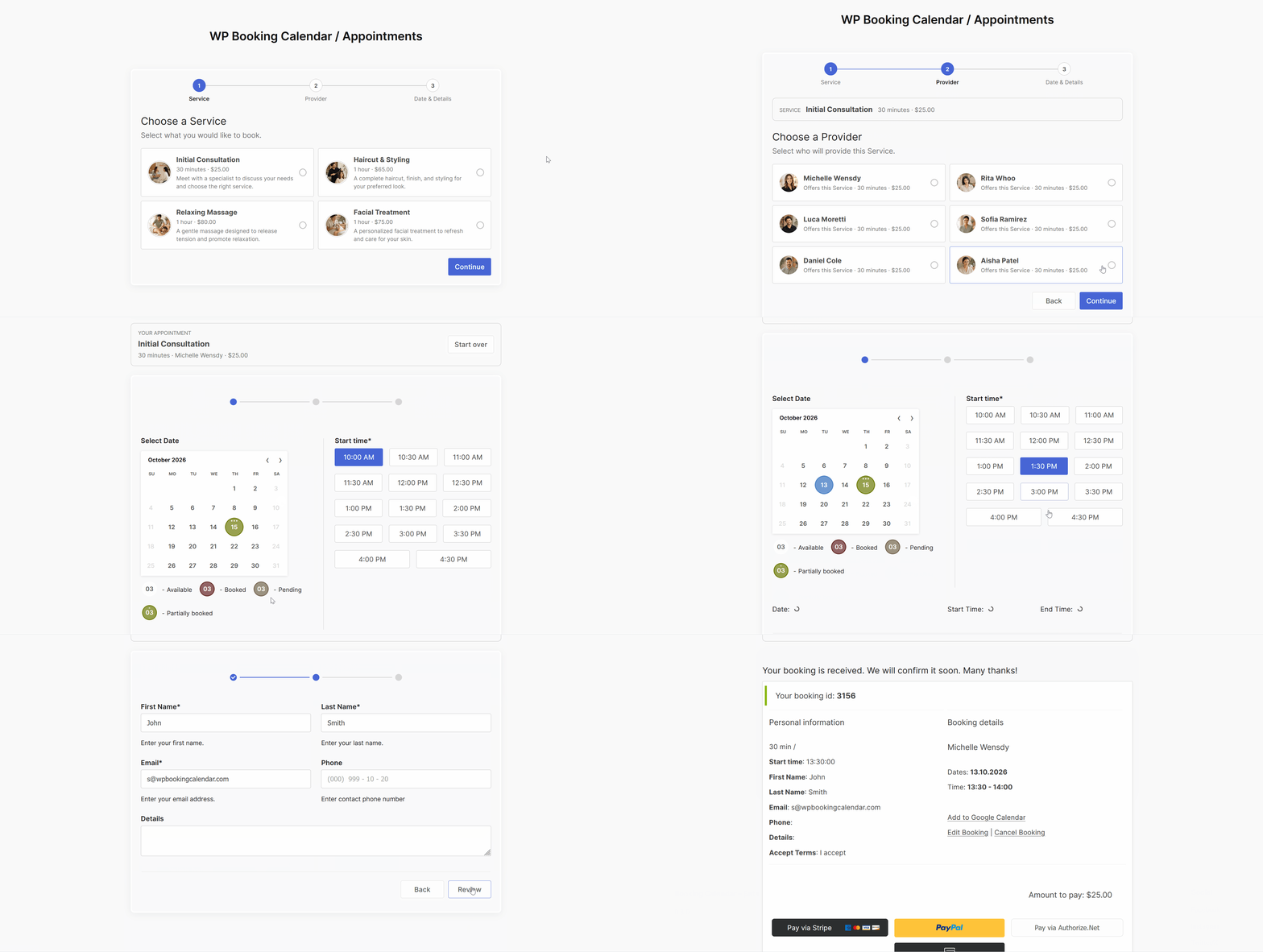
Visitors complete the following steps:
- Choose a Service.
- Choose a compatible Provider.
- Select an available date and start time, complete the Booking Form, and submit the booking.
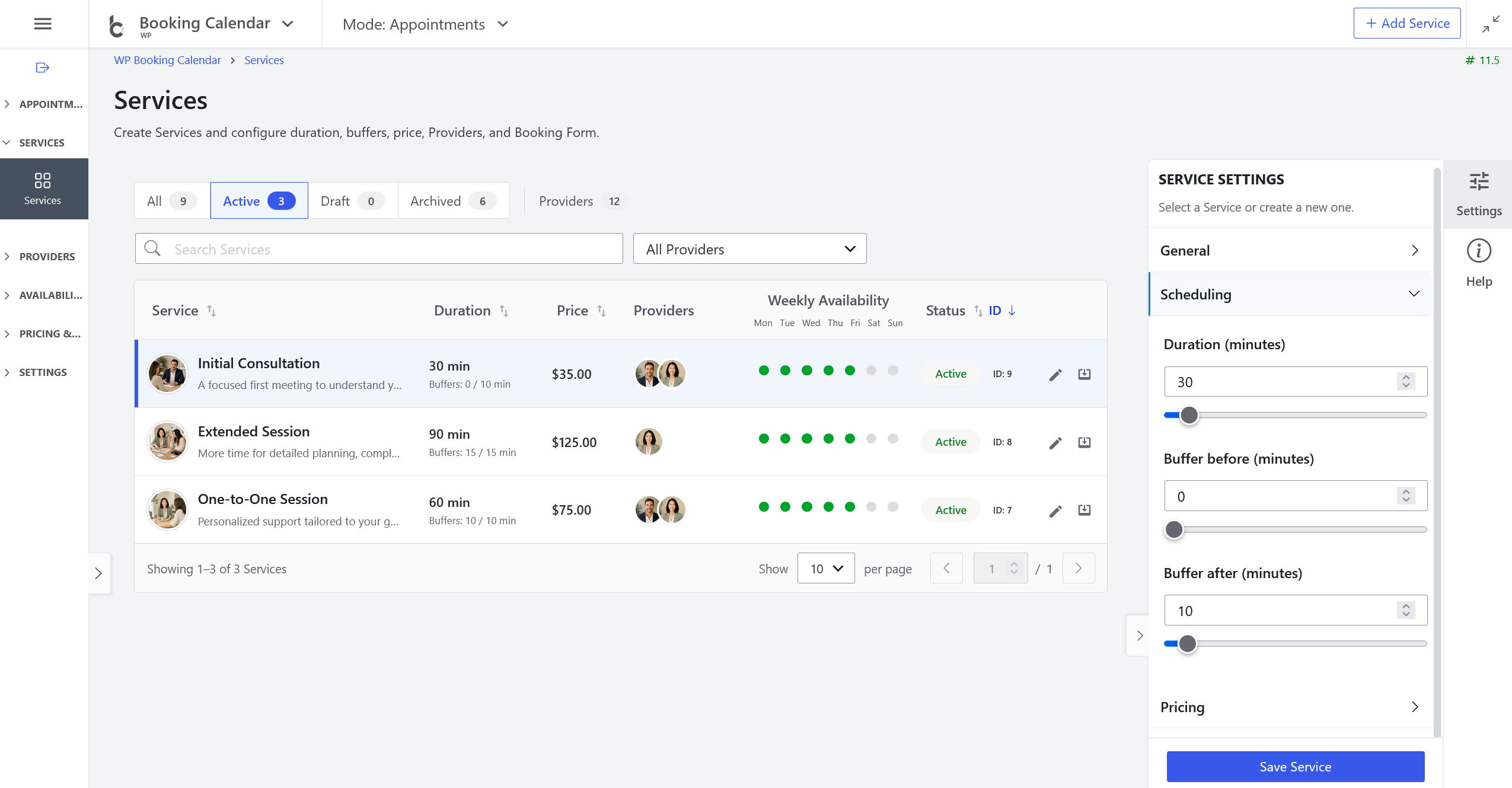
The Provider is an existing Booking Resource. Its calendar, working hours, availability rules, existing bookings, and booking conflicts remain authoritative. The selected Service supplies the duration, buffers, price when supported, compatible Providers, and Booking Form.
Available in Booking Calendar 11.5 or newer. Features that require multiple Booking Resources, custom Booking Forms, prices, payments, or other advanced functionality depend on the installed Booking Calendar edition.
Basic shortcode
[booking_appointment]Before publishing the shortcode, create at least one active Service and assign at least one Provider to it at WP Booking Calendar > Services.
Common examples
Show only selected Services in the specified order:
[booking_appointment services="9,7,8"]Show only selected Providers:
[booking_appointment providers="3,4,5"]Preselect and restrict the flow to one Service:
[booking_appointment service_id="9"]Preselect and restrict the flow to one Provider:
[booking_appointment provider_id="4"]Open the booking form for a specific Service and Provider:
[booking_appointment service_id="9" provider_id="4"]Automatically skip Provider selection when the selected Service has exactly one compatible Provider:
[booking_appointment service_id="9" auto_select_provider="on"]Parameters
All parameters are optional.
Service and Provider parameters
service_id
Default: 0.
Enter one positive Service ID. The shortcode preselects that Service and prevents the visitor from selecting another Service. You can find Service IDs at WP Booking Calendar > Services.
provider_id
Default: 0.
Enter one positive Provider Booking Resource ID. The shortcode restricts the flow to that Provider. If a Service is selected, the Provider must be assigned to that Service. You can find Booking Resource IDs at WP Booking Calendar > Resources.
services
Default: all available active Services.
Enter a comma-, semicolon-, or whitespace-separated list of positive Service IDs. Only these Services are shown, and they are displayed in the order specified in the shortcode.
[booking_appointment services="9,7,8"]providers
Default: all compatible Providers.
Enter a comma-, semicolon-, or whitespace-separated list of Provider Booking Resource IDs. Only compatible Providers from this list can be used.
[booking_appointment providers="3,4,5"]auto_select_provider
Default: off.
Use on, true, yes, or 1 to skip the Provider selection screen when exactly one compatible Provider is available. The option is disabled by default.
[booking_appointment auto_select_provider="on"]Calendar and Booking Form parameters
nummonths
Default: 1.
Defines the number of visible calendar months. Accepted values are from 1 through 24.
[booking_appointment nummonths="3"]startmonth
Default: the current month.
Defines the month initially displayed in the calendar. Supported formats are YYYY-MM, YYYY/MM, and YYYYMM.
[booking_appointment startmonth="2026-09"]calendar_dates_start
Default: empty.
Defines the inclusive first date displayed and selectable in the calendar. Use the YYYY-MM-DD format.
This parameter changes the calendar boundary but does not, by itself, permit bookings in the past. Use allow_past when past bookings are intentionally required.
[booking_appointment calendar_dates_start="2026-01-30"]calendar_dates_end
Default: empty.
Defines the inclusive last date displayed and selectable in the calendar. Use the YYYY-MM-DD format.
[booking_appointment calendar_dates_start="2026-01-01" calendar_dates_end="2026-12-31"]options
Default: empty.
Passes a supported native Booking Calendar options expression to the resolved calendar and Booking Form. It can be used for calendar width, months per row, date-cell height, and other supported calendar options.
[booking_appointment nummonths="2" options='{calendar months_num_in_row=2 width=100% cell_height=40px}']form_type
Default: the Booking Form assigned to the selected Service.
Enter the slug of a published Booking Form to override the Service Booking Form. If no override is provided, the shortcode uses the Service Booking Form and then the Standard form as a fallback.
[booking_appointment form_type="appointments_services_flow"]allow_past
Default: off.
Use on, true, yes, or 1 to allow any visitor to select and submit dates in the past within the displayed calendar range.
This option does not make already booked or otherwise unavailable dates and times available. Normal Provider availability, working-time, capacity, and conflict checks still apply.
[booking_appointment calendar_dates_start="2026-01-30" startmonth="2026-01" allow_past="on"]Progress-line parameters
show_progress
Default: on.
Use off, false, no, or 0 to hide the complete three-step progress line.
[booking_appointment show_progress="off"]progress_item_1_title
Default: Service.
Defines the title below the first progress number. An explicitly empty value hides this title.
progress_item_1_number
Default: 1.
Defines the first progress number. An explicitly empty value hides this number. The value may also contain text such as 01/03.
progress_item_2_title
Default: Provider.
Defines the title below the second progress number. An explicitly empty value hides this title.
progress_item_2_number
Default: 2.
Defines the second progress number. An explicitly empty value hides this number.
progress_item_3_title
Default: Date & Details.
Defines the title below the third progress number. An explicitly empty value hides this title.
progress_item_3_number
Default: 3.
Defines the third progress number. An explicitly empty value hides this number.
Example with custom progress content:
[booking_appointment progress_item_1_title="" progress_item_1_number="01/03" progress_item_2_title="Specialist" progress_item_2_number="02/03" progress_item_3_title="Schedule & Details" progress_item_3_number="03/03"]The defaults are used only when a parameter is omitted. Supplying an empty value intentionally hides the corresponding title or number.
Selection-screen text parameters
screen_1_title
Default: Choose a Service.
Defines the heading on the Service selection screen. An explicitly empty value hides the heading.
screen_1_description
Default: Select what you would like to book.
Defines the description on the Service selection screen. An explicitly empty value hides the description.
screen_2_title
Default: Choose a Provider.
Defines the heading on the Provider selection screen. An explicitly empty value hides the heading.
screen_2_description
Default: Select who will provide this Service.
Defines the description on the Provider selection screen. An explicitly empty value hides the description.
Example for a salon or wellness website:
[booking_appointment screen_1_title="Choose a Treatment" screen_1_description="Select the treatment you would like to book." screen_2_title="Choose a Specialist" screen_2_description="Select who will provide your treatment."]Compatibility parameter names
The following older parameter names remain supported for backward compatibility:
- progress_service_title is an alias for progress_item_1_title.
- progress_service_number is an alias for progress_item_1_number.
- progress_provider_title is an alias for progress_item_2_title.
- progress_provider_number is an alias for progress_item_2_number.
- progress_details_title is an alias for progress_item_3_title.
- progress_details_number is an alias for progress_item_3_number.
For new shortcodes, use the normalized progress_item_N_title and progress_item_N_number parameters. If both the normalized parameter and its compatibility alias are supplied, the normalized parameter is used.
Complete configuration example
[booking_appointment services="9,7,8" providers="3,4,5" nummonths="2" startmonth="2026-09" form_type="appointments_services_flow" auto_select_provider="on" progress_item_1_number="01/03" progress_item_2_title="Specialist" progress_item_2_number="02/03" progress_item_3_title="Schedule & Details" progress_item_3_number="03/03" screen_1_title="Choose a Service" screen_1_description="Select what you would like to book." screen_2_title="Choose a Specialist" screen_2_description="Select who will provide this Service."]Important quotation-mark notice
Use only normal straight quotation marks in Booking Calendar shortcodes. Do not use typographic or “smart” quotation marks copied from formatted documents.
[booking_appointment services="9,7,8"]