


Available in Booking Calendar 11.5 or newer.
The booking_resource_selector shortcode creates a two-step Booking Resource selection workflow:
- The visitor chooses a Booking Resource.
- The shortcode loads that Resource’s native Booking Calendar and Booking Form on the same page.
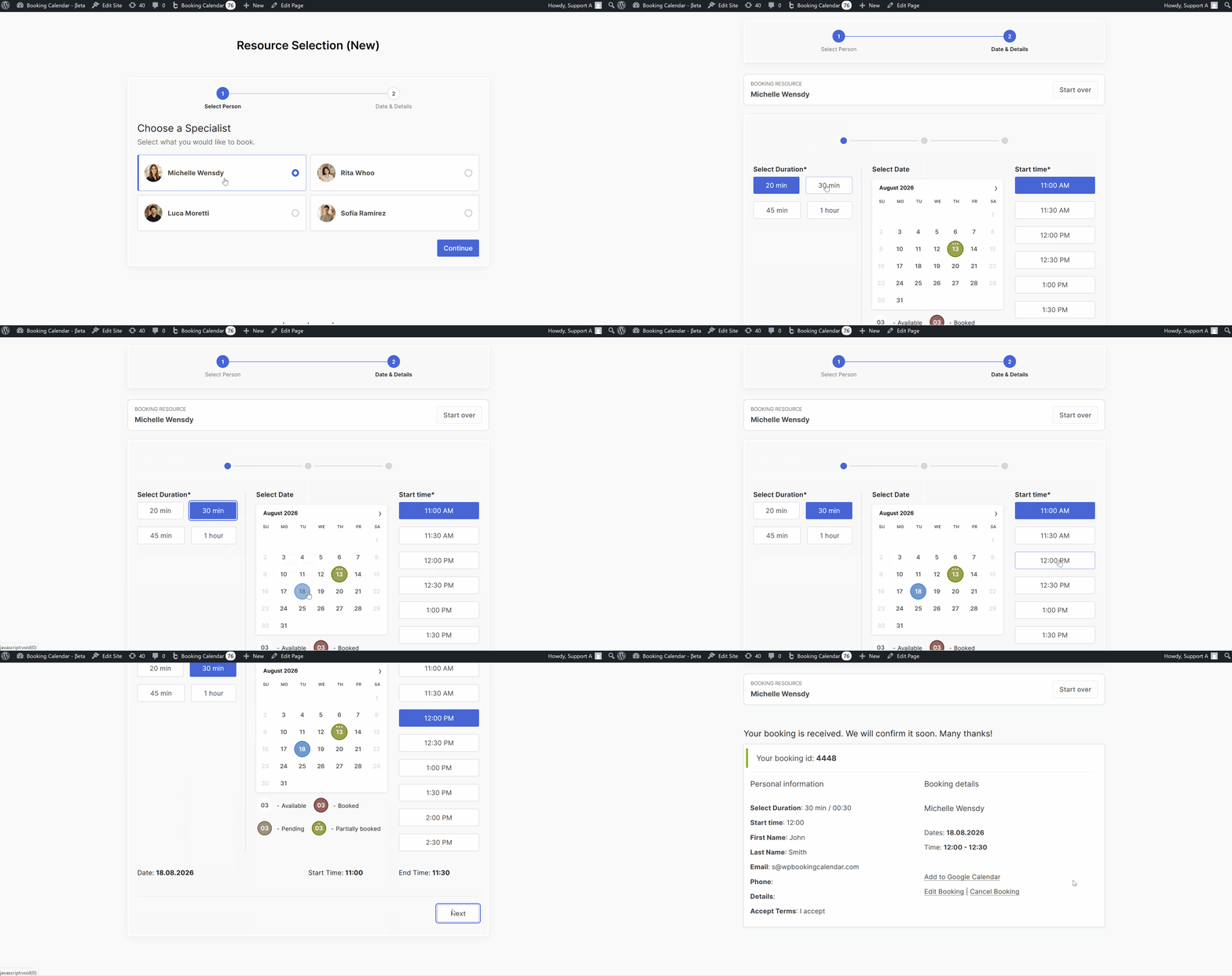
This shortcode is a modern alternative or addition to the older bookingselect shortcode. It initially loads only the Resource selector and then loads the selected Booking Form through AJAX. It does not render a hidden Booking Form for every Resource during the initial page request.
The Free version can use its one default Booking Resource. Selecting among multiple Booking Resources and other advanced Resource features require an edition that supports them.
Basic shortcode
[booking_resource_selector]Resource cards can show the Booking Resource photo, title, description, hierarchy, availability context, and starting price. If no photo is configured, the card displays initials generated from the Resource title.
Common examples
Show selected Booking Resources in the specified order:
[booking_resource_selector resources="3,4,5"]Show the Resource list with Resource 4 selected by default:
[booking_resource_selector resources="3,4,5" resource_id="4"]Immediately open the Booking Form for Resource 4 while retaining the Start over option:
[booking_resource_selector resources="3,4,5" resource_id="4" auto_select_resource="on"]Show a searchable list without photos or descriptions and set each row to 50% width:
[booking_resource_selector catalog_layout="list" show_resource_filters="on" show_resource_image="off" show_resource_description="off" catalog_item_width="50%"]Show exactly three cards per row on desktop:
[booking_resource_selector catalog_layout="grid" catalog_grid_items_per_row="3"]Parameters
All parameters are optional.
Booking Resource parameters
resource_id
Default: 0.
Enter one positive Booking Resource ID. The Resource is selected by default on the first screen, but the visitor can still choose another permitted Resource.
The parameter does not add the Resource to the allowed resources list. If a restricted Resource list is used, the selected Resource must be present in that list.
[booking_resource_selector resources="3,4,5" resource_id="4"]resources
Default: all available Booking Resources.
Enter a comma-, semicolon-, or whitespace-separated list of positive Booking Resource IDs. Only these Resources are shown, and they retain the order specified in the shortcode.
[booking_resource_selector resources="17,16,15"]aggregate
Default: empty.
Enter Booking Resource IDs whose bookings and applicable unavailable dates should also block availability in the selected primary Resource. Separate IDs with commas, semicolons, or spaces.
This follows the native Booking Calendar aggregation behavior and is available in editions that support multiple Booking Resources. Aggregation has additional limitations for Resources configured with capacity.
[booking_resource_selector resources="3,4,5" aggregate="6,7"]To aggregate bookings without aggregating unavailable dates, use the supported native Booking Calendar option:
[booking_resource_selector resources="3,4,5" aggregate="6,7" options="{aggregate type=bookings_only}"]auto_select_resource
Default: off.
Use on, true, yes, or 1 to immediately open the Booking Form for the Resource specified by resource_id.
If no Resource is preselected but the permitted catalog contains exactly one Resource, enabling this option automatically opens that Resource’s Booking Form. When other permitted Resources exist, visitors can use Start over to return to Resource selection.
[booking_resource_selector resources="3,4,5" resource_id="4" auto_select_resource="on"]Resource catalog parameters (New in 11.6)
catalog_layout
Default: grid.
Use grid for responsive cards or list for compact Resource rows.
[booking_resource_selector catalog_layout="list"]show_resource_filters
Default: off.
Use on, true, yes, or 1 to show a customer-facing search field. Search checks the permitted Resource titles, descriptions, and parent titles. It does not expose an internal Resource-type filter and cannot add Resources excluded by the shortcode.
[booking_resource_selector show_resource_filters="on"]show_resource_image
Default: on.
Use off, false, no, or 0 to hide Resource photos and generated initials.
show_resource_title
Default: on.
Use off, false, no, or 0 to hide the visible Resource title. The title remains available to screen readers so every selection stays accessible.
show_resource_description
Default: on.
Use off, false, no, or 0 to hide Resource descriptions.
[booking_resource_selector show_resource_image="off" show_resource_title="on" show_resource_description="off"]catalog_item_width
Default: automatic.
Enter an explicit width for each card or list row. Supported units are px, %, em, rem, and vw. A number without a unit is treated as pixels.
[booking_resource_selector catalog_item_width="100px"][booking_resource_selector catalog_item_width="50%"]If an items-per-row parameter is configured for the active layout, the exact column count takes precedence over catalog_item_width.
catalog_item_max_width
Default: automatic.
Enter an optional maximum width in pixels for each card or list row. Accepted values are from 280 through 1200. Leave the parameter empty or omit it to use the available layout width.
[booking_resource_selector catalog_layout="grid" catalog_item_max_width="360"][booking_resource_selector catalog_layout="list" catalog_item_max_width="760"]catalog_grid_items_per_row
Default: automatic.
Enter a number from 1 through 12 to show an exact number of equal-width items per row in the grid layout. The responsive layout reduces dense rows to two columns on narrower screens and one column on mobile.
[booking_resource_selector catalog_layout="grid" catalog_grid_items_per_row="3"]catalog_list_items_per_row
Default: one item per row.
Enter a number from 1 through 12 to show several equal-width list items in one row. Leave the parameter empty or omit it to preserve the standard one-item-per-row list.
[booking_resource_selector catalog_layout="list" catalog_list_items_per_row="2"]show_resource_hierarchy
Default: on.
Use off, false, no, or 0 to hide Independent, parent-capacity, and child-unit context.
show_availability
Default: on.
Use off, false, no, or 0 to hide the availability summary. Exact availability is always validated by the selected Resource calendar.
show_starting_price
Default: on.
Use off, false, no, or 0 to hide the starting-price summary. Pricing is shown only when it is available in the active Booking Calendar edition.
Calendar and Booking Form parameters
nummonths
Default: 1.
Defines the number of visible calendar months. Accepted values are from 1 through 24.
[booking_resource_selector nummonths="3"]startmonth
Default: the current month.
Defines the month initially displayed in the calendar. Supported formats are YYYY-MM, YYYY/MM, and YYYYMM.
[booking_resource_selector startmonth="2026-09"]calendar_dates_start
Default: empty.
Defines the inclusive first date displayed and selectable in the calendar. Use the YYYY-MM-DD format.
This parameter changes the calendar boundary but does not, by itself, permit past bookings. Use allow_past when past bookings are intentionally required.
calendar_dates_end
Default: empty.
Defines the inclusive last date displayed and selectable in the calendar. Use the YYYY-MM-DD format.
[booking_resource_selector calendar_dates_start="2026-01-01" calendar_dates_end="2026-12-31"]selected_dates
Default: empty.
Passes a native Booking Calendar preselected-date expression to the selected Booking Form. The standard single-date format is DD.MM.YYYY.
[booking_resource_selector resource_id="4" auto_select_resource="on" selected_dates="01.09.2026"]options
Default: empty.
Passes a supported native Booking Calendar options expression to the selected Resource’s calendar and Booking Form.
[booking_resource_selector nummonths="2" options="{calendar months_num_in_row=2 width=100% cell_height=40px}"]form_type
Default: the Booking Form assigned to the selected Resource.
Enter the slug of a published Booking Form to override the Resource Booking Form. Without an override, the Resource form is used and then the Standard form is used as a fallback.
[booking_resource_selector resources="3,4,5" form_type="standard"]allow_past
Default: off.
Use on, true, yes, or 1 to allow any visitor to select and submit dates in the past within the displayed calendar range.
This option does not make already booked or otherwise unavailable dates and times available. Normal Resource availability, capacity, and conflict checks still apply.
[booking_resource_selector resources="3,4,5" calendar_dates_start="2026-01-01" startmonth="2026-01" allow_past="on"]Progress-line parameters
show_progress
Default: on.
Use off, false, no, or 0 to hide the complete two-step progress line.
[booking_resource_selector show_progress="off"]progress_item_1_title
Default: Resource.
Defines the title below the first progress number. An explicitly empty value hides this title.
progress_item_1_number
Default: 1.
Defines the first progress number. An explicitly empty value hides this number. The value may contain text such as 01/02.
progress_item_2_title
Default: Date & Details.
Defines the title below the second progress number. An explicitly empty value hides this title.
progress_item_2_number
Default: 2.
Defines the second progress number. An explicitly empty value hides this number.
Example with customized progress content:
[booking_resource_selector progress_item_1_title="Property" progress_item_1_number="01/02" progress_item_2_title="Dates & Details" progress_item_2_number="02/02"]The defaults are used only when a parameter is omitted. Supplying an empty value intentionally hides the corresponding title or number.
Resource-selection screen text
screen_1_title
Default: Choose a Booking Resource.
Defines the heading on the Booking Resource selection screen. An explicitly empty value hides the heading.
screen_1_description
Default: Select what you would like to book.
Defines the description on the Booking Resource selection screen. An explicitly empty value hides the description.
Example for a property-rental website:
[booking_resource_selector screen_1_title="Choose a Property" screen_1_description="Select the property you would like to reserve."]Compatibility parameter names
The following parameter names remain supported for compatibility with earlier shortcodes and the legacy Resource-selection terminology:
- type is an alias for resources. If both parameters are present, resources is used.
- selected_resource_id is a compatibility fallback for selecting one Resource by default. If both parameters are present, resource_id is used.
- selected_type is an alias for selected_resource_id.
- label is an alias for screen_1_title. If both parameters are present, screen_1_title is used.
Example using parameters familiar from the older bookingselect shortcode:
[booking_resource_selector label="Please select the resource:" form_type="standard" nummonths="1" type="17,16,15"]For newly created shortcodes, use resources, resource_id, and screen_1_title.
Complete configuration example
[booking_resource_selector resources="17,16,15" resource_id="16" catalog_layout="grid" show_resource_filters="on" show_resource_image="on" show_resource_title="on" show_resource_description="on" catalog_grid_items_per_row="3" catalog_item_max_width="420" show_resource_hierarchy="on" show_availability="on" show_starting_price="on" nummonths="2" startmonth="2026-09" form_type="standard" progress_item_1_title="Property" progress_item_1_number="01/02" progress_item_2_title="Dates & Details" progress_item_2_number="02/02" screen_1_title="Choose a Property" screen_1_description="Select the property you would like to reserve."]Important quotation-mark notice
Use only normal straight quotation marks in Booking Calendar shortcodes. Do not use typographic or “smart” quotation marks copied from formatted documents.
[booking_resource_selector resources="3,4,5" resource_id="4"]