


The Booking Resources page is the central place to manage properties, rooms, people, equipment, appointments, and other items customers can book. Depending on your Booking Calendar mode, the same items may be called Resources, Properties, or Providers.
Edition and access note: Visible fields and actions depend on the Booking Calendar edition, WordPress and Booking Calendar roles, MultiUser ownership, and the current multisite site.
Open the page
In WordPress Administration, open WP Booking Calendar > Resources. Classic mode commonly uses Resources, Rental mode uses Properties, and Appointment mode uses Providers. The underlying item remains a Booking Resource with its own calendar and availability.
Understand the page layout
| Area | Purpose |
|---|---|
| Add Booking Resource | Opens the create Inspector. In Free, it explains how paid editions add more Resources. |
| Search Booking Resources | Finds Resources. Its X button clears the query and restores focus. |
| Resource type | Filters independent, parent, or child Resources when available. |
| Edit rows | Starts inline editing for the current page. |
| View | Applies a preset of visible columns. |
| Layout | Switches between Default, Compact, and Cards. |
| Customize columns | Controls optional column visibility and order. |
| Select all visible Booking Resources | Selects the currently rendered Resources. |
| Expand/collapse all | Changes all parent groups to the same hierarchy state. |
| Headings / Sort by | Selects a sort field and direction. |
| Pagination footer | Changes page size and moves between result pages. |
During an AJAX refresh, the current content stays visible under a loading overlay. This avoids layout jumps while a new result is prepared.
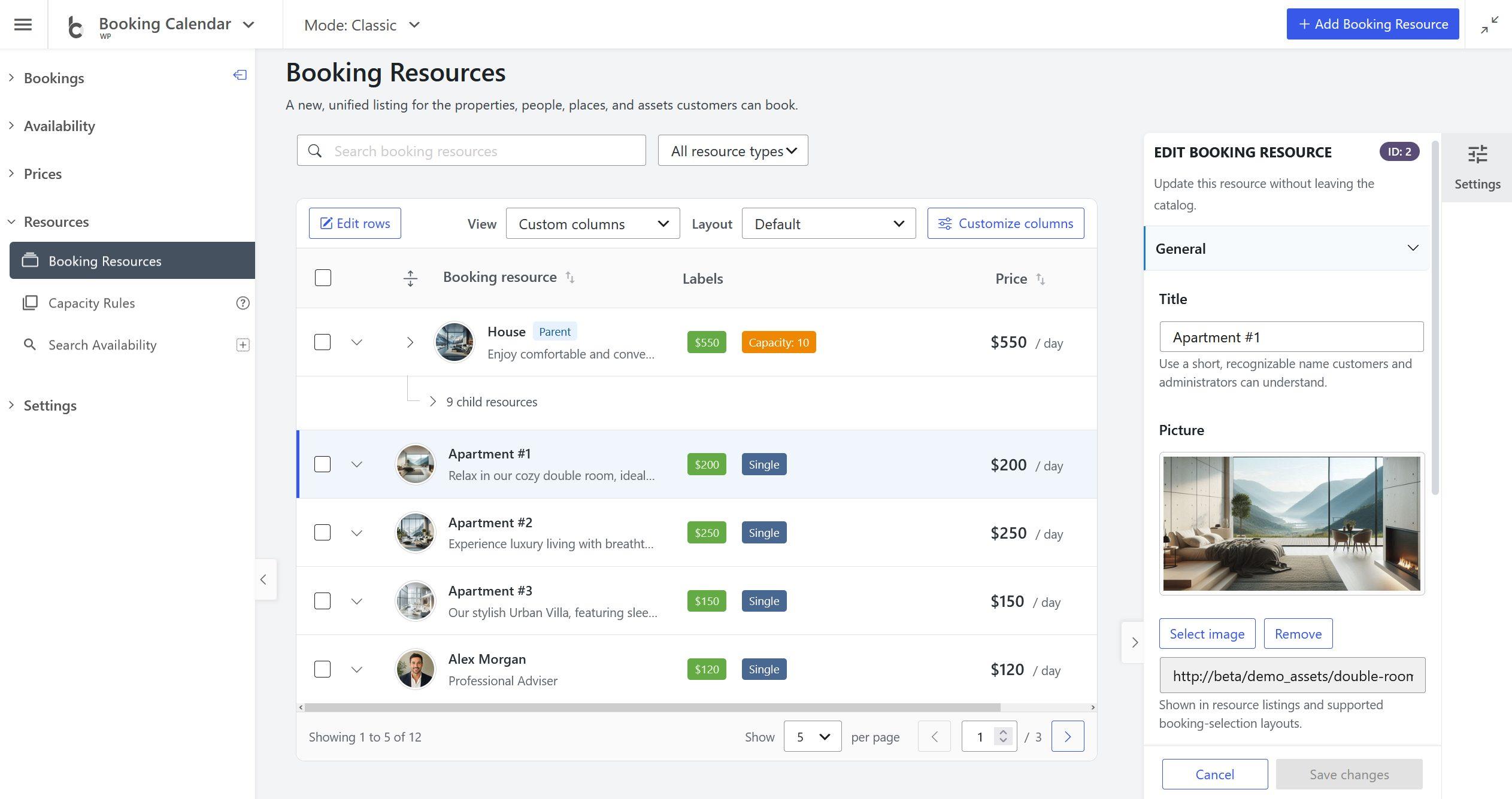
Search, filter, sort, and paginate
Search and Resource type
Type in Search Booking Resources. Select X to clear it. A new search returns to page one, and a slower old request cannot overwrite a newer result. The type filter can show all, independent, parent, or child Resources where supported.
Sorting
Select a sortable heading in Default or Compact layout, or a Sort by field in Cards. Select it again to reverse direction. Resource name and ID are common sort fields; capacity, priority, and price appear when supported.
Pagination and saved state
Choose 5, 10, 50, or 100 items under Show. Parent groups are kept together rather than split incorrectly. Search, filters, sorting, page size, views, layouts, hierarchy state, and columns are saved for the current user and site. Invalid preference values are rejected.
Choose a View, Layout, and columns
A View chooses visible information. A Layout changes how the same authorized data is presented.
| View | Typical contents |
|---|---|
| Overview | Identity, labels, capacity, price, actions, and ID. |
| Publishing | Publish shortcode, Default Form, actions, and ID. |
| Booking setup | Forms, labels, pricing, and available setup fields. |
| Structure | Parent/child relationship, capacity, and priority. |
| Ownership | Authorized MultiUser owner information. |
| All fields | Every column available to the account. |
| Custom columns | Your manual visibility and ordering choices. |
| Layout | Best use |
|---|---|
| Default | Full table-style management. |
| Compact | The same semantic table with denser spacing. |
| Cards | Image-led browsing with the same sorting, selection, hierarchy, and actions. |
Customize columns
Select Customize columns to show or hide optional fields and drag reorderable fields. Reset column order restores order; Reset to default restores order and visibility. Resource identity and Actions stay visible, although Actions can be moved. Press Escape to close the panel and restore focus.
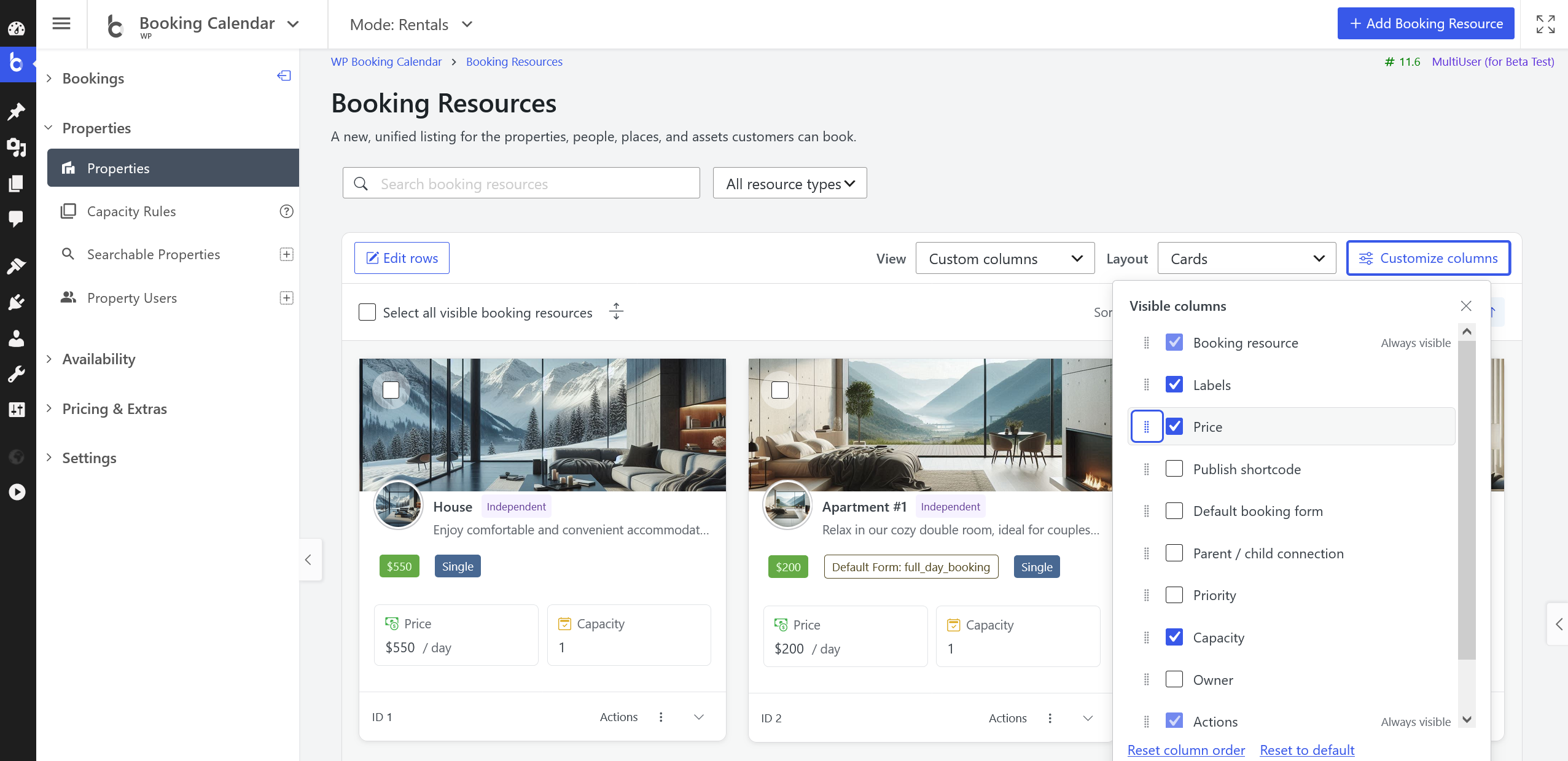
Understand a Resource row or card
| Field | Meaning |
|---|---|
| Booking resource | Picture, title, description, and relationship role. Overflow text provides a full-value tooltip. |
| Labels | Available price, Single, Child, parent/capacity, Default Form, and owner badges. |
| Publish shortcode | Effective shortcode, with an overflow tooltip. |
| Default booking form | Assigned custom Booking Form. |
| Parent / child connection | Independent, parent, or child relationship and child count. |
| Priority | Ordering value; lower values appear first in priority-based contexts. |
| Capacity | Parent calendar plus child calendars, or normally 1 for independent/child Resources. |
| Price | Base cost formatted using Payment Setup options. |
| Owner | Authorized MultiUser owner. |
| Actions | Row action menu. |
| ID | Numeric Resource ID used by shortcodes and administration links. |
The selected or edited item is highlighted. A saved item receives a temporary success highlight after refresh.
Work with parent and child Resources
A parent is both a real bookable calendar and a container. If House owns two children, total capacity is three: House itself plus the two unit calendars.
House
├── House - Unit 2
└── House - Unit 3
Use the parent chevron, collapsed child summary, or header expand/collapse-all control. The global state survives filtering and pagination. Cards show an expandable parent stack and child-card tray. Flat results incur no hierarchy controls.
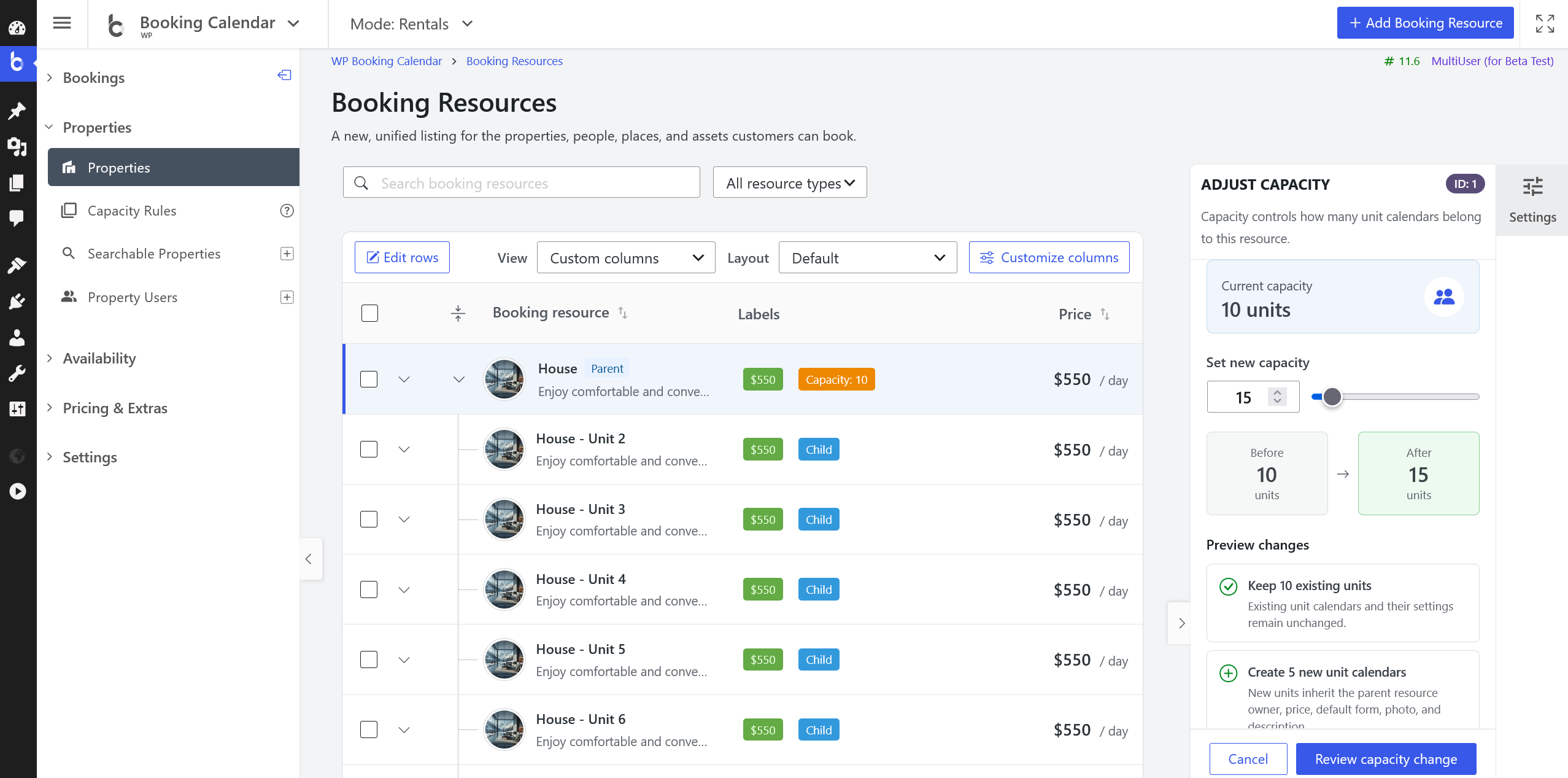
Select Resources
Select individual checkboxes, all visible Resources, or a Shift-click range. Range selection does not select row text. Selection alone never changes data.
A sticky summary shows the count, Clear selection, Edit selected, and Delete selected where available. Selection survives normal refreshes; inaccessible or deleted records are removed rather than retained as stale selections.
Open expanded details and actions
Use a row/card disclosure to load details on demand. Only one details panel is open at a time.
- Resource actions: edit, capacity, bookings, add booking, availability, and delete buttons as authorized.
- Shortcode and publishing: effective shortcode, Copy, Customize, and Embed or publish.
- Published booking pages: preview and pages already containing this booking form.
- Booking setup: Default Form, booking units, ID, and Resource type.
- Pricing: cost, currency, charging period, advanced pricing, and edit shortcuts.
- Structure: relationship, parent, children, count, and priority.
- Availability and search: search visibility, default availability, seasons, date overrides, and booking-window values.
- Ownership: owner, account context, and role only when authorized.
Actions menu
The three-dots menu can contain Edit resource, Publish, Adjust capacity, and Delete resource. Publish opens the Inspector at Shortcode and publishing. Delete selects/highlights the Resource before review. Outside selection or Escape closes the menu and restores focus.
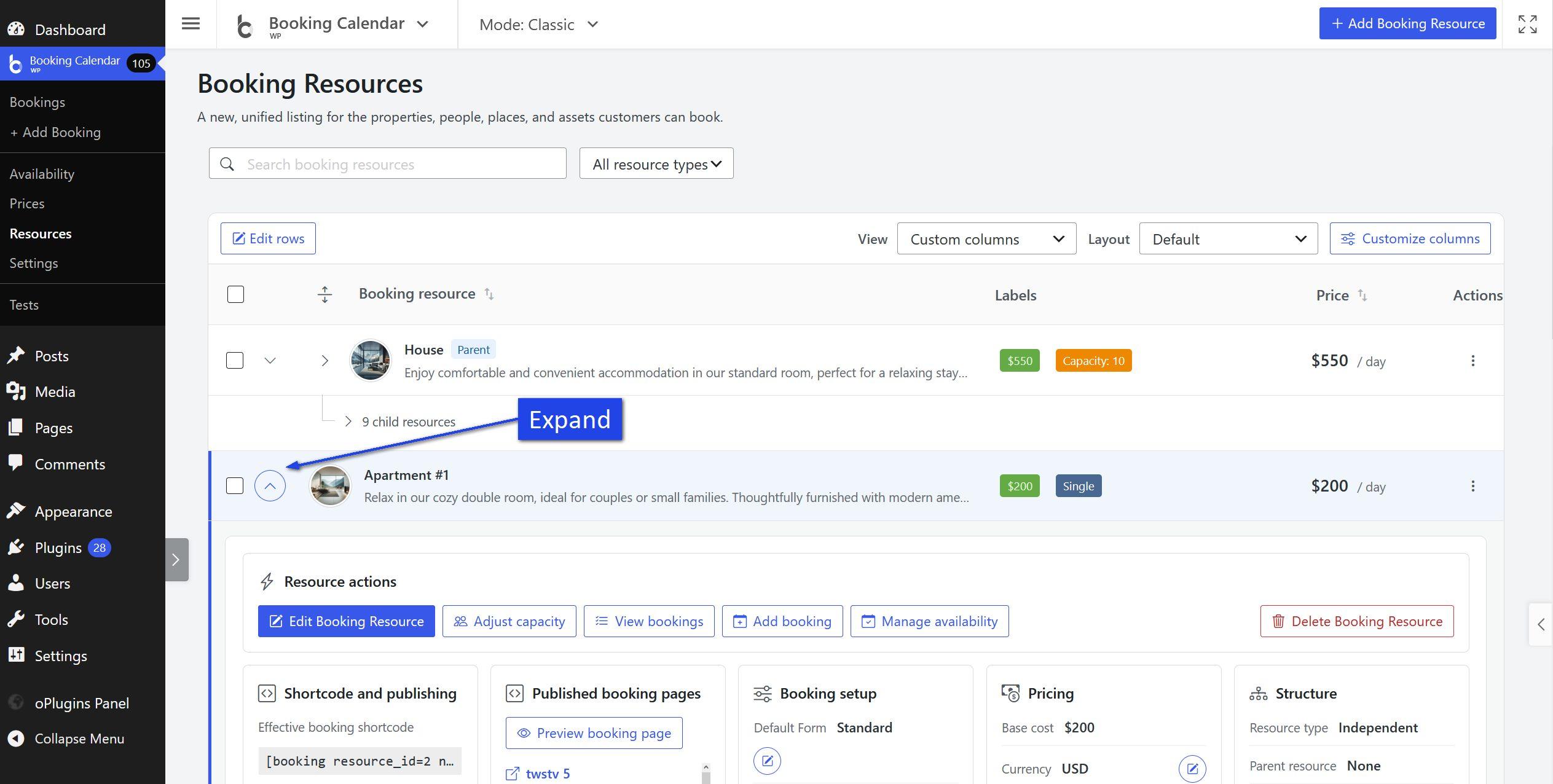
Create Booking Resources
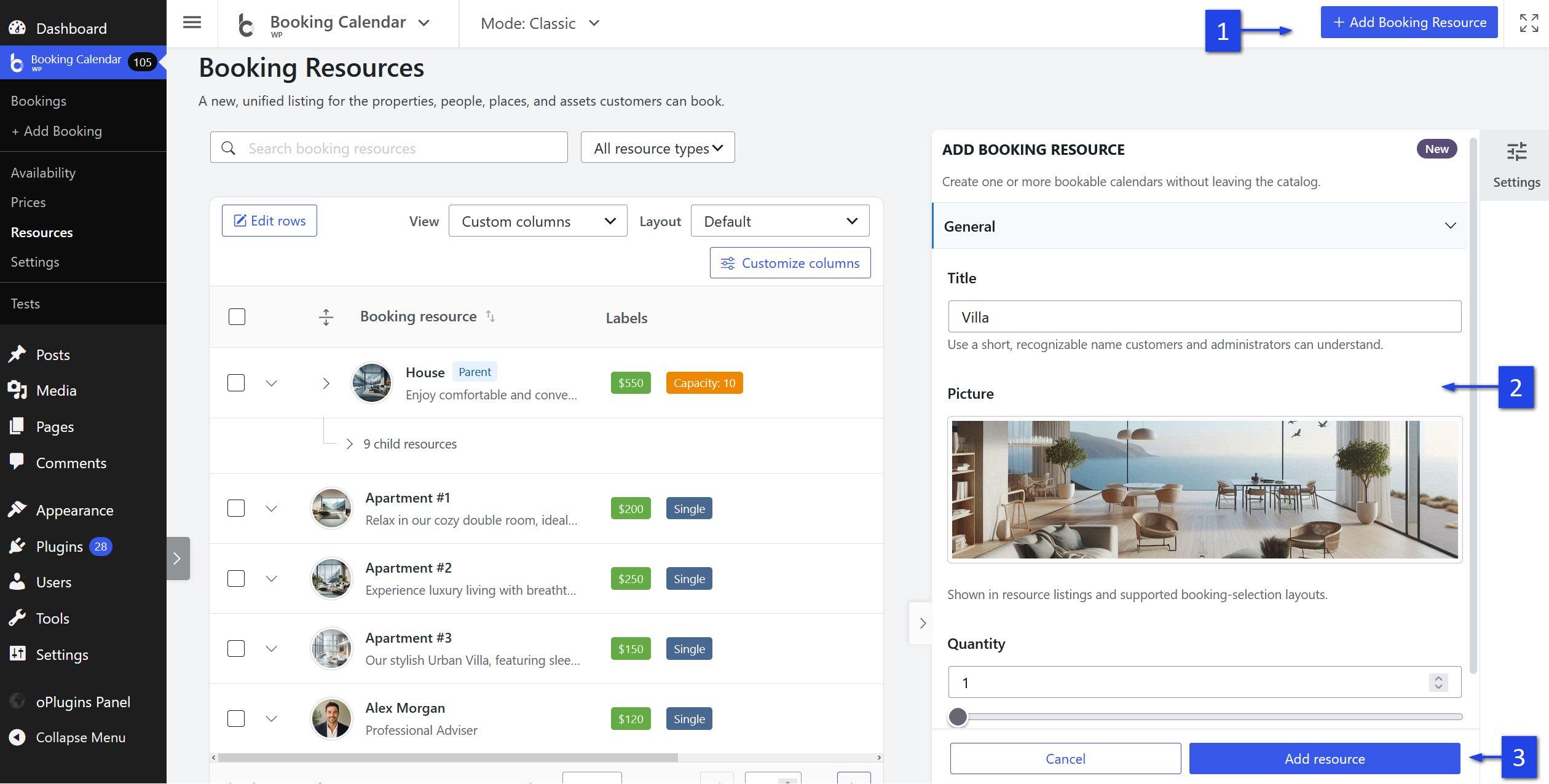
Select Add Booking Resource. The wider create Inspector can create one Resource or a batch.
General
Set Title, Picture, and Description. In a batch, Picture and Description apply to every new Resource.
Resources to create
Where supported, choose Independent resources or Units of an existing parent, select the parent, and choose Quantity.
Booking setup
Configure available Default Form, Base cost, Starting priority, and authorized Resource owner. The server validates limits, ownership, form availability, and hierarchy. Free includes one built-in Resource and uses the add control to explain paid options.
Edit one Resource in the Inspector
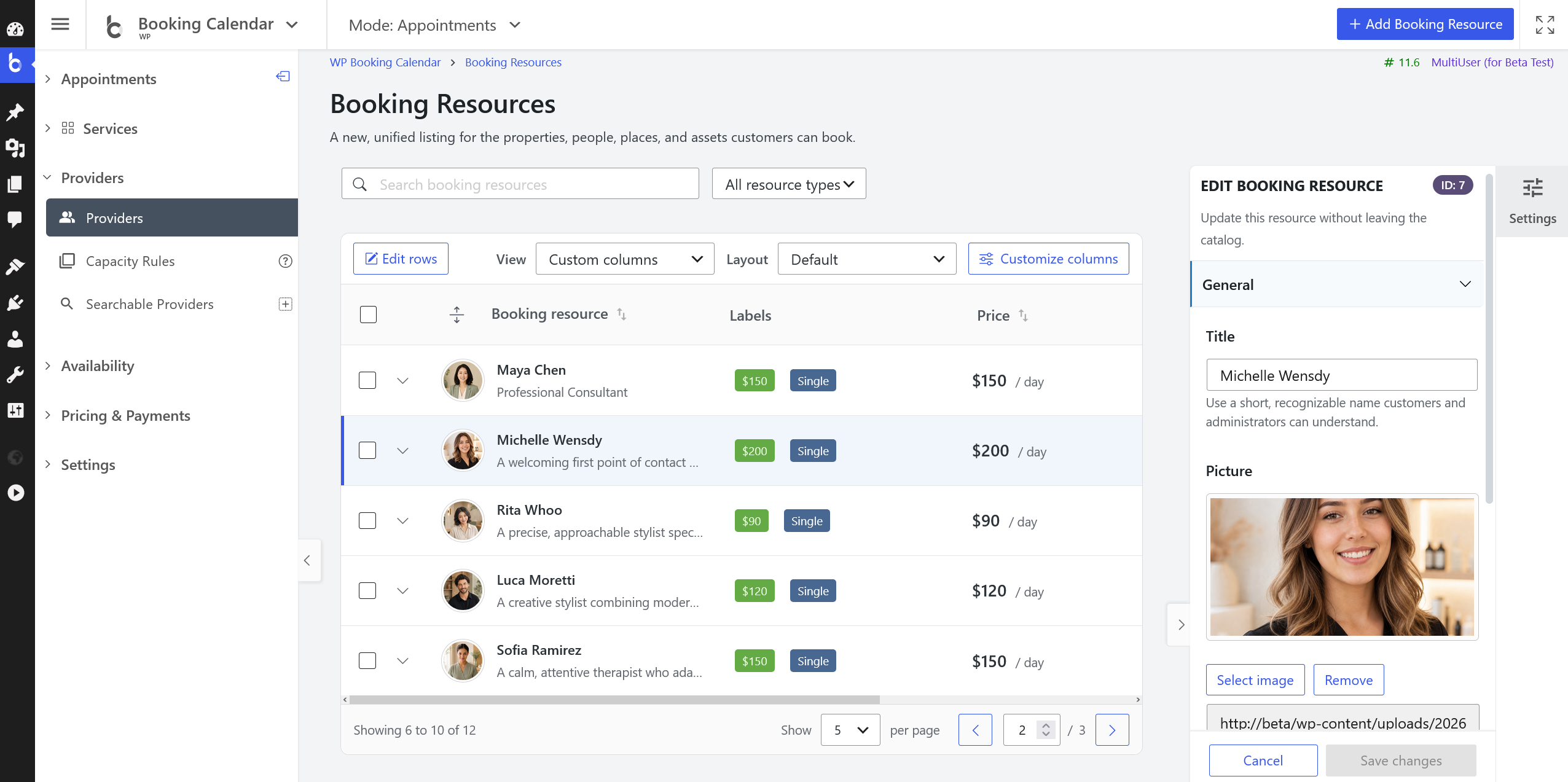
Open Edit resource, select a normal row/card, or use Edit Booking Resource in details. Collapsible sections scroll independently while the footer remains available.
General
Edit Title, Picture, and Description.
Shortcode and publishing
View the read-only shortcode and use Copy shortcode, Customize shortcode, or Embed or publish.
Published booking pages
Preview or open pages already using the Resource.
Booking setup
Choose Default Form where supported, follow Edit form, and review booking units.
Pricing
Edit Base cost with synchronized number and 0–1000 whole-step slider. Review currency, charging period, and advanced pricing. The saved list value follows Payment Setup formatting and omits an all-zero decimal part.
Structure
Choose an eligible parent and edit non-negative whole-number Priority. A parent with children cannot become another parent's child until its own children are moved or detached.
Availability and search
- Search Availability results: Searchable or Hidden.
- Default day availability: Available or Unavailable.
- Active season rules and review link.
- Manual date availability and Manage dates.
- Earliest bookable day and Booking horizon global rules.
Ownership
Authorized MultiUser administrators can manage Resource owner and view permitted account/role information.
Save and cancel
Save changes validates, refreshes, and highlights the Resource. Cancel, close, or outside selection closes a clean Inspector. Dirty-state confirmation protects unsaved changes. Controls are disabled and a Booking Calendar spinner is shown while saving.
Publish a booking form
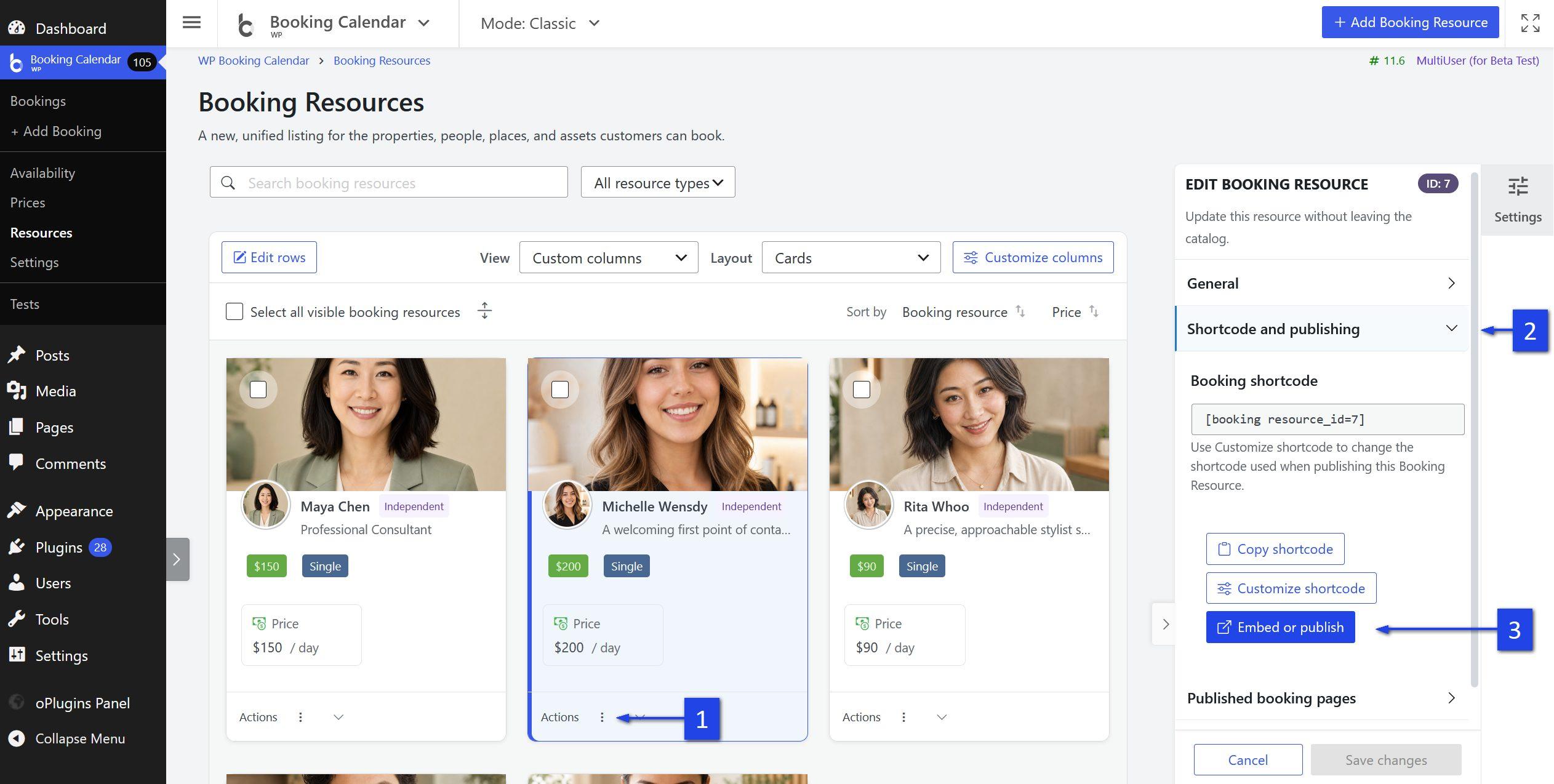
- Open Shortcode and publishing.
- Optionally select Customize shortcode.
- Select Embed or publish.
- Choose Embed in Existing Page or Create New Page.
- Select an authorized page or enter a page title.
- Confirm, then open or edit the result.
The page list is loaded only when needed for an authorized user. Public demo sites block page creation and updates.
Edit rows inline
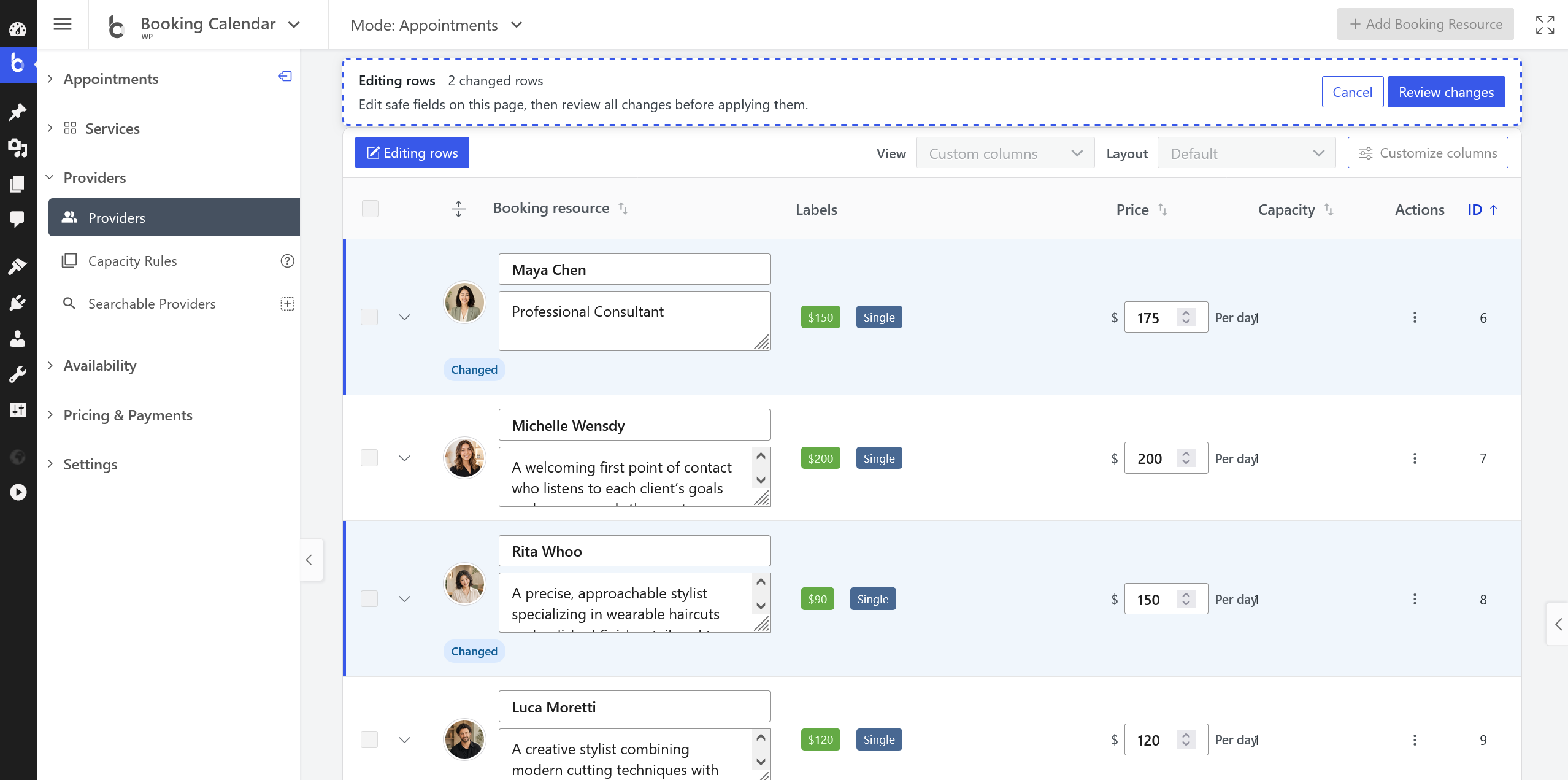
- Select Edit rows.
- Edit available Title, Description, Base cost, Default Form, or Priority fields.
- Review Changed badges and the sticky changed-row count.
- Select Review changes.
- Inspect every old/new value.
- Select Apply changes, or return to revise a draft.
Each row has an independent draft. Review never saves. Apply revalidates current values, authorization, and the signed review. Cancel leaves saved data unchanged.
Bulk edit selected Resources
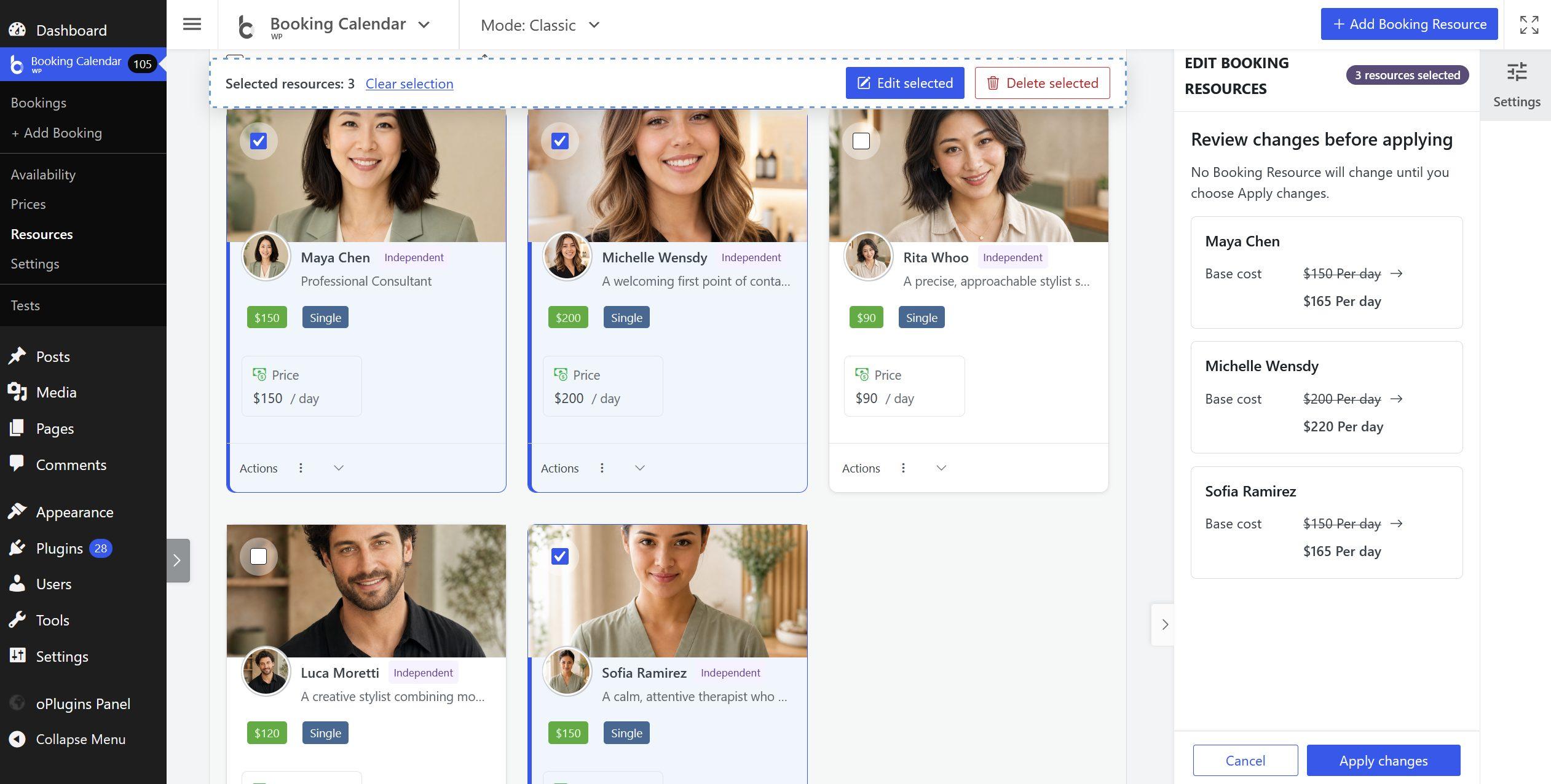
Select Resources, choose Edit selected, explicitly enable fields, choose an operation, review every before/after result, then apply.
| Section | Available operations |
|---|---|
| Pricing | Set, increase/decrease amount, or increase/decrease percent; never below zero. |
| Booking setup | Replace Default Form with one valid for all selected owners. |
| Structure and order | Set/increase/decrease priority and supported progressive or sequence operations. |
| Ownership | Assign an eligible owner for a safe independent selection. |
| Availability and search | Replace search visibility or default availability where supported. |
Only the safe field intersection is shown. After apply, the Inspector closes, selection remains, and changed rows are highlighted.
Delete Resources
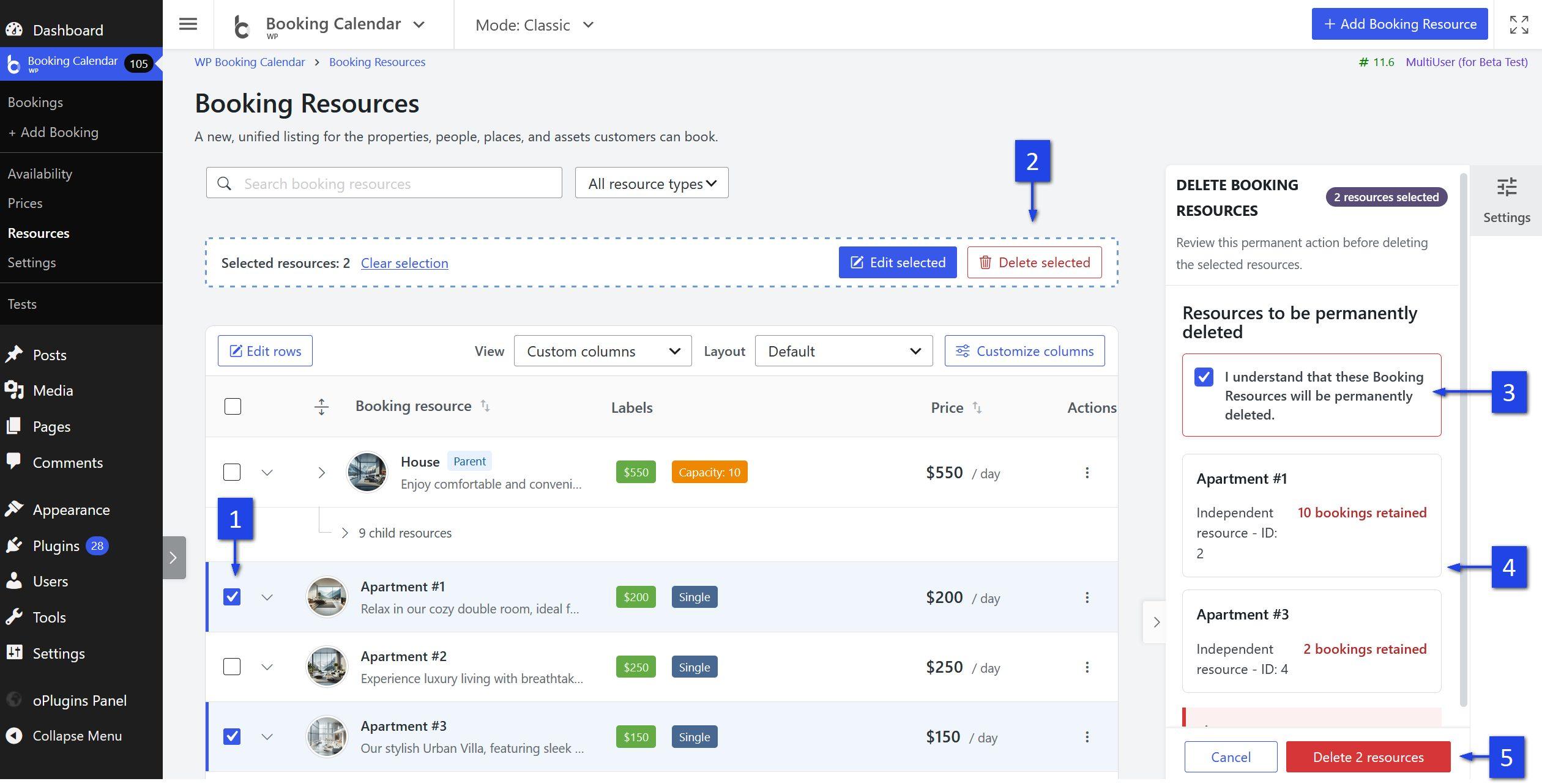
- Start from a row action, details, or Delete selected.
- Review exact Resources, booking counts, and structure warnings.
- Select the permanent-action acknowledgement.
- Select the enabled destructive Delete button.
Deletion cannot be undone. Existing bookings are retained, but their deleted Resource is unavailable for new bookings. Hierarchy validation prevents orphaned children, and stale reviews are rejected.
Adjust capacity
Increase
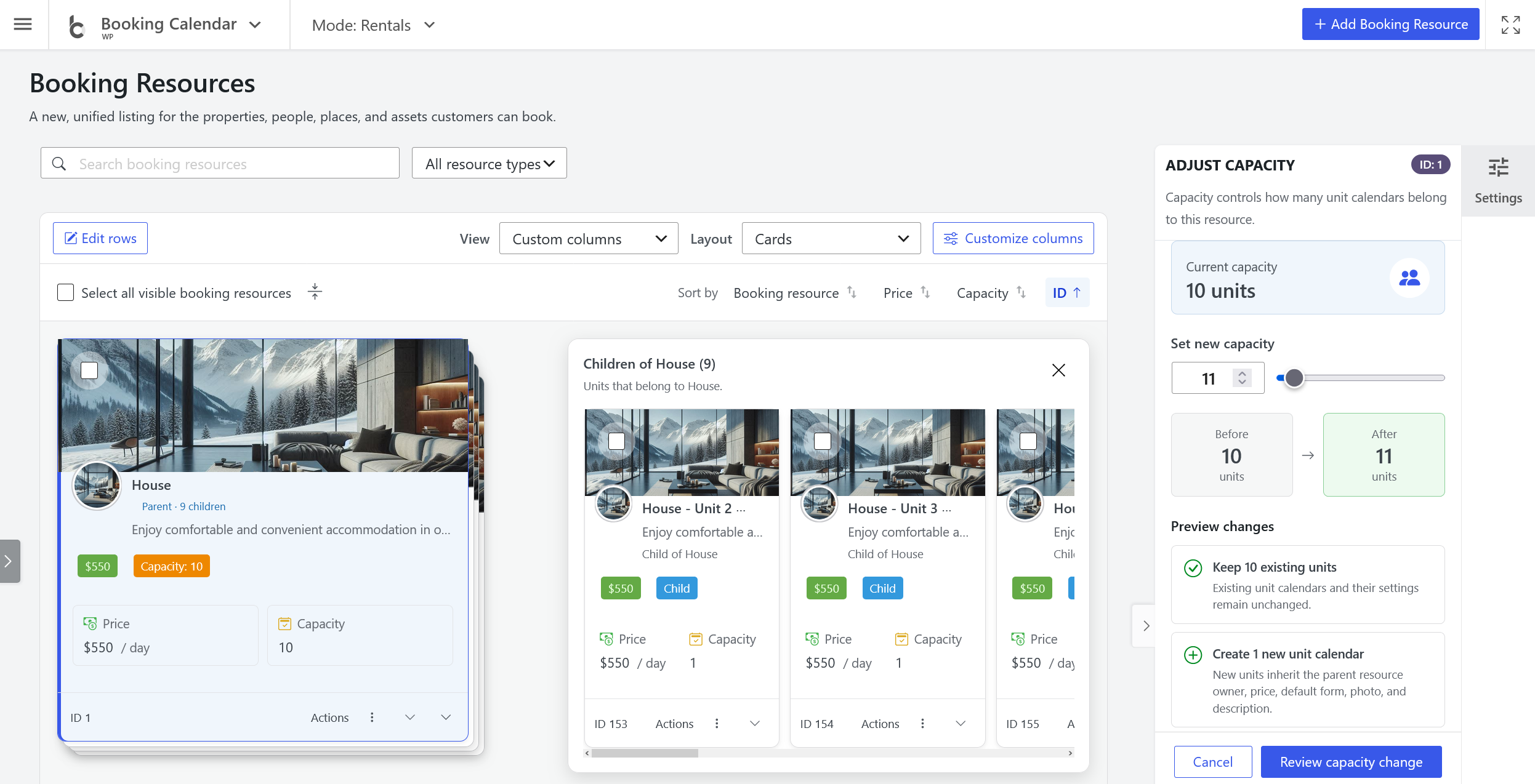
Set capacity, review before/after values and proposed child calendars, then review and apply. New children inherit the parent owner, price, Default Form, picture, and description as shown.
Decrease and detach
Select exact children and make them independent. They keep titles, settings, availability, price, and bookings but stop contributing to the parent capacity.
Decrease and delete
Select exact children, choose permanent deletion, accept the separate acknowledgement, review, and apply. Existing bookings are retained without an active deleted Resource.
Capacity reviews are signed and stale state is rejected. Transaction or compensation safeguards are used when required.
Free, paid, and MultiUser behavior
Free
Free includes one editable Resource, its available columns including shortcode, and publishing. Add Booking Resource (Pro) explains paid multi-Resource features.
Paid editions
Additional Resources, price, custom forms, search visibility, hierarchy/capacity, priority, deletion, and bulk operations appear progressively by edition.
MultiUser
Regular users manage only their scope. Authorized super administrators receive owner fields and actions. Owner-scoped choices are revalidated, and preferences are isolated by user and site.
Keyboard and accessibility behavior
- Use Tab/Shift+Tab to move and Enter/Space to activate controls.
- Use supported menu arrow keys and Escape to close transient interfaces.
- Focus returns to initiating controls when panels close.
- Selection, loading, empty, error, and save states have accessible text/status.
- Layouts support responsive screens and right-to-left locales.
Troubleshooting
No items found
Clear search/type filters and confirm MultiUser access.
Missing column or action
Check View, Customize columns, edition, and roles. Sensitive controls can be omitted entirely.
Save rejected
Read the WordPress notice. Reload after stale state, then correct invalid form, owner, hierarchy, limit, or permission values.
Children hidden
Use the parent chevron, child summary, or global hierarchy button.
Unexpected price format
Check Settings > Payment Setup > Payment Options.
Availability change needed
Use Availability and search links or the relevant Availability page.