


The Services page defines what customers can book in Appointment mode. A Service combines a title and description with duration, preparation and recovery buffers, assigned Providers, a Booking Form, status, and an edition-aware base price.
Providers remain Booking Resources because each Provider needs an independent availability calendar. The Service describes the appointment; its assigned Providers determine who can perform it.
Edition and access note: Available fields depend on the Booking Calendar edition, account roles, MultiUser ownership, and current site. Price and some Booking Form choices can be unavailable in lower editions or mixed-owner contexts.
Open the page
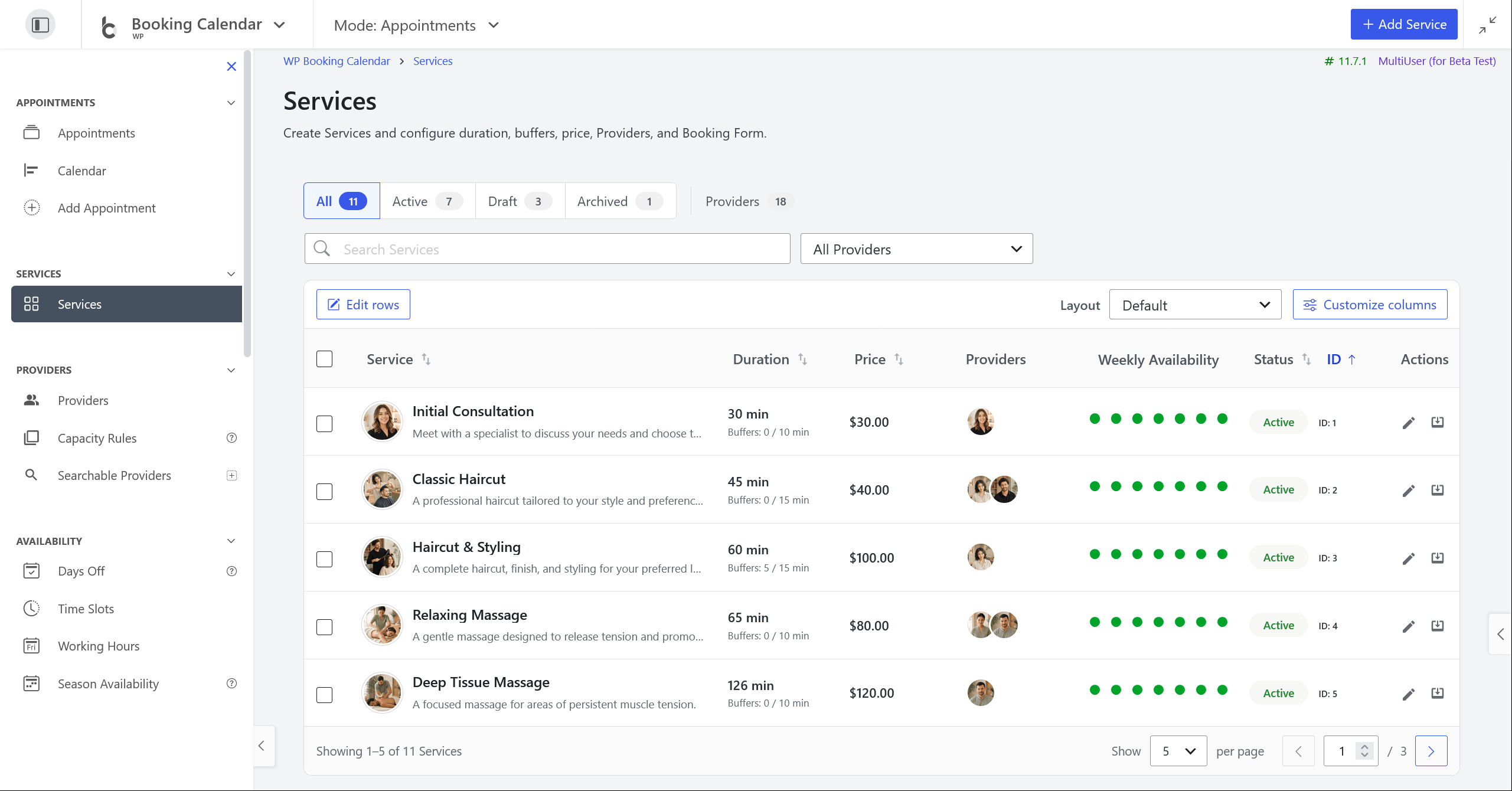
Select Appointment mode, then open WP Booking Calendar > Services. Use this page to configure what customers book, how long it takes, who provides it, and which Booking Form is used.
Understand the page layout
| Area | Purpose |
|---|---|
| Add Service | Opens a blank create Inspector. |
| All / Active / Draft / Archived | Filters by Service status and shows current counts. |
| Providers | Shows the available Provider count. |
| Search Services | Searches Services; X clears and restores focus. |
| All Providers | Filters Services assigned to one Provider. |
| Edit rows | Starts inline editing. |
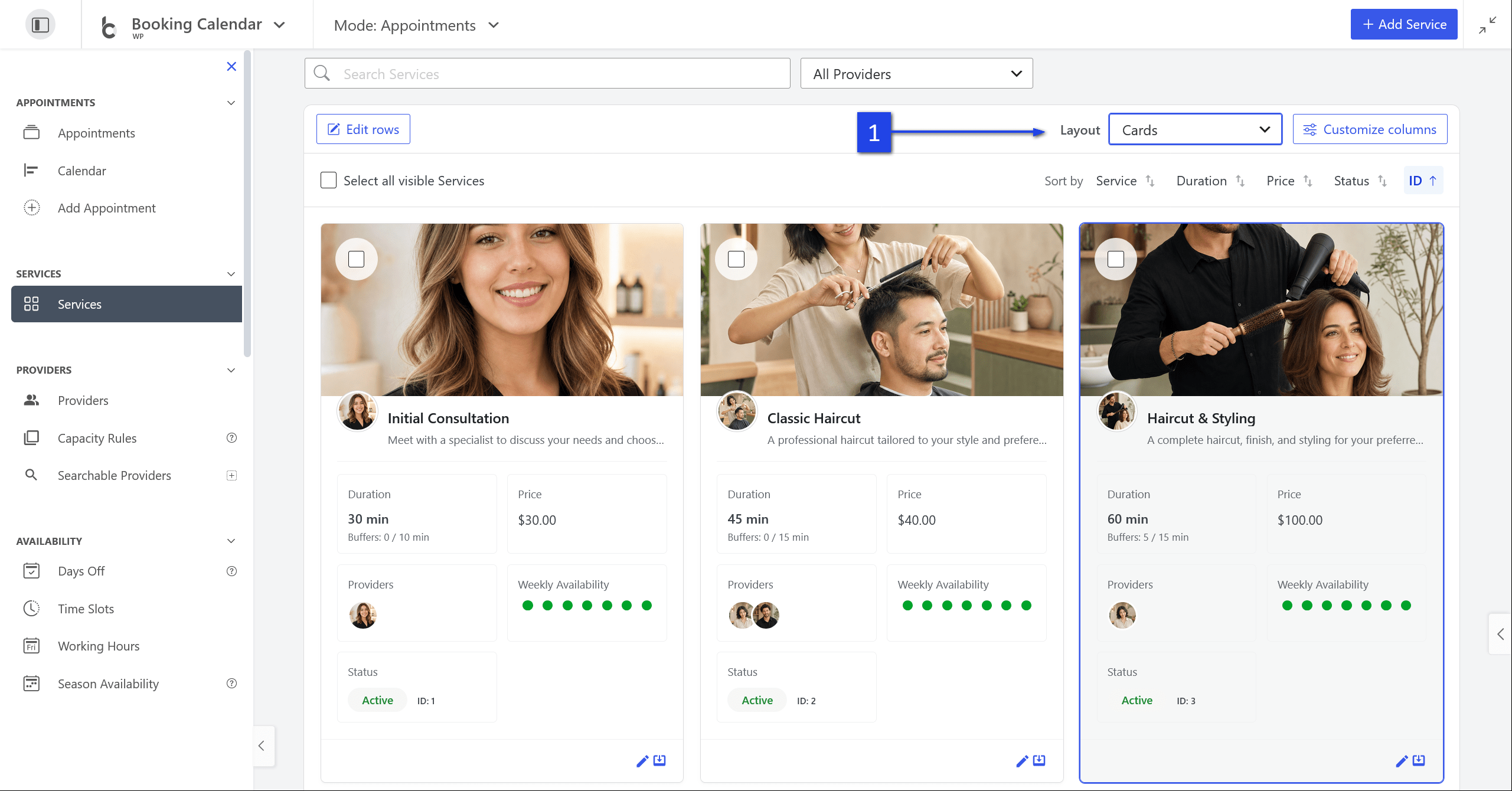
| Layout | Switches Default, Compact, or Cards presentation. |
| Customize columns | Controls optional field visibility and order. |
| Catalog body | Displays rows/cards, selection, summaries, values, and actions. |
| Pagination footer | Changes page size and navigates results. |
Status tabs
- All: every accessible Service.
- Active: Services intended for normal use.
- Draft: inactive Services.
- Archived: retained Services moved out of the active workflow.
- Providers: available Provider count.
Counts and results include only records authorized for the current account.
Search, filter, sort, and paginate
Search
Type in Search Services. The catalog refreshes without a full page reload. Select X to clear immediately and restore focus. Newer requests cannot be overwritten by slower older results. No matches use the shared No items found empty state.
Provider filter
Use All Providers to show all accessible Services or only those assigned to one Provider. MultiUser ownership prevents unauthorized Provider discovery.
Sorting
Select a sortable heading in Default/Compact, or use Sort by in Cards. Select the active field again to reverse direction. Sortable fields include Service, Duration, edition-aware Price, Status, and ID.
Pagination and preferences
Choose 5, 10, 50, or 100 Services under Show, then use the page controls. Search, filters, sorting, page size, layout, and columns survive ordinary AJAX refreshes and are isolated by user and site. The current catalog remains visible beneath a loading overlay while refreshing.
Choose a Layout and customize columns
| Layout | Description |
|---|---|
| Default | Full semantic table with standard management spacing. |
| Compact | The same authorized data in a denser table. |
| Cards | Image-led cards with large pictures, values, selection, and actions. |
Layouts change presentation only; they use the same data, permissions, filters, and save workflows.
Columns
Customize columns can control Duration, edition-aware Price, Providers, Weekly Availability, and Status. Service and Actions are always visible. ID appears with Status. Drag reorderable fields, or use Reset column order and Reset to default. Cards respect the saved field order while keeping identity and its compact footer structural.
Press Escape to close the column panel and restore focus.
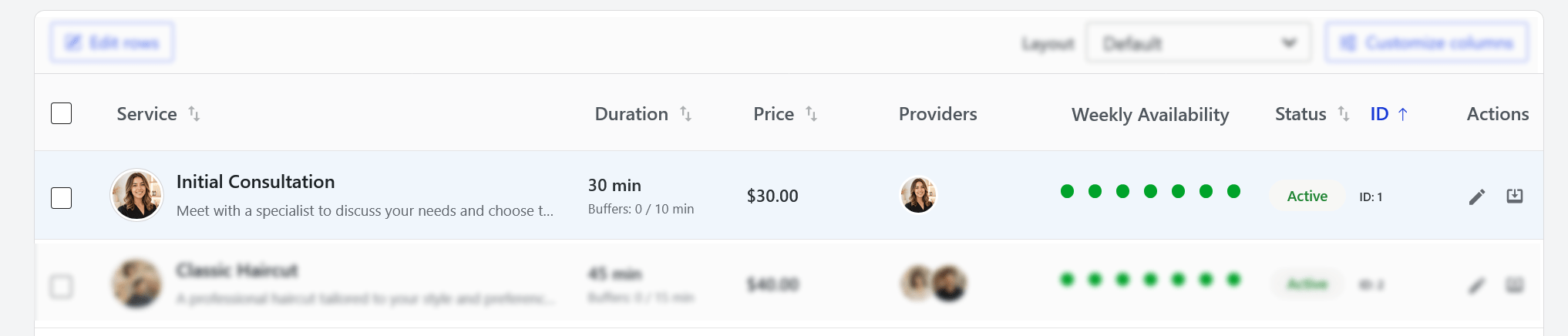
Understand a Service row or card
| Field | Meaning |
|---|---|
| Checkbox | Selects the Service for reviewed bulk editing. |
| Service | Picture, title, and description, with tooltips for overflow text. |
| Duration | Customer appointment length and optional buffer summary. |
| Price | Base Service price when the edition includes the cost engine. |
| Providers | Up to three Provider avatars plus +N for additional assignments. |
| Weekly Availability | Monday-to-Sunday recurring availability summary. |
| Status | Active, Draft/inactive, or Archived, plus Service ID. |
| Actions | Edit and Archive controls as authorized. |
Select a row/card or Edit action to open the Inspector. Active and successfully saved Services receive clear selection/success highlights across layouts.
Weekly Availability
The seven dots represent Monday through Sunday. Green means at least one assigned Provider is normally available; gray means none are. Point to or focus a dot to identify included Providers. Authorized Provider links open Working Time settings.
This lightweight summary checks General Availability and, when enabled, the existence of a Working Time interval. It does not calculate seasons, date exceptions, bookings, time-slot rules, or whether duration and buffers fit a specific date/time. The booking flow remains authoritative.
Select Services
Select individual checkboxes, the header checkbox for all visible Services, or a Shift-click range. Range selection avoids selecting row text. Selection alone does not mutate data.
The sticky summary shows Selected Services count, Clear selection, and Edit selected. Selection survives normal refreshes. After bulk apply, the Inspector closes, retained Services are visibly selected, and updated rows/cards are highlighted.
Create or edit a Service in the Inspector
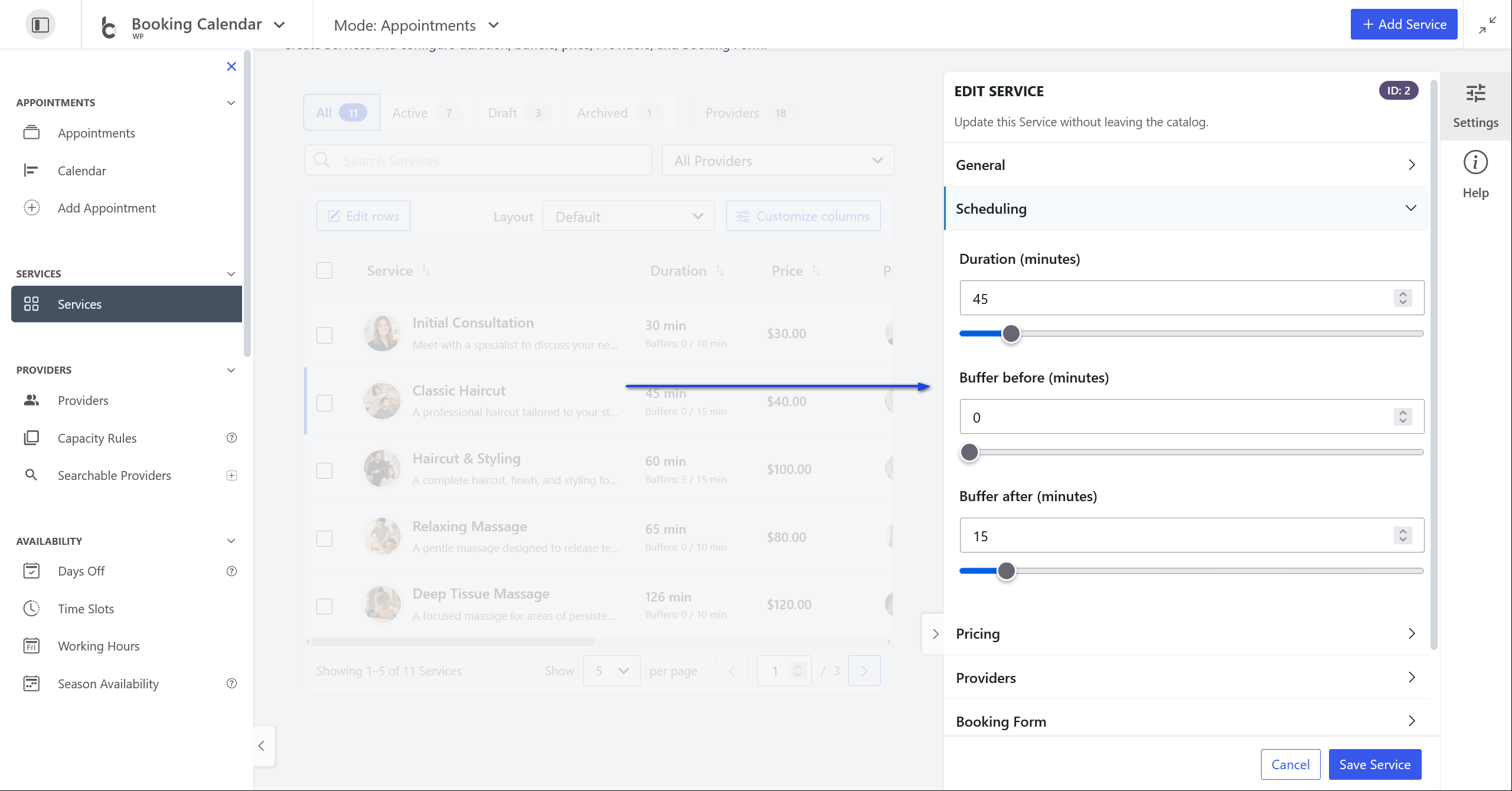
Select Add Service or an existing Service. The right Inspector uses collapsible groups and a sticky footer. For creation, General opens first and focuses the title. Free selects the built-in default Provider when available.
General
- Service title: customer-facing name.
- Description: what the appointment includes.
- Picture: choose from Media Library or remove.
- Status: Active, Inactive (shown as Draft in catalog), or Archived.
Scheduling
- Duration: customer appointment length.
- Buffer before: preparation time.
- Buffer after: cleanup/recovery time.
Each numeric field has an exact input and synchronized range slider. Buffers reserve schedule time but are not added to displayed appointment duration.
Pricing
Business Small and higher can edit Base price with an exact input and 0–1000 whole-step slider. Lower editions do not publish or overwrite a paid-only value.
Providers
Select every Provider who can perform the Service. Each Provider is a Booking Resource with an availability calendar. Working Hours, Days Off, and management links appear only when authorized.
Booking Form
Choose the customer Booking Form. In MultiUser, owner-scoped forms are validated for the Service context.
Advanced
Duplicate Service creates a separate copy. Archive Service changes status while retaining the Service.
Save and cancel
Save Service validates and stores data. Cancel, close, or outside selection closes a clean Inspector. Dirty-state confirmation protects unsaved work. During save, fields are disabled and a Booking Calendar spinner is displayed. Success refreshes and highlights the Service.
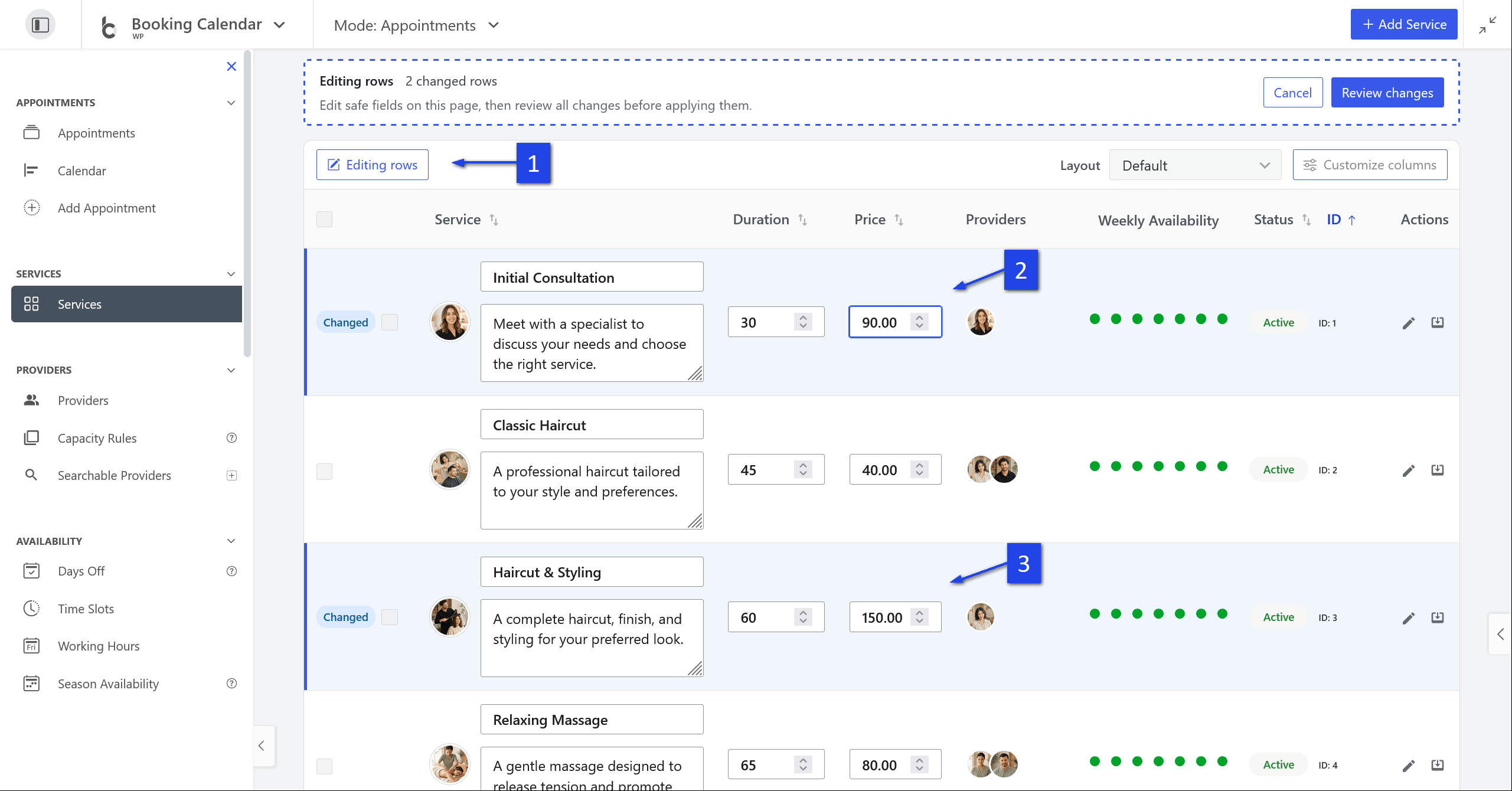
Edit rows inline
- Select Edit rows.
- Edit Service title, Description, Duration, or edition-aware Price.
- Review Changed badges and the sticky changed-row count.
- Select Review changes once.
- Review every old and new value.
- Select Apply changes, or return to revise drafts.
Rows keep independent drafts. Review never mutates. Apply rechecks authorization, validation, current Service versions, and the signed review. Selection is disabled while inline mode is active to prevent mixed workflows.
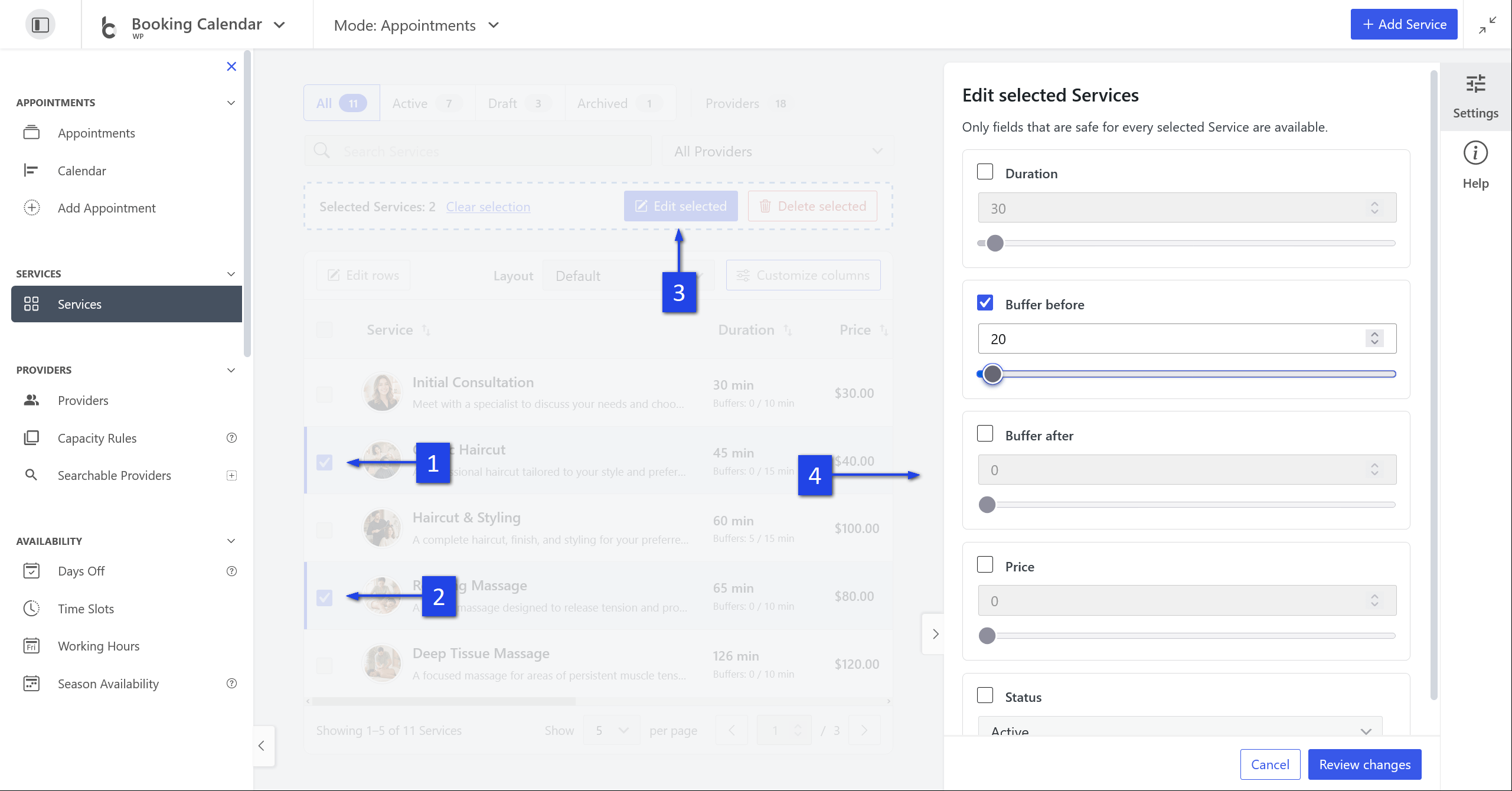
Bulk edit selected Services
- Select Services and choose Edit selected.
- Explicitly enable each field to change.
- Enter replacement values.
- Select Review changes.
- Review every before/after result.
- Select Apply changes.
| Safe field | Behavior |
|---|---|
| Duration | Replace for every selected Service. |
| Buffer before | Replace preparation time. |
| Buffer after | Replace recovery time. |
| Price | Replace where the edition supports it. |
| Booking Form | Replace with a form valid for all owners; omitted for unsafe mixed-owner selections. |
| Status | Set Active, Inactive/Draft, or Archived. |
Provider assignments are intentionally excluded because they affect availability and owner scope. Disabled fields retain current values. Preview is non-mutating; apply revalidates stale state and compensates completed saves where possible if a later batch save fails.
Duplicate or archive a Service
Duplicate
Open Advanced and select Duplicate Service. The copy is separate from the original.
Archive
Use the row action or Archive Service. Find it under Archived. To reuse it, change Status to Active or Inactive and save. Archive retains the record and differs from permanent deletion.
Free, paid, and MultiUser behavior
Free and Personal
Core details, scheduling, Providers, Booking Form, status, layouts, selection, and safe editing are available by permission. Service price is not exposed or calculated without the cost engine. Free creation selects the default Provider when available.
Business Small and higher
Base price becomes available in columns, cards, Inspector, inline editing, and bulk review.
MultiUser
Services, Providers, and forms follow owner scope. Unsafe mixed-owner fields are removed from bulk editing. Preferences and selection are isolated by user and site.
Keyboard and accessibility behavior
- Use Tab/Shift+Tab to navigate and Enter/Space to activate controls or open a focused Service.
- Sort state and direction have visual and accessible indications.
- Selection counts and statuses are announced.
- Escape closes transient interfaces and restores focus where applicable.
- The Inspector supports close, collapsible headings, focus placement, and dirty-state protection.
- All layouts support responsive screens and right-to-left locales.
Troubleshooting
No items found
Clear search, choose All, choose All Providers, and confirm MultiUser access.
No Providers available
Create or enable a Booking Resource/Provider and verify its owner.
No green weekday dots
Check assigned Provider General Availability and Working Time. Dots are recurring summaries, not date-specific results.
Price missing
Confirm that the active edition includes the Service cost engine and that Price is visible in Customize columns.
Booking Form missing in bulk
Edit incompatible owner groups separately or update each Service.
Review or Apply disabled
Enable/change at least one field. Reopen review after stale state.
Inspector unexpectedly remains open
Cancel or close it before pagination. A dirty Inspector requires confirmation to protect drafts.