


How to Add Custom JavaScript to Your Booking Form in Booking Calendar
Since version 10.15, Booking Calendar includes stricter security validation for booking form content when you edit a form in Advanced Mode (code). For security reasons, you cannot insert direct JavaScript code inside the booking form configuration itself. If you want to add custom JavaScript to your booking form, you should add it on the page or post where the form is published, not inside the Booking Form Builder.
Why is direct JavaScript blocked in the Booking Form Builder?
The new validation helps protect your website and booking forms from unsafe or broken code. It keeps the booking form structure cleaner, safer, and more stable.
How to add custom JavaScript to your booking form
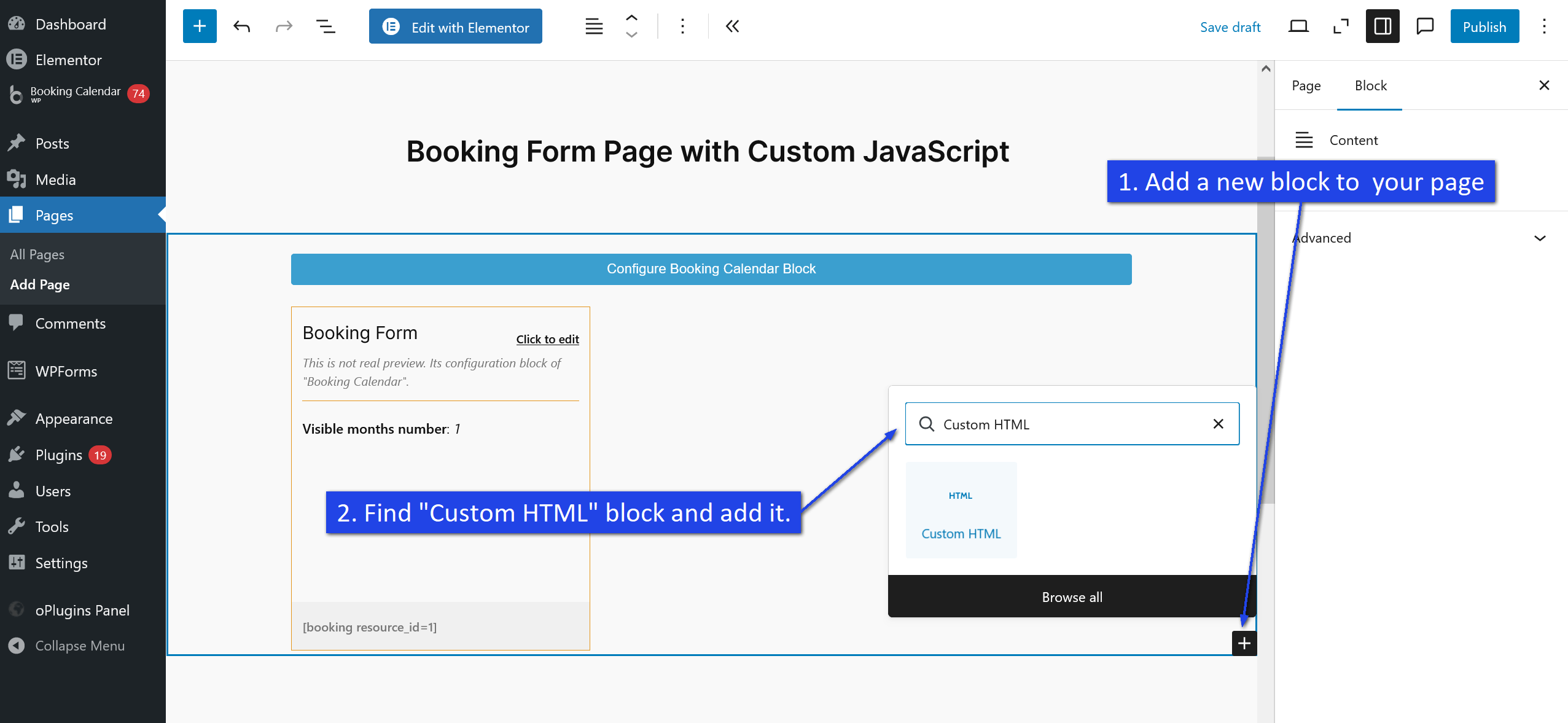
When you publish your booking form to a WordPress page or post, you can add your JavaScript by using the standard Custom HTML block in WordPress.
Steps to add custom JavaScript
- Open the page or post where your booking form is published.
- Add a Custom HTML block in the WordPress editor.
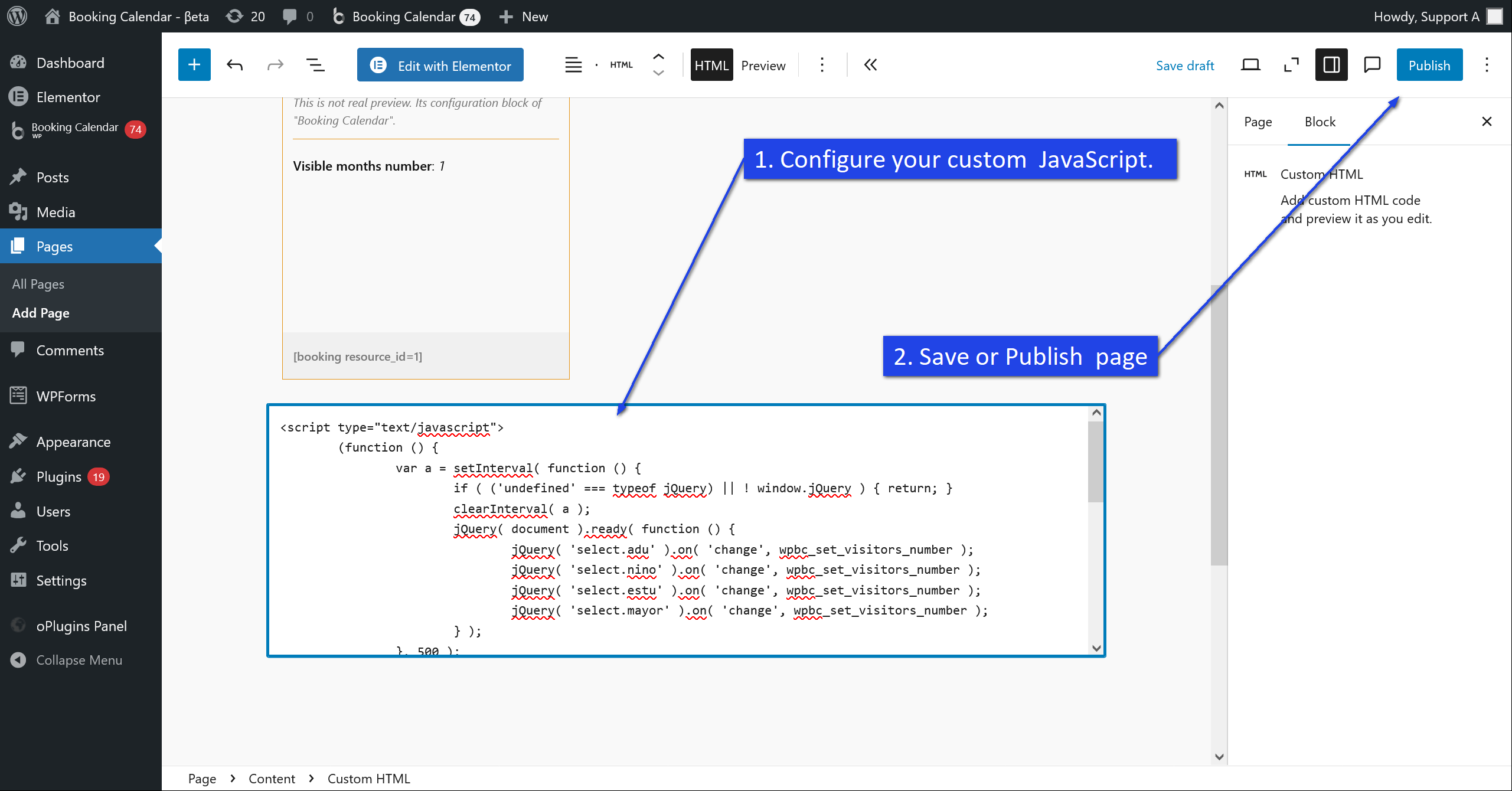
- Insert your JavaScript code inside this block.
- Save or update the page.
This is the recommended and safe way to add extra JavaScript functionality to your booking form.
When would you use custom JavaScript?
You may want to add custom JavaScript for things like:
- showing or hiding extra elements,
- tracking events,
- changing field behavior,
- adding custom interactions after the form loads.
Important note
Do not place <script>
code directly inside the booking form configuration in Advanced Mode (code) on the WP Booking Calendar > Settings > Forms Builder page, because it will be blocked by the security validation.
Always add custom JavaScript on the page itself by using a Custom HTML block or another standard WordPress method for adding scripts.
Tip
If needed, you can place the Custom HTML block near the booking form on the same page, so your custom code works together with the published form.