


How to Import Legacy Booking Forms into the New Drag and Drop Form Builder
If you updated Booking Calendar from an older version and started using the new Drag and Drop Booking Form Builder, please make sure that all your legacy booking forms have been imported into the new builder.
This is important because booking forms that were created in older versions of Booking Calendar may need to be converted before they can be edited and managed in the new Form Builder interface.
How to import all legacy booking forms
- Go to Booking > Settings > Form Builder.
- Open the Forms menu.
- Click Import all legacy forms.
- Wait until the import process is completed.
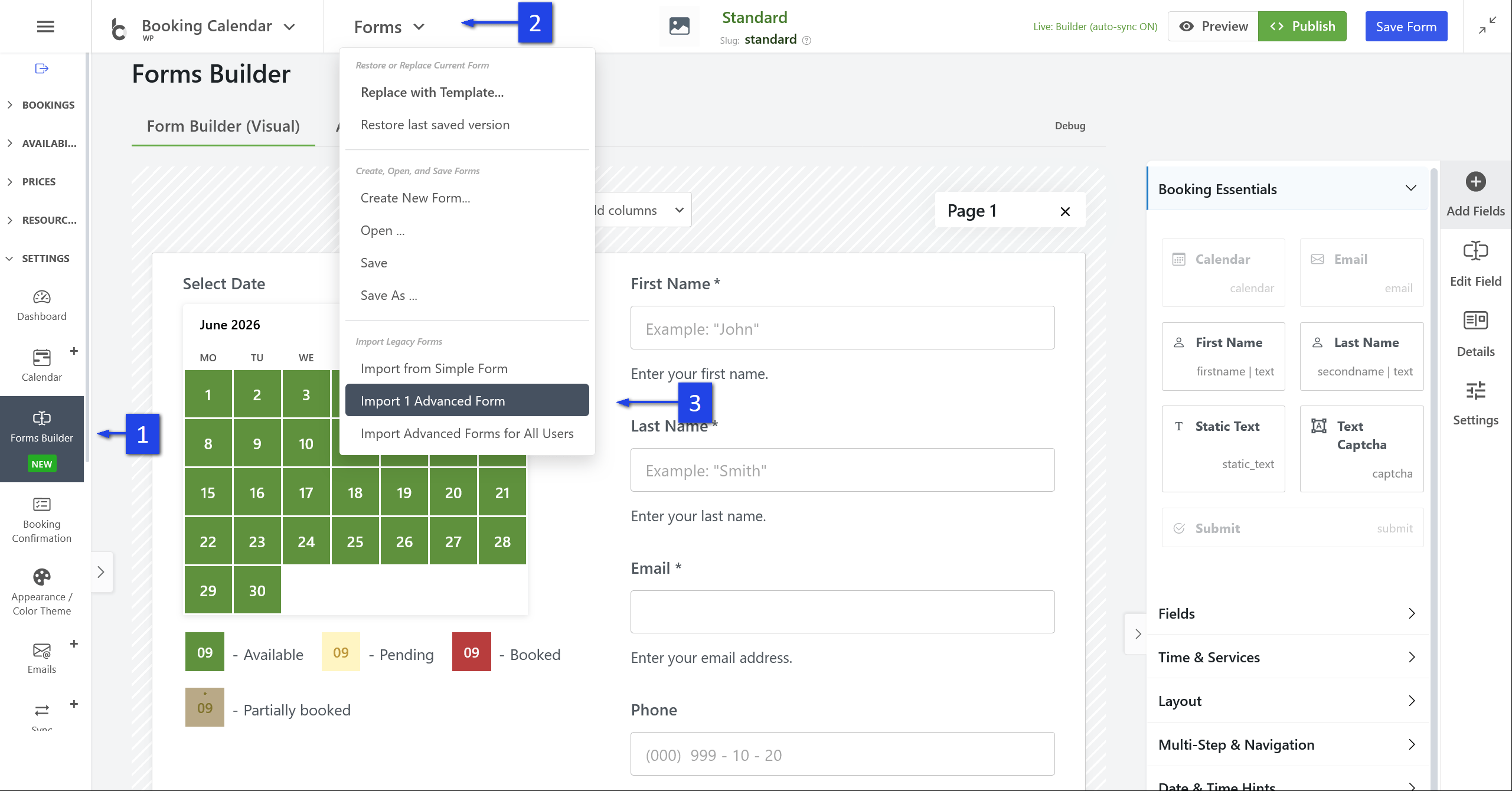
After the import is finished, your old booking forms should be available in the new Drag and Drop Booking Form Builder.
Important: clear your browser cache
Before testing the imported forms, please clear your browser cache. This helps ensure that your browser loads the latest Booking Calendar scripts, styles, and Form Builder interface.
If you do not clear the cache, the old cached files may still be used by your browser, and some changes may not appear correctly.
What to check after import
After importing your legacy forms, open each form in the new Form Builder and check that the fields, labels, email field, calendar field, submit button, and any custom form content are displayed correctly.
Then test the booking form on the front-end side of your website to make sure that visitors can submit bookings correctly.