


A Simpler Setup Wizard for Every Booking Journey
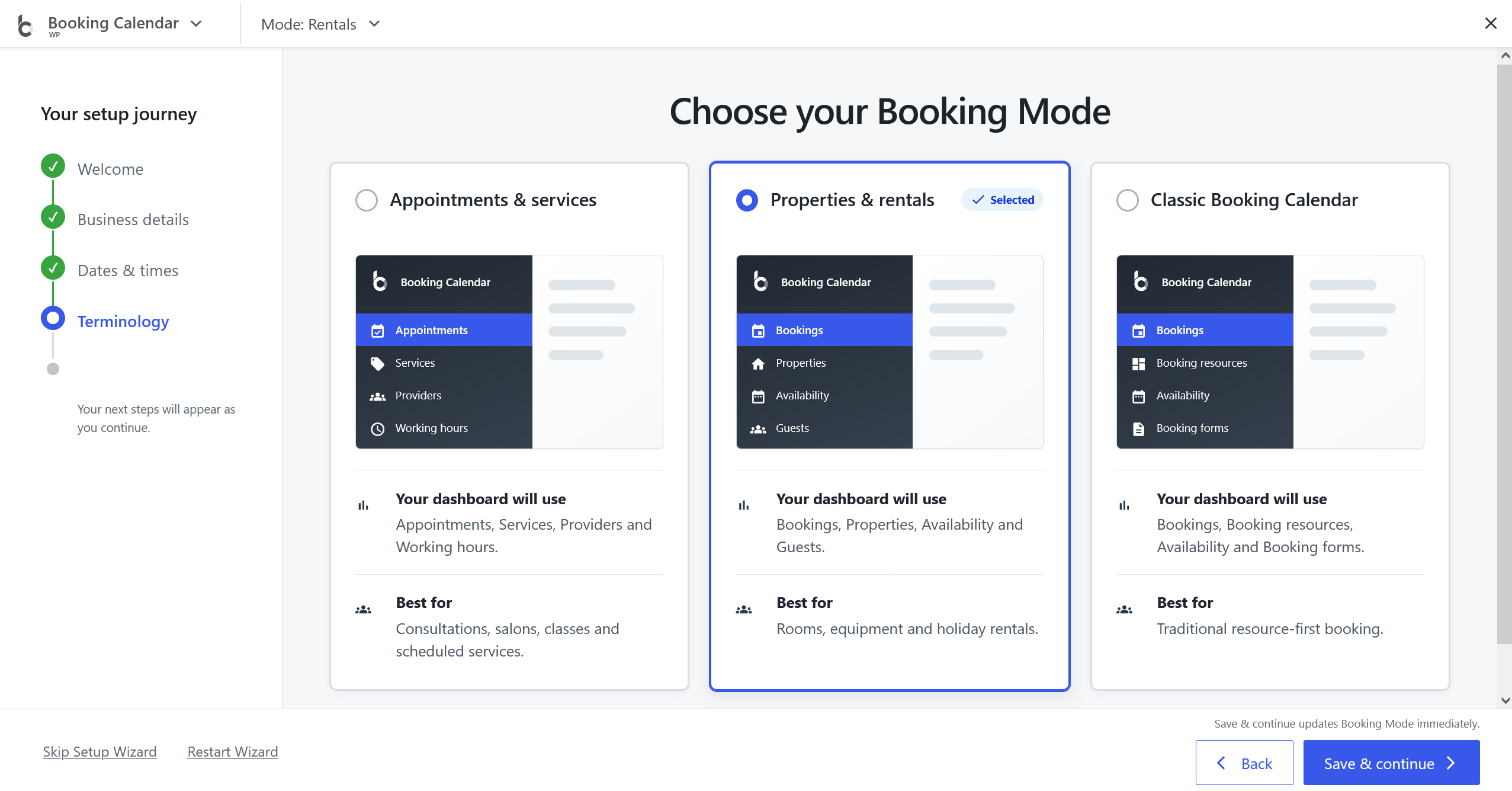
The redesigned Setup Wizard starts with one practical question: how should customers book? After you choose the answer, it presents only the settings needed for that booking flow instead of asking you to configure every Booking Calendar option.
- Begin with the right next step. A first activation from Plugins opens Setup Wizard directly, while a manual update opens What's New after the update without interrupting automatic, command-line, or managed live-demo maintenance.
- Follow a focused path. The wizard guides you through the matching Date Selection, Booking Resources or Services, time choices, availability, Booking Form, appearance, publishing, and review steps.
- Start from the right defaults. Journey-aware recommendations select compatible date behavior and Booking Form templates. Multi-date time journeys also configure their Start and End Times, with Working Hours available only when you want that extra restriction.
- Publish and test the result clearly. Non-guided journeys start with a direct Booking Form page, Review links to the published page, and the testing window places your configured page before separate starter examples.
- Save as you go. Each step saves its settings, unfinished setup can resume later, and the final Setup overview provides clear links for testing, publishing, and future changes.
Choose the customer journey that matches your business
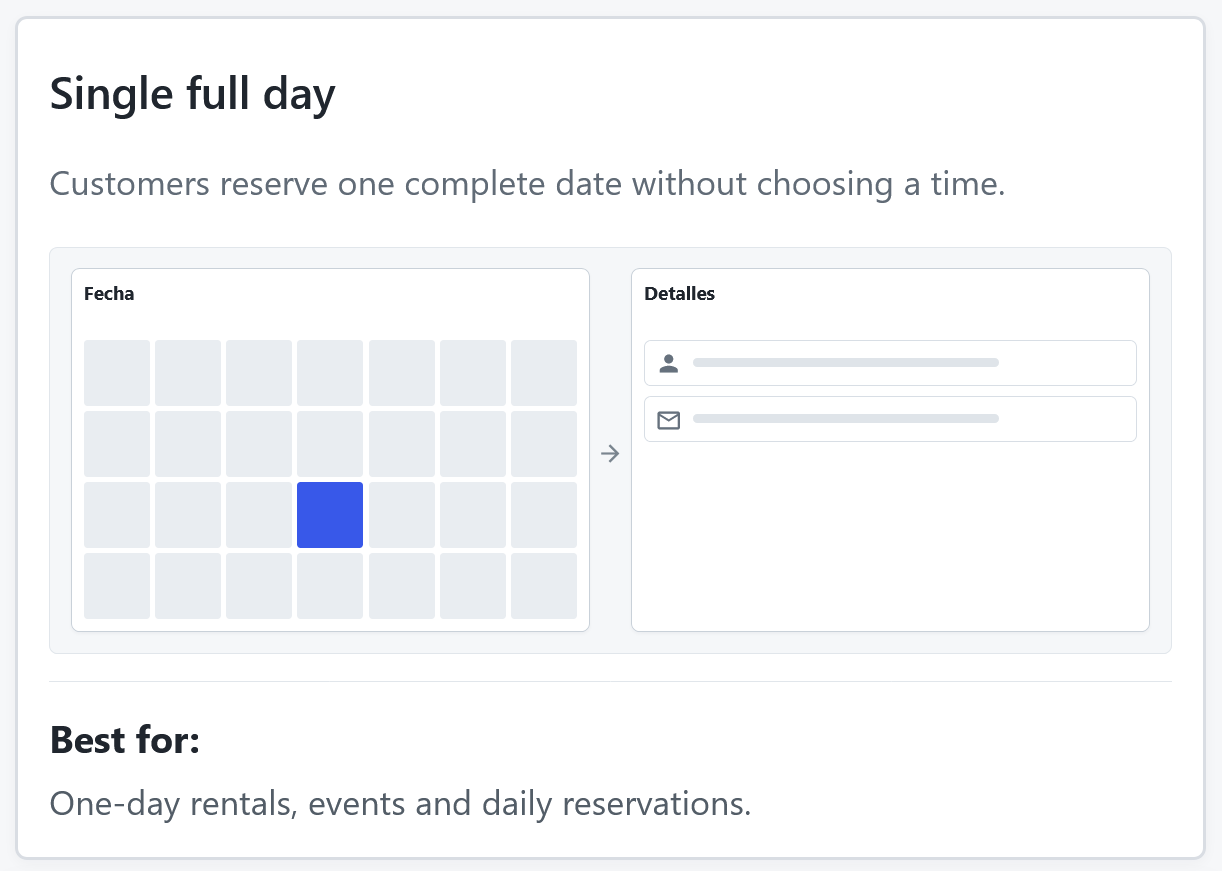
Single full day
Customers reserve one complete date without choosing a time.
Best for: One-day rentals, events and daily reservations.
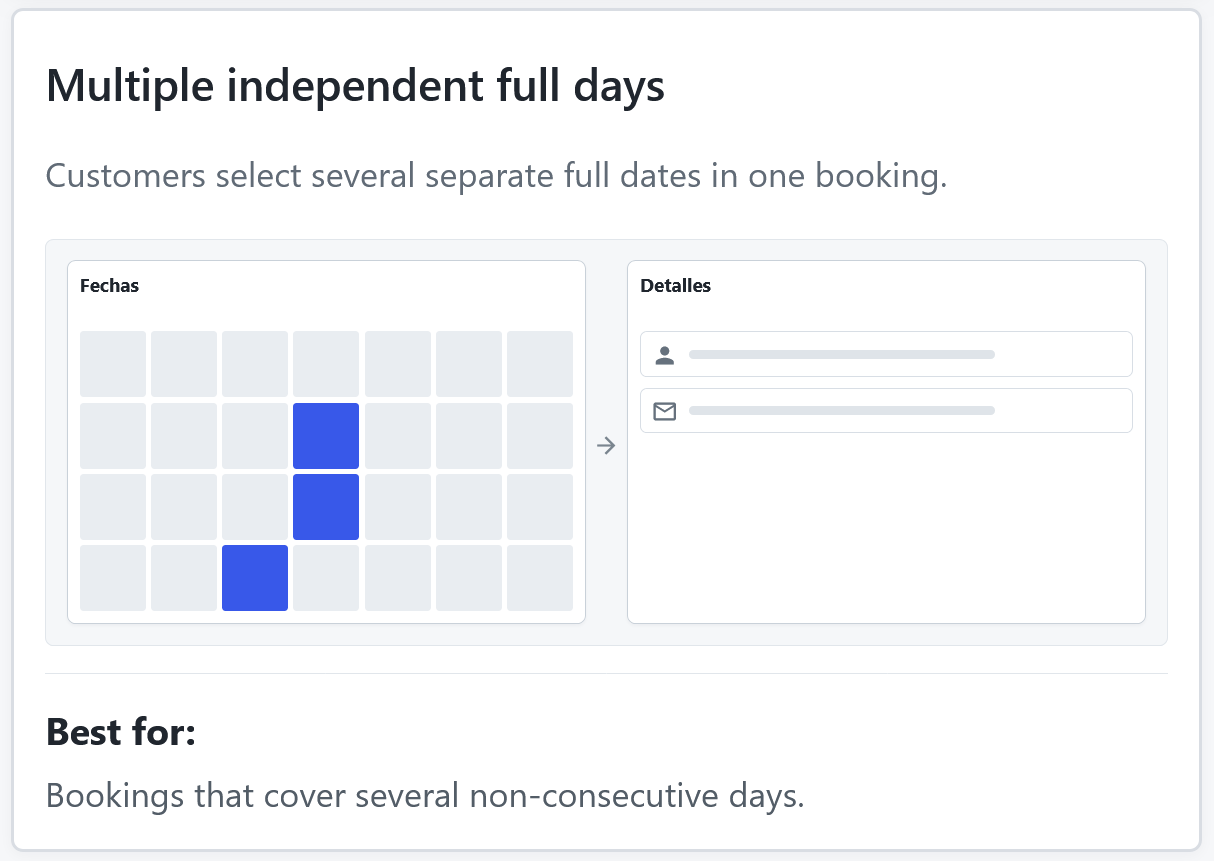
Multiple independent full days
Customers select several separate full dates in one booking.
Best for: Bookings that cover several non-consecutive days.
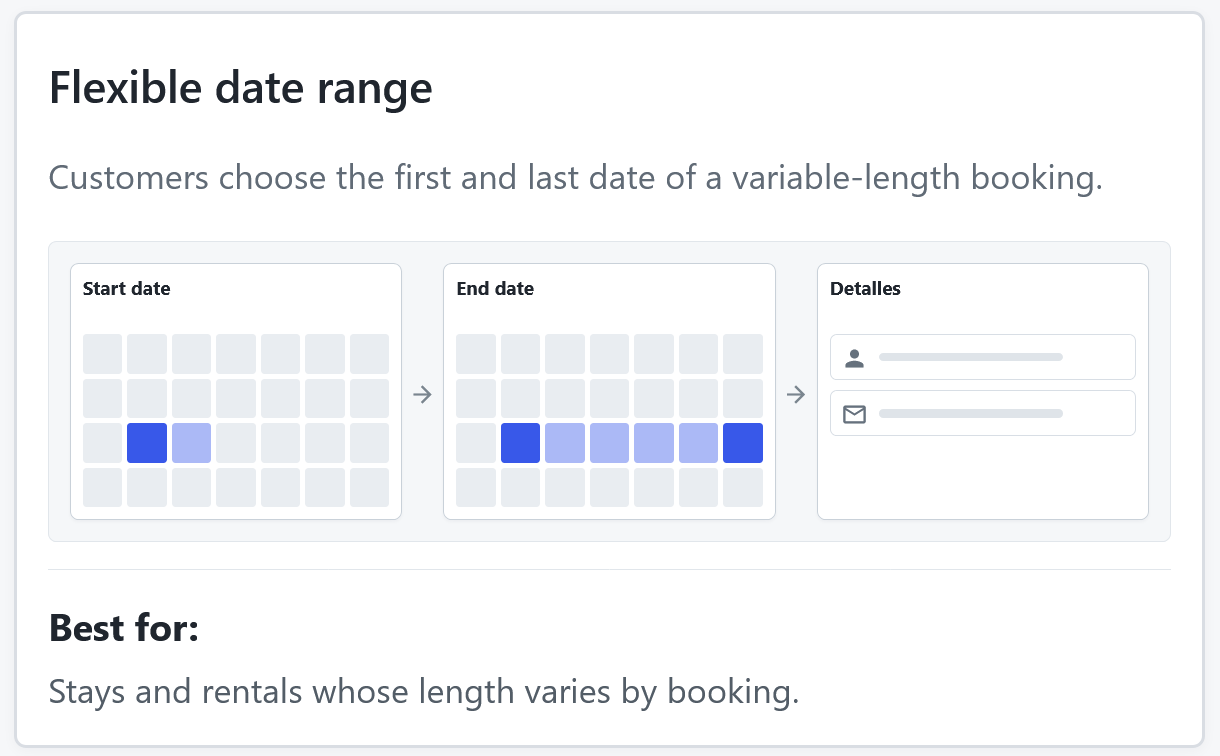
Flexible date range
Customers choose the first and last date of a variable-length booking.
Best for: Stays and rentals whose length varies by booking.
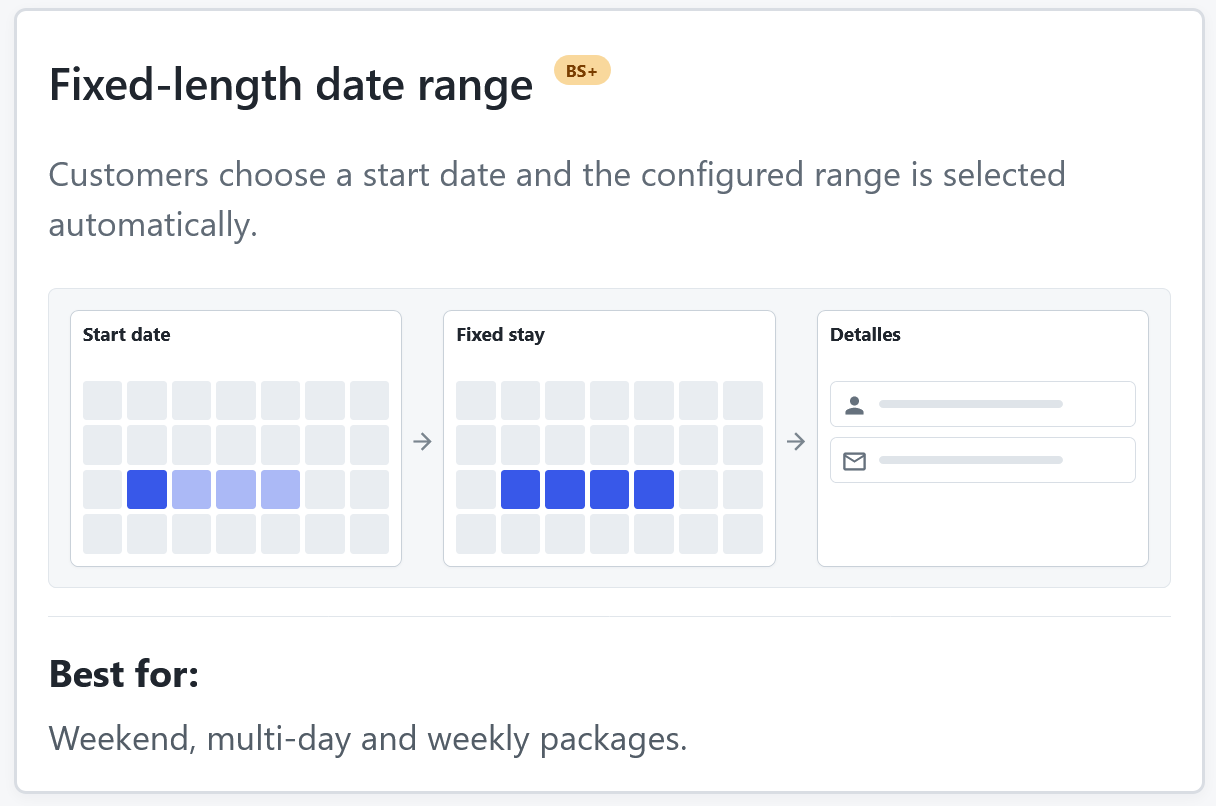
Fixed-length date range
Customers choose a start date and the configured range is selected automatically.
Best for: Weekend, multi-day and weekly packages.
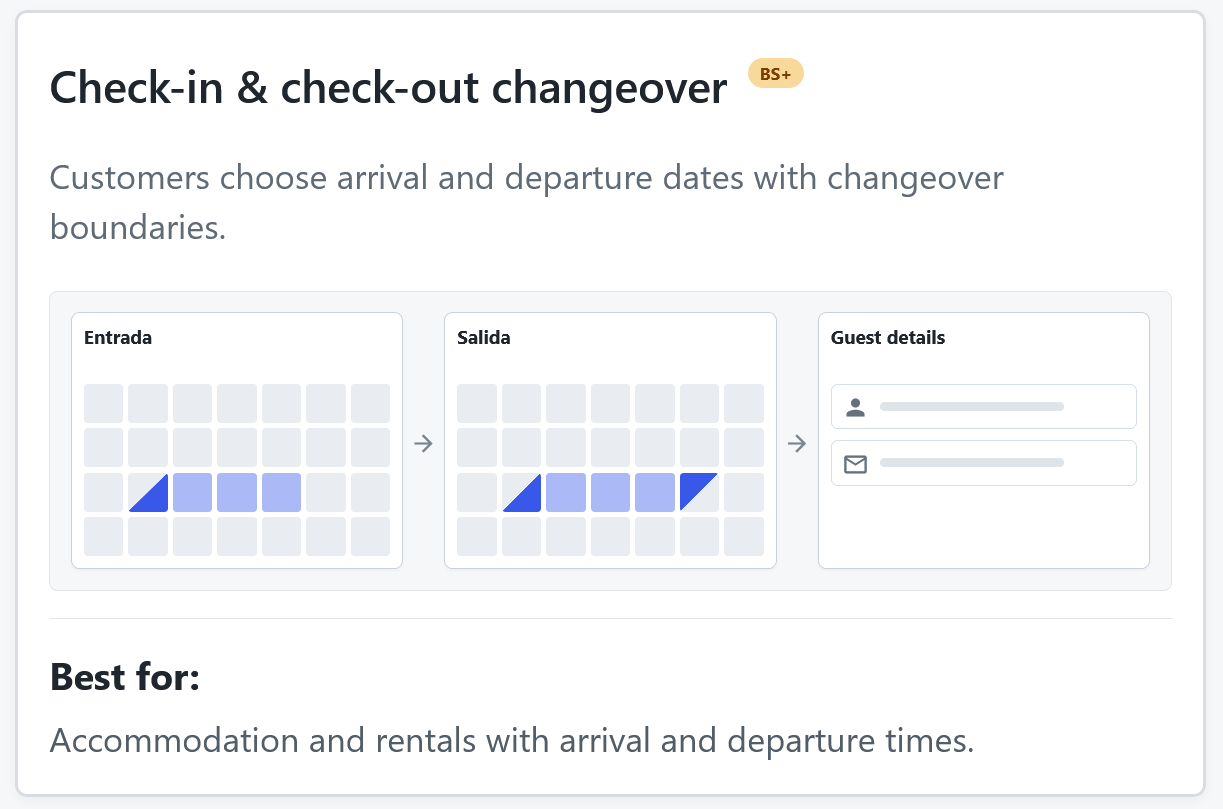
Check-in & check-out changeover
Customers choose arrival and departure dates with changeover boundaries.
Best for: Accommodation and rentals with arrival and departure times.
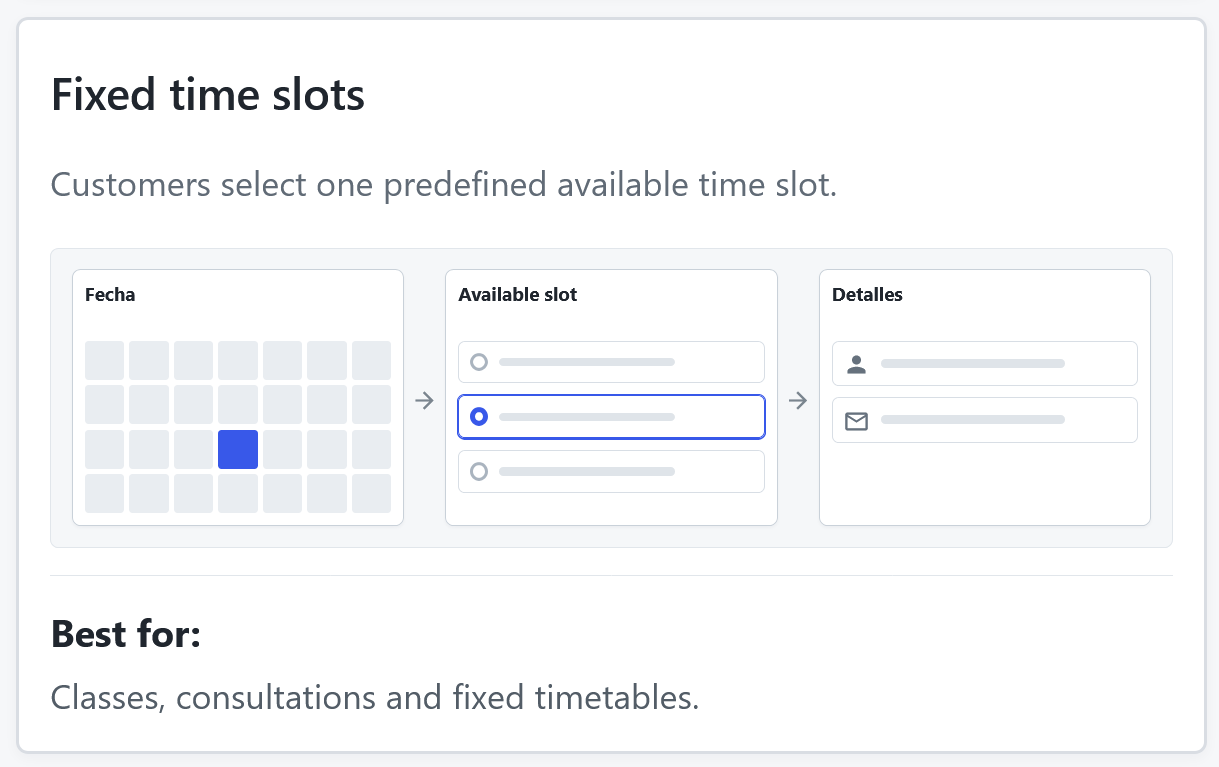
Fixed time slots
Customers select one predefined available time slot.
Best for: Classes, consultations and fixed timetables.
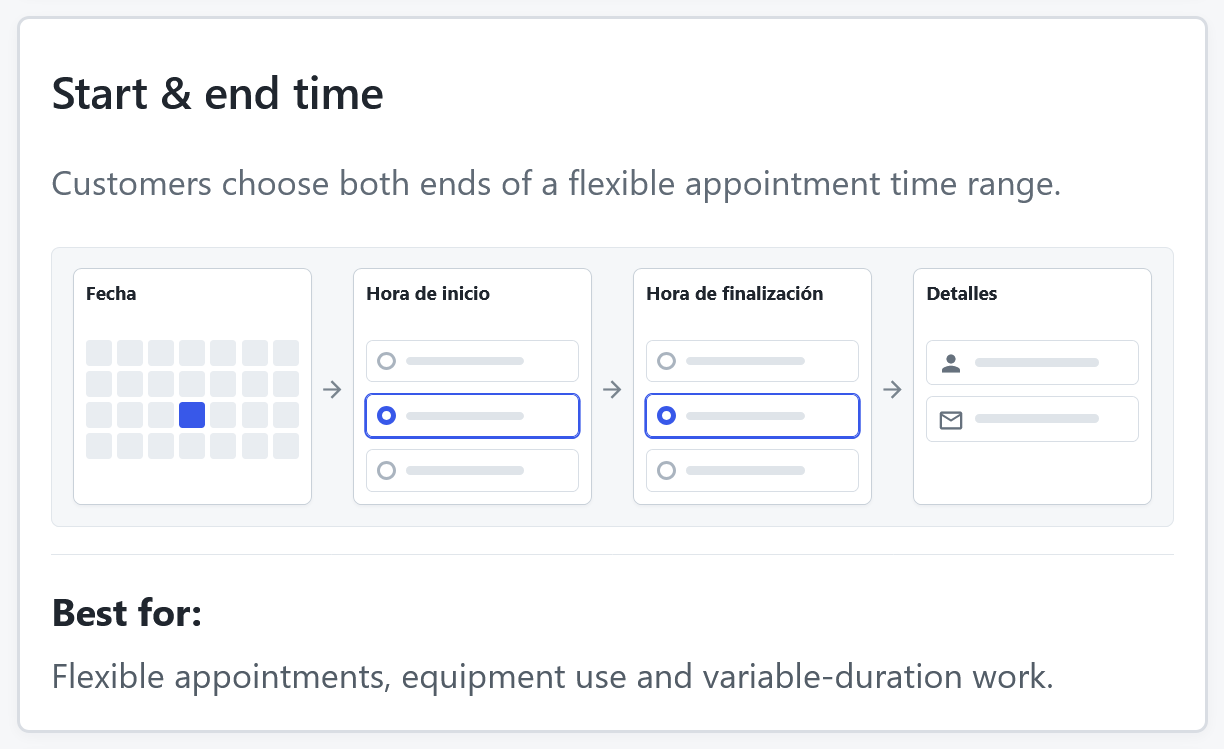
Start & end time
Customers choose both ends of a flexible appointment time range.
Best for: Flexible appointments, equipment use and variable-duration work.
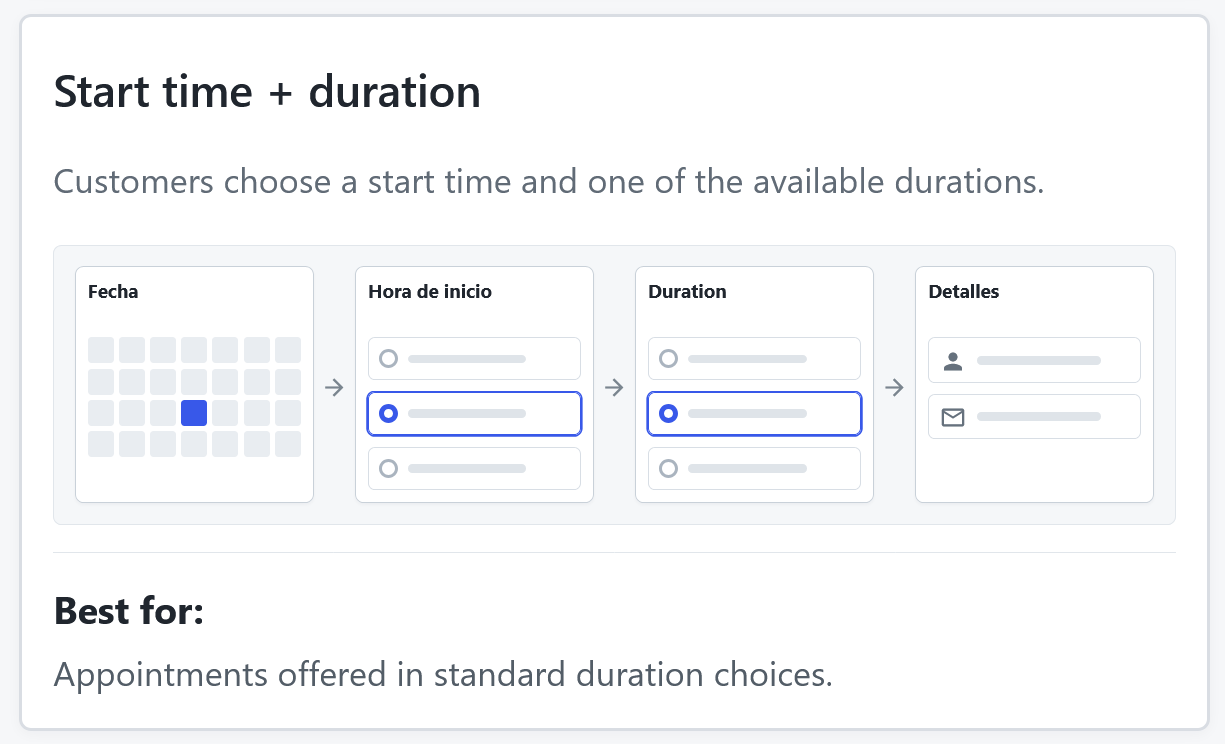
Start time + duration
Customers choose a start time and one of the available durations.
Best for: Appointments offered in standard duration choices.
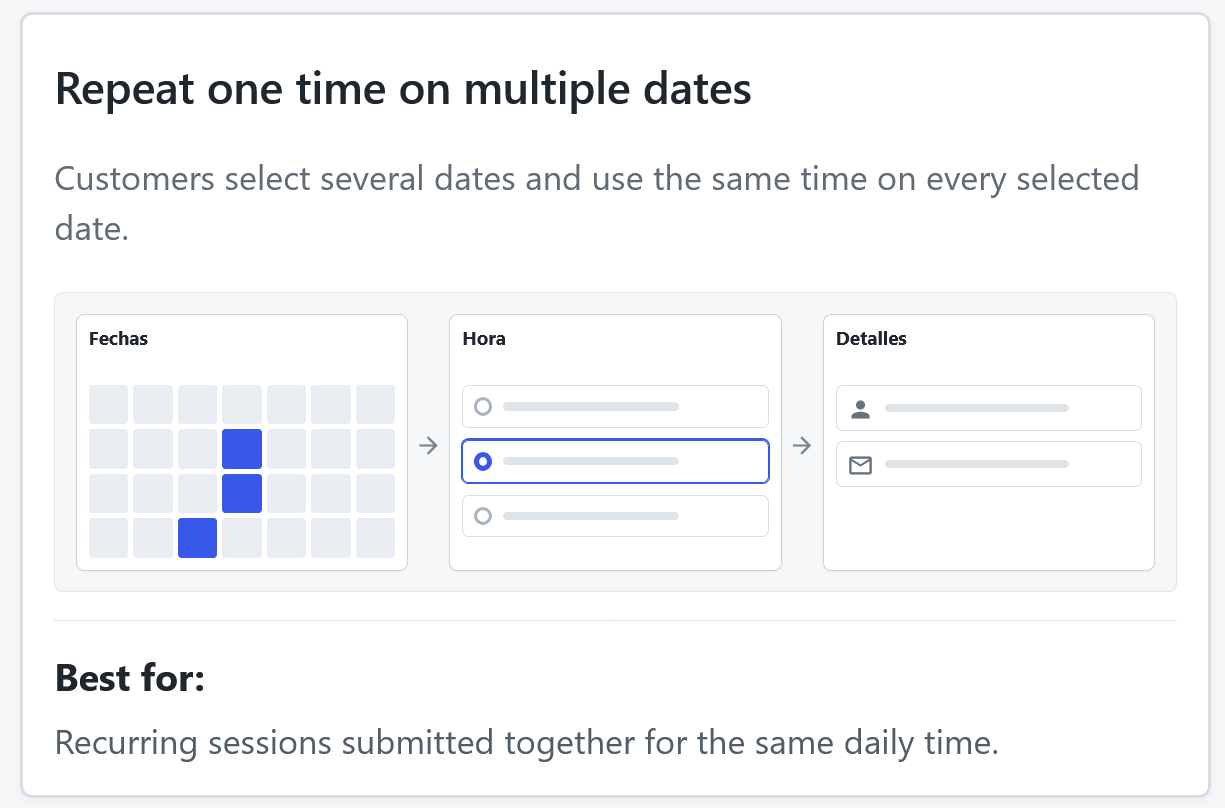
Repeat one time on multiple dates
Customers select several dates and use the same time on every selected date.
Best for: Recurring sessions submitted together for the same daily time.
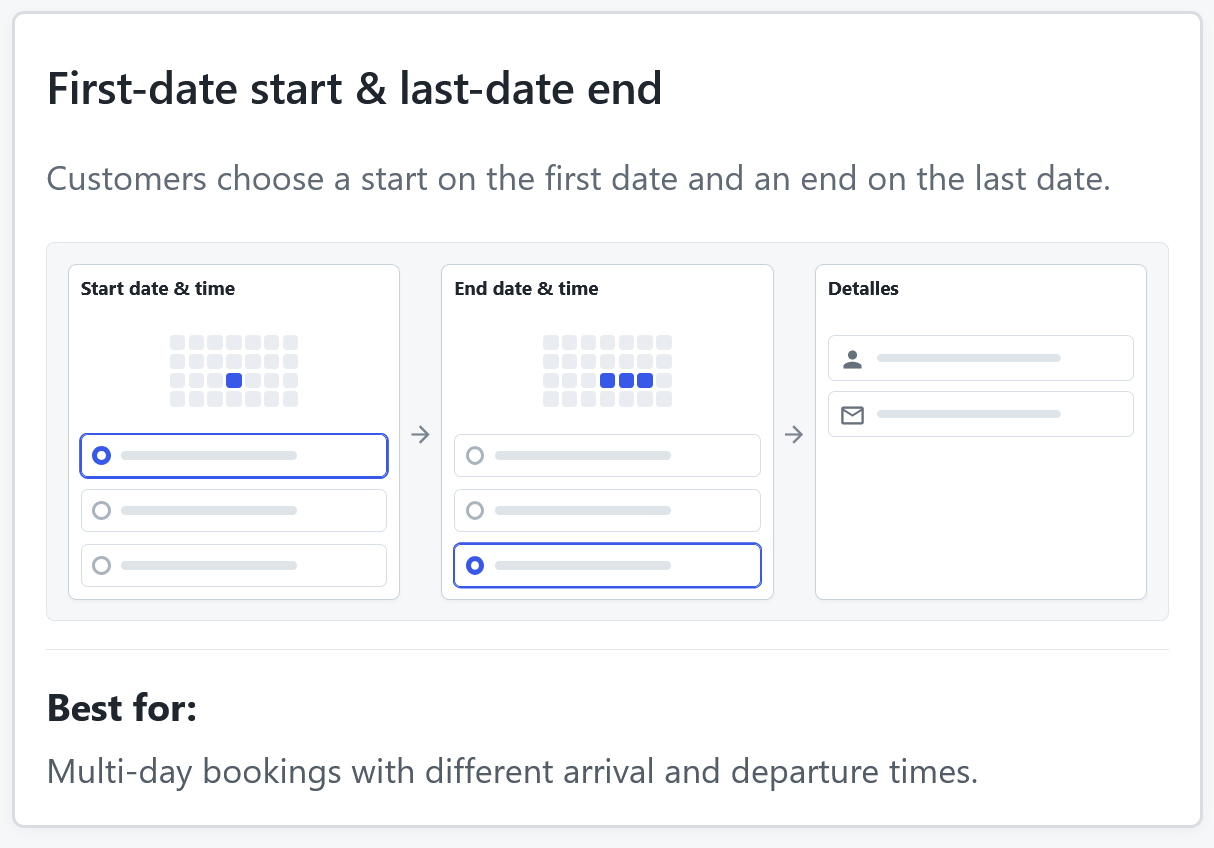
First-date start & last-date end
Customers choose a start on the first date and an end on the last date.
Best for: Multi-day bookings with different arrival and departure times.
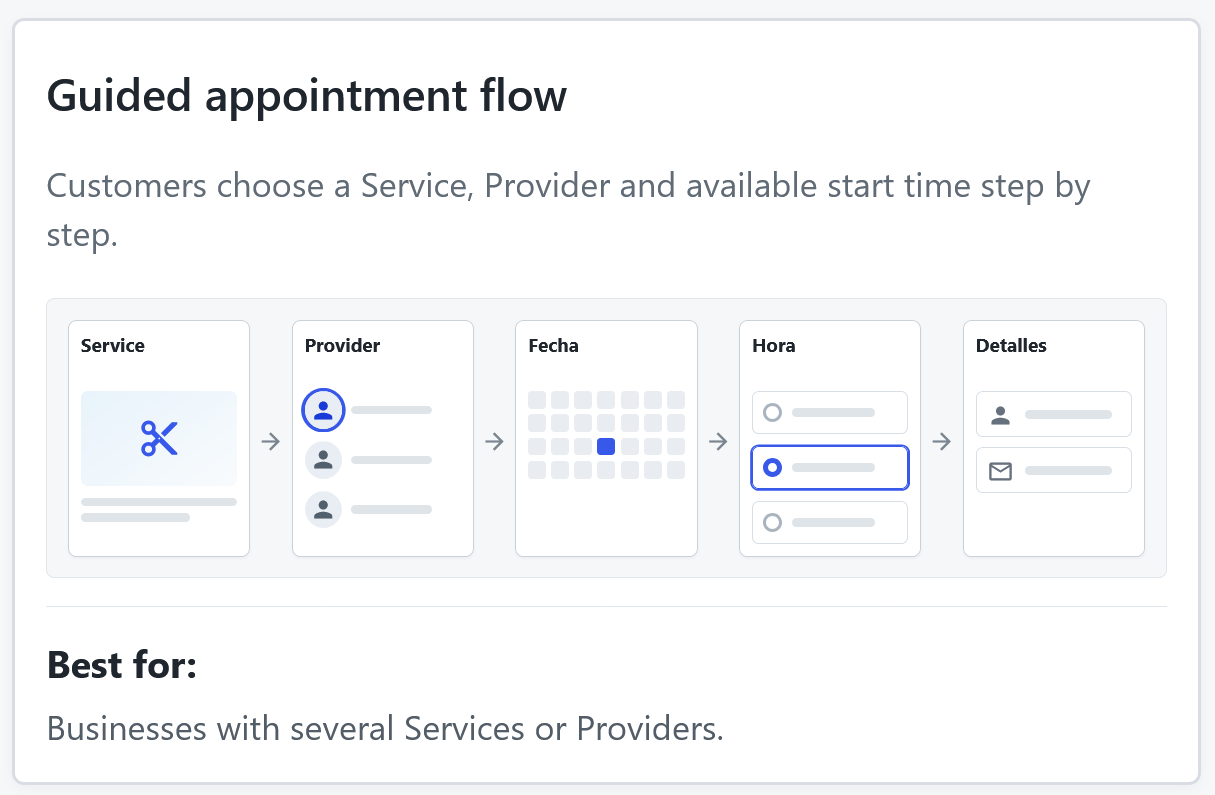
Guided appointment flow
Customers choose a Service, Provider and available start time step by step.
Best for: Businesses with several Services or Providers.
Select the Date Range You Point To
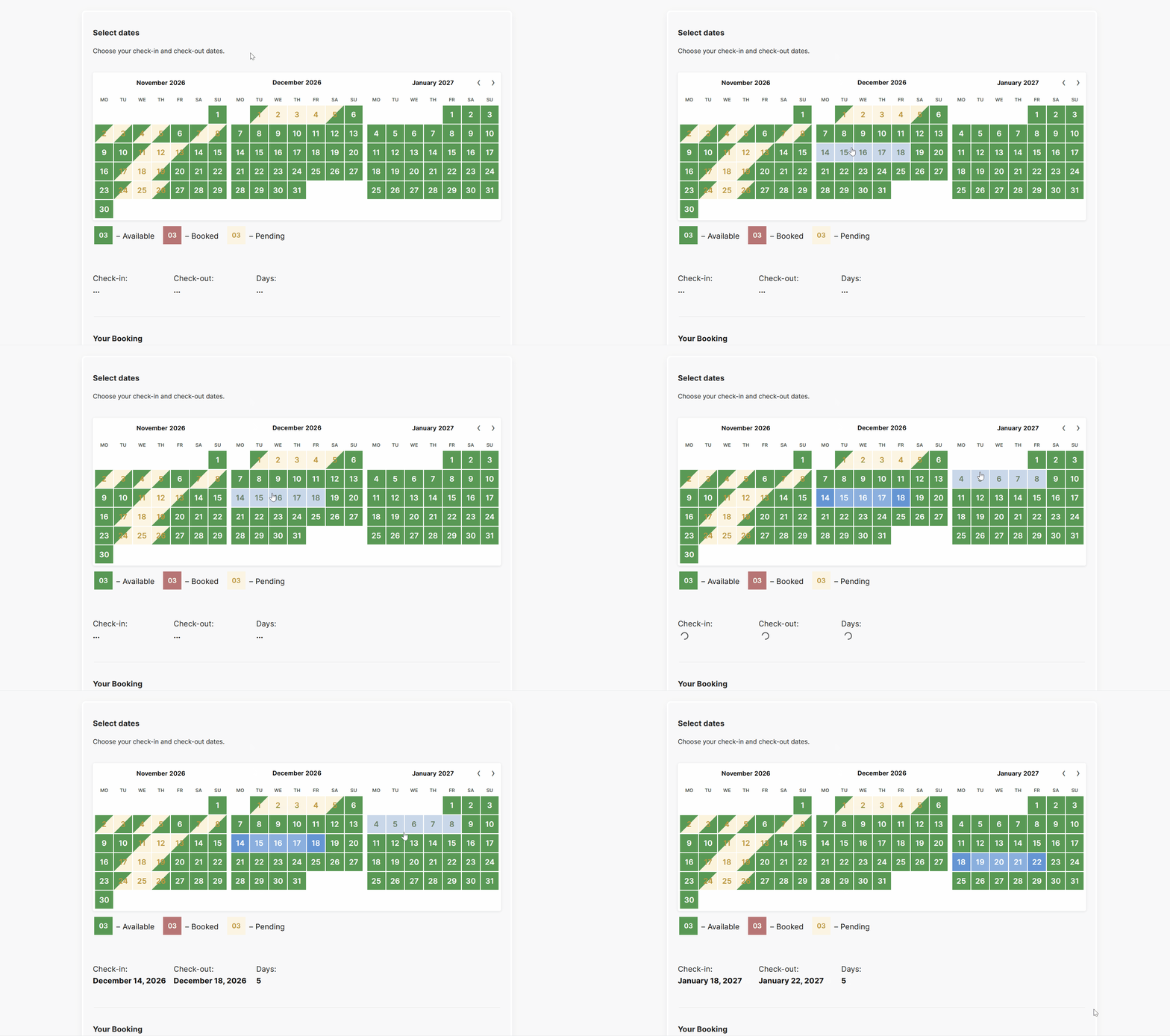
- Keep hover and click together. Fixed and Dynamic range selection now previews and selects the same valid period containing the date a visitor points to.
- Preserve the visitor's choice. Invalid end dates leave the first Dynamic-range click in place, while conditional Season, weekday, and exact-date rules use the actual range start.
- Available in the Booking Calendar Business Medium or igher versions
Prevent Unbookable Date Gaps
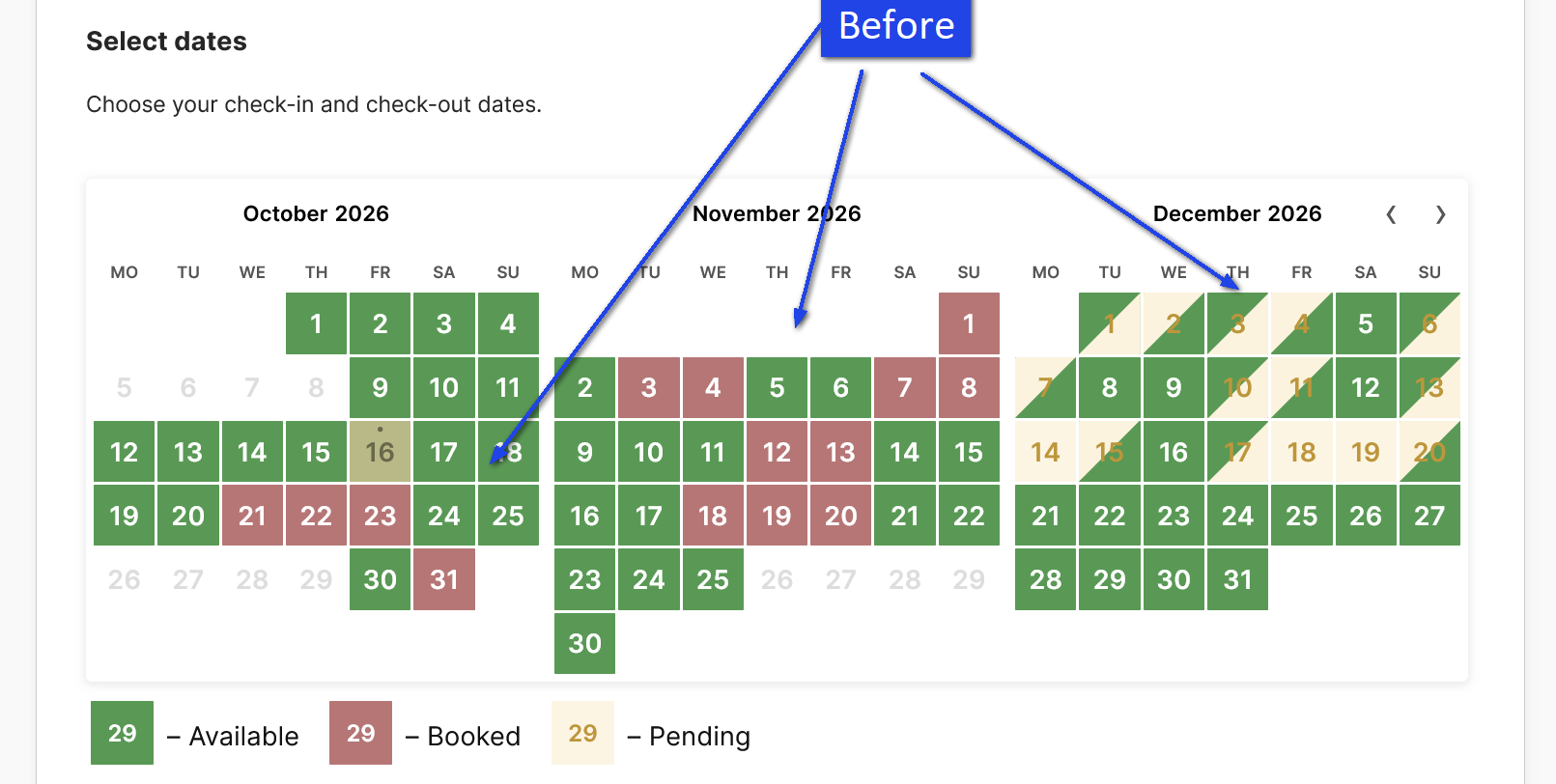
Before
After
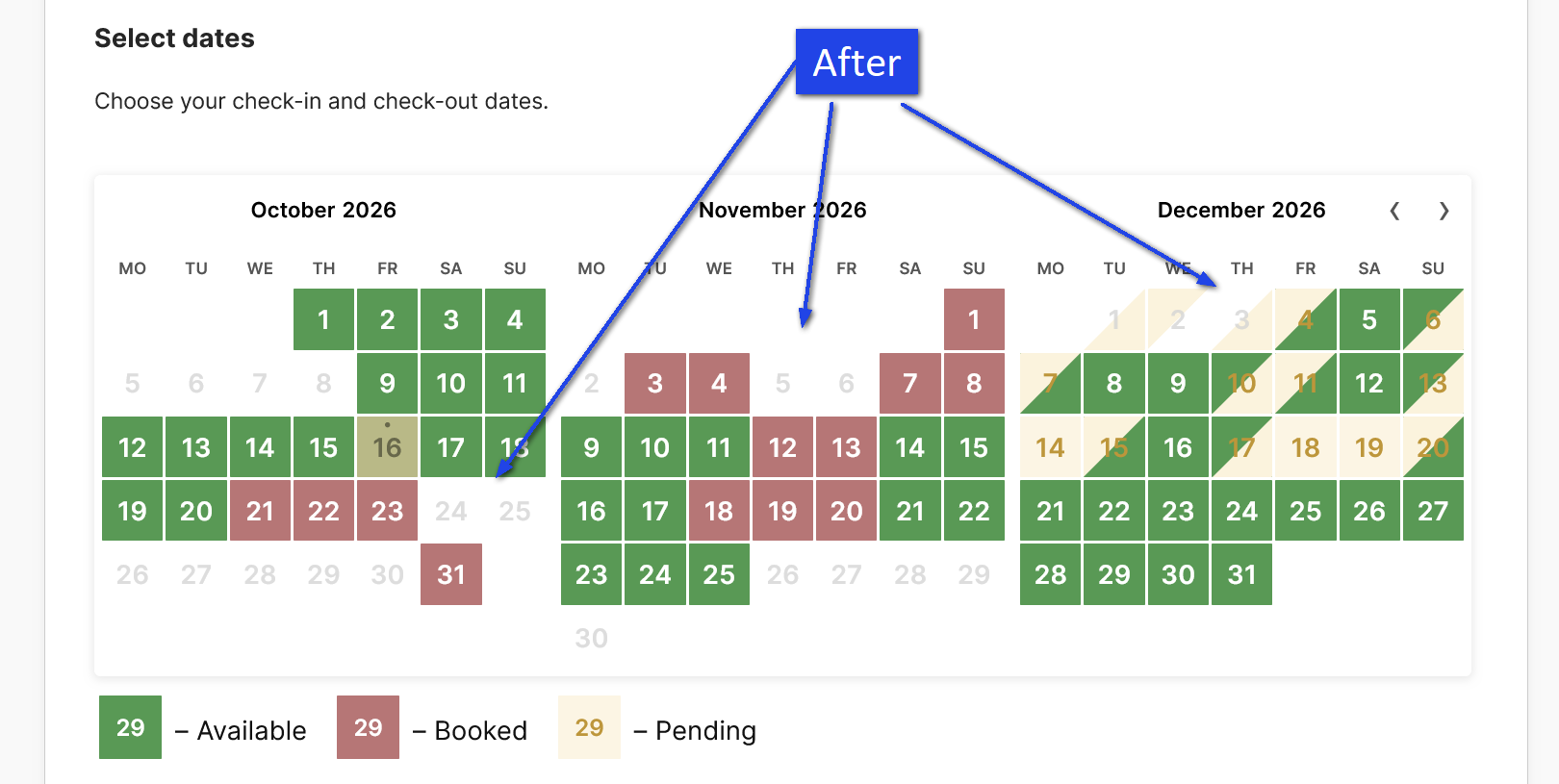
- Stop visitors at impossible openings. Business Small and higher editions can optionally show a bounded opening as unavailable when no configured fixed or dynamic date range can fit.
- Follow the active booking rules. The calendar respects permitted range lengths, start weekdays, conditional date and Season rules, changeovers, pending dates, and Resource capacity before marking the opening unavailable.
Manage Split Working Time
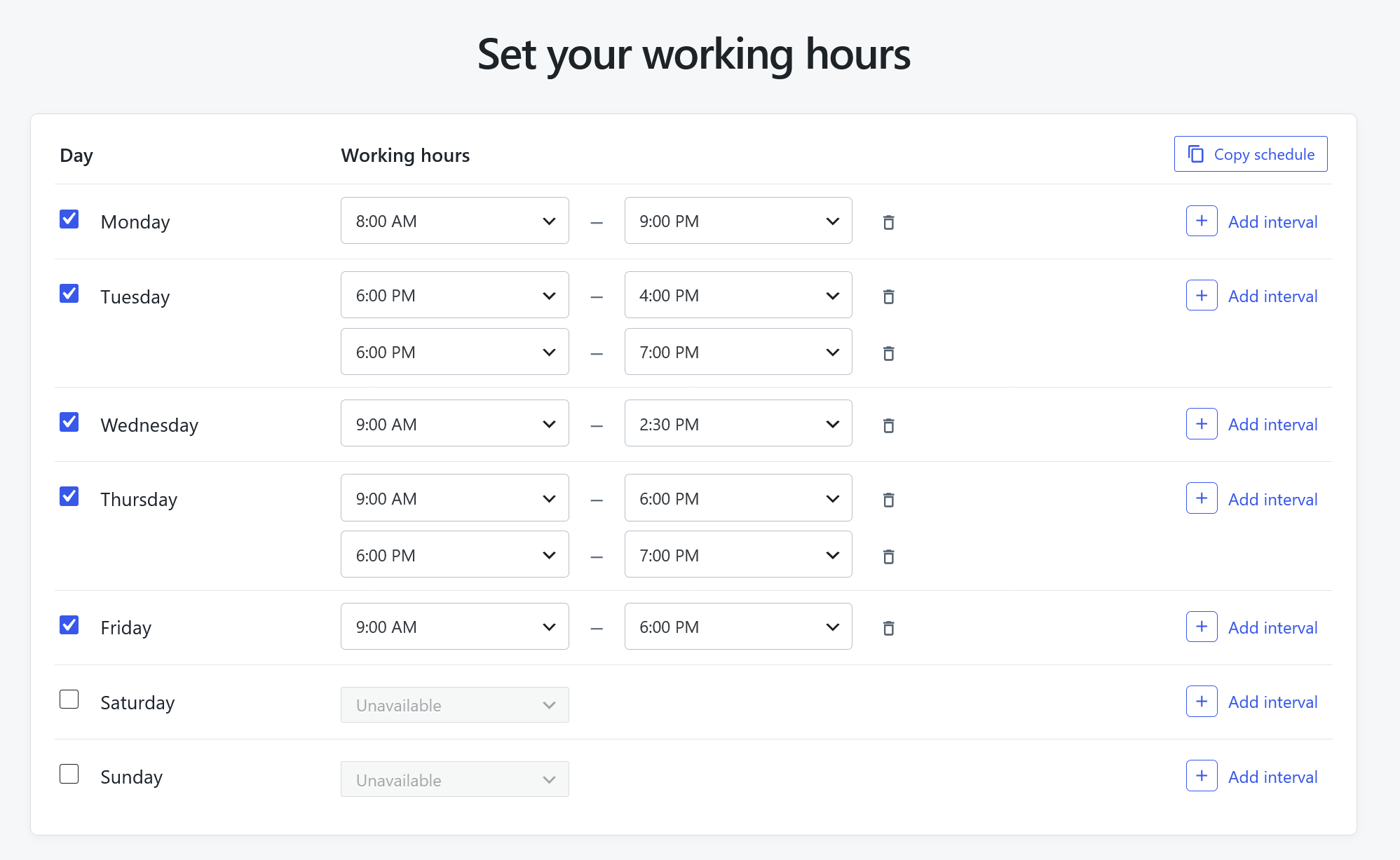
- Keep breaks in the normal week. Add several non-overlapping Working Time intervals to a weekday so gaps such as lunch remain unavailable.
- Use the same schedule everywhere. Schedule & Rules reads and saves default and Resource-specific intervals used by the Setup Wizard and appointment availability.
New Appointment Services Booking Flow
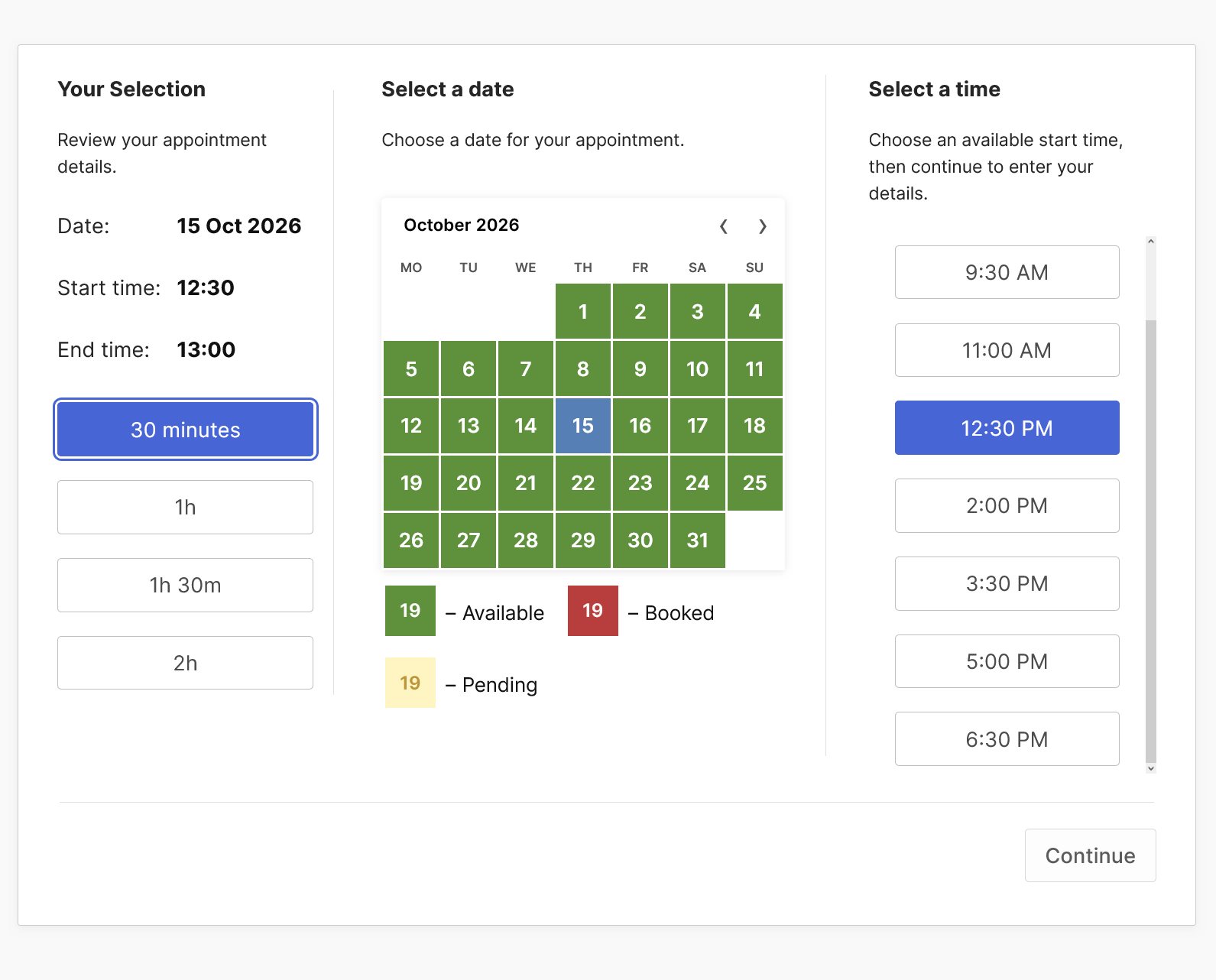
- See the appointment before continuing. Visitors choose a Service duration, date, and start time while a live summary shows the selected date, start, and end time.
- Finish in a focused second step. Customer details, Terms agreement, Back, and Book appointment actions stay together on one responsive page.
- Keep existing forms unchanged. The new flow is used for newly created Appointment Services forms without replacing existing forms or their templates.
Add a Country List Visually
- Add a ready-made country selector. Drag the Country List field into a visual booking form, then configure its label, help text, and validated default country.
- Keep form output synchronized. Saving generates the supported Country shortcode in Advanced Mode and its matching Booking Data token.
Add Discount Coupons Visually
- Add the coupon input without editing code. Business Large and higher editions can drag one Discount Coupon field into a visual booking form and configure its content and appearance.
- See edition requirements clearly. Lower editions show an upgrade badge and explanation without publishing an unsupported coupon input.
- Keep form output synchronized. Saving generates the Coupon shortcode in Advanced Mode and its matching Booking Data token.