


Clearer First-Run Setup
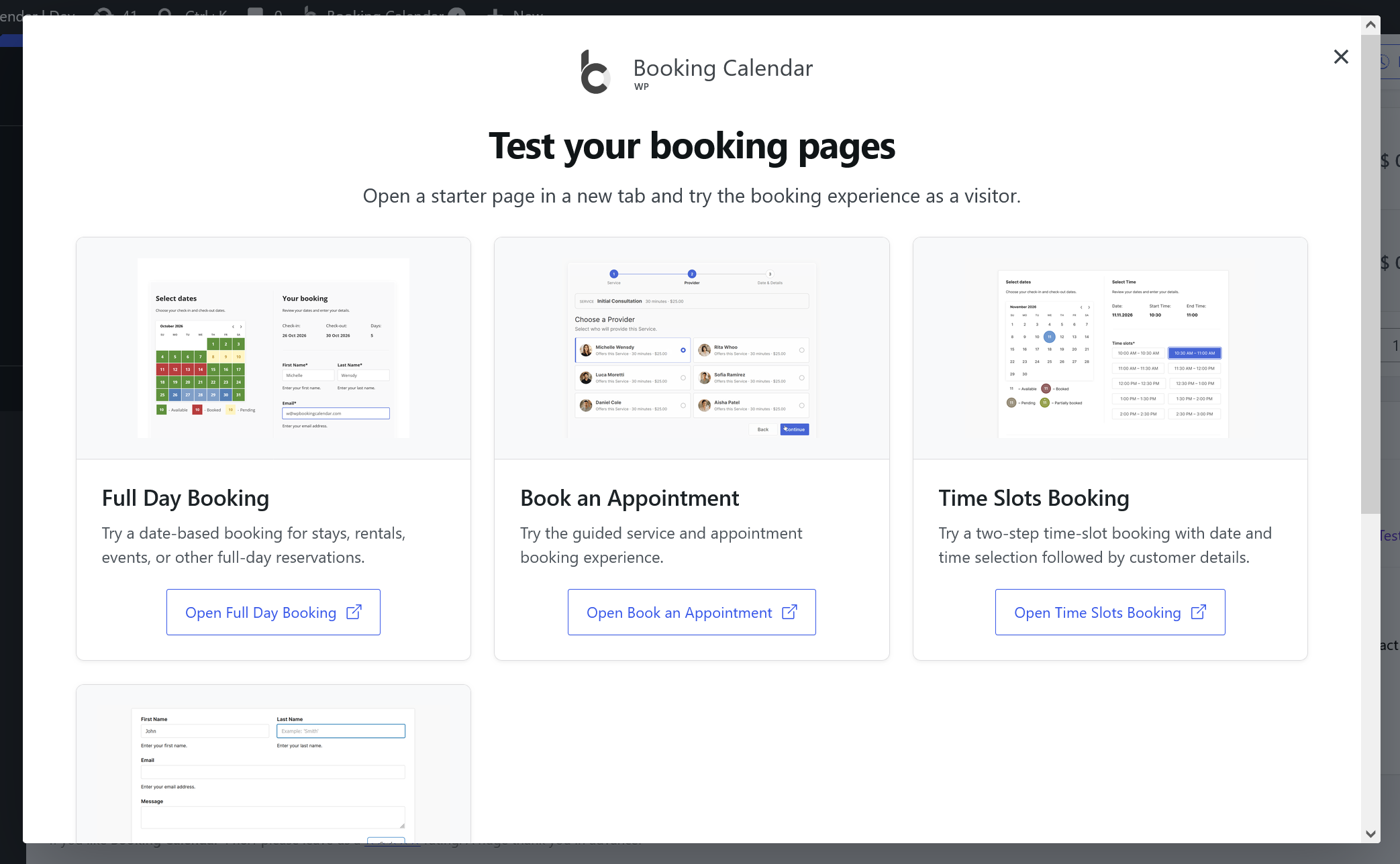
- Choose Setup when you are ready. New installations show one focused invitation on Booking Listing. Start guided Setup immediately or postpone it; either choice is remembered.
- Test the visitor experience immediately. A second one-time window shows complete previews and links to valid published starter pages, including the resource-first Resource Selection workflow. After automatic dismissal, new installations can reopen it from the Booking Listing welcome panel. Live demos also show the welcome section without saving a shared dismissal. The top Booking Calendar menu keeps the public links in a predictable workflow order and places the Home page last.
Time-Slot Booking Flow
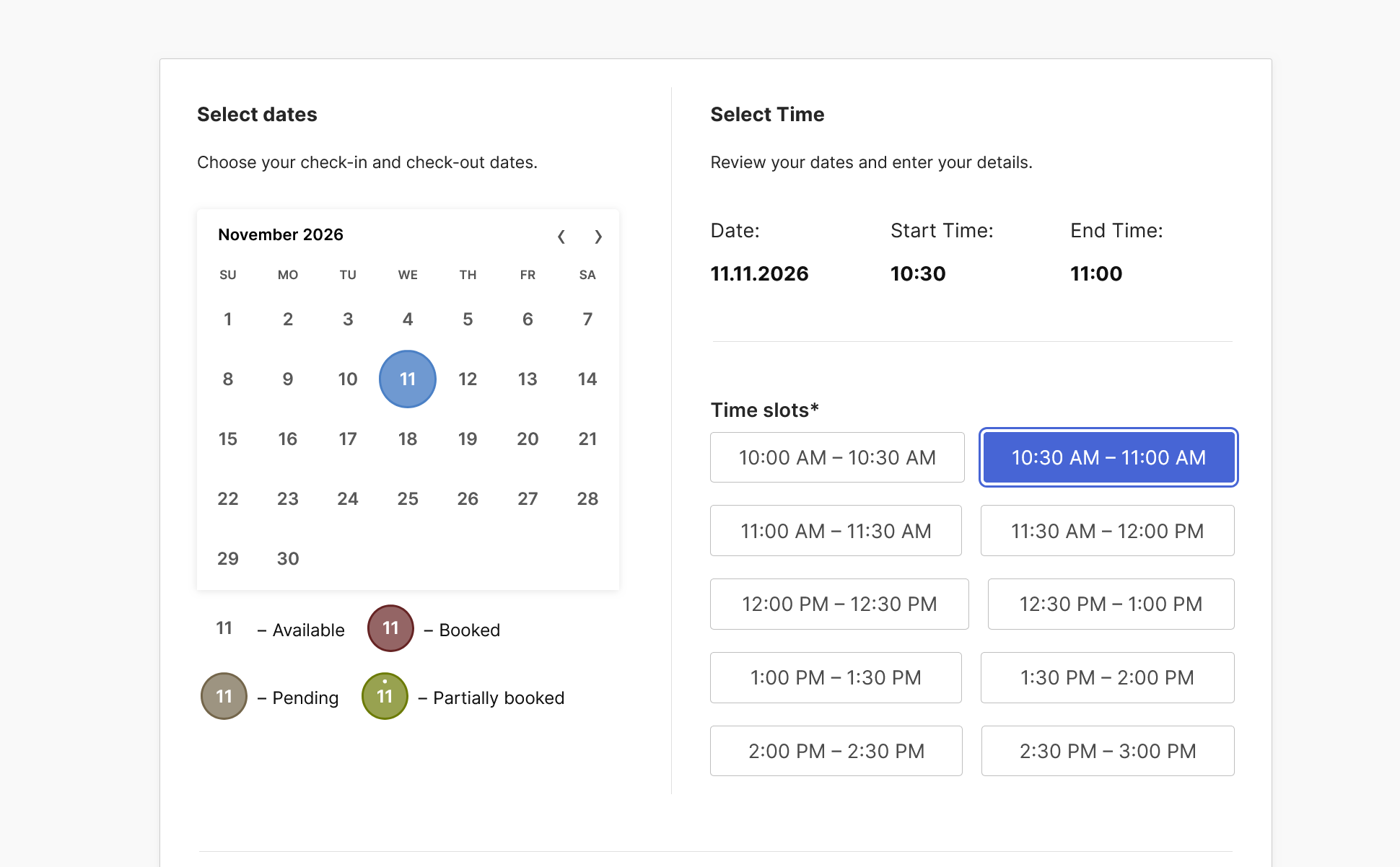
- Choose date and time together. The calendar, time choices, and live Date, Start Time, and End Time summary share one clear first step.
- Finish details on a focused second step. Visitors continue to contact, guest, and Terms fields before sending the booking.
- Ready to find and reuse. When initially added, the Time-Slots template appears first overall and, within Full Days, Two Columns appears before Vertical. Clean installations use the Time-Slots template on their starter page. Updates preserve existing forms, pages, custom URLs, and installed template copies.
2 New Full-Day Booking Form Templates
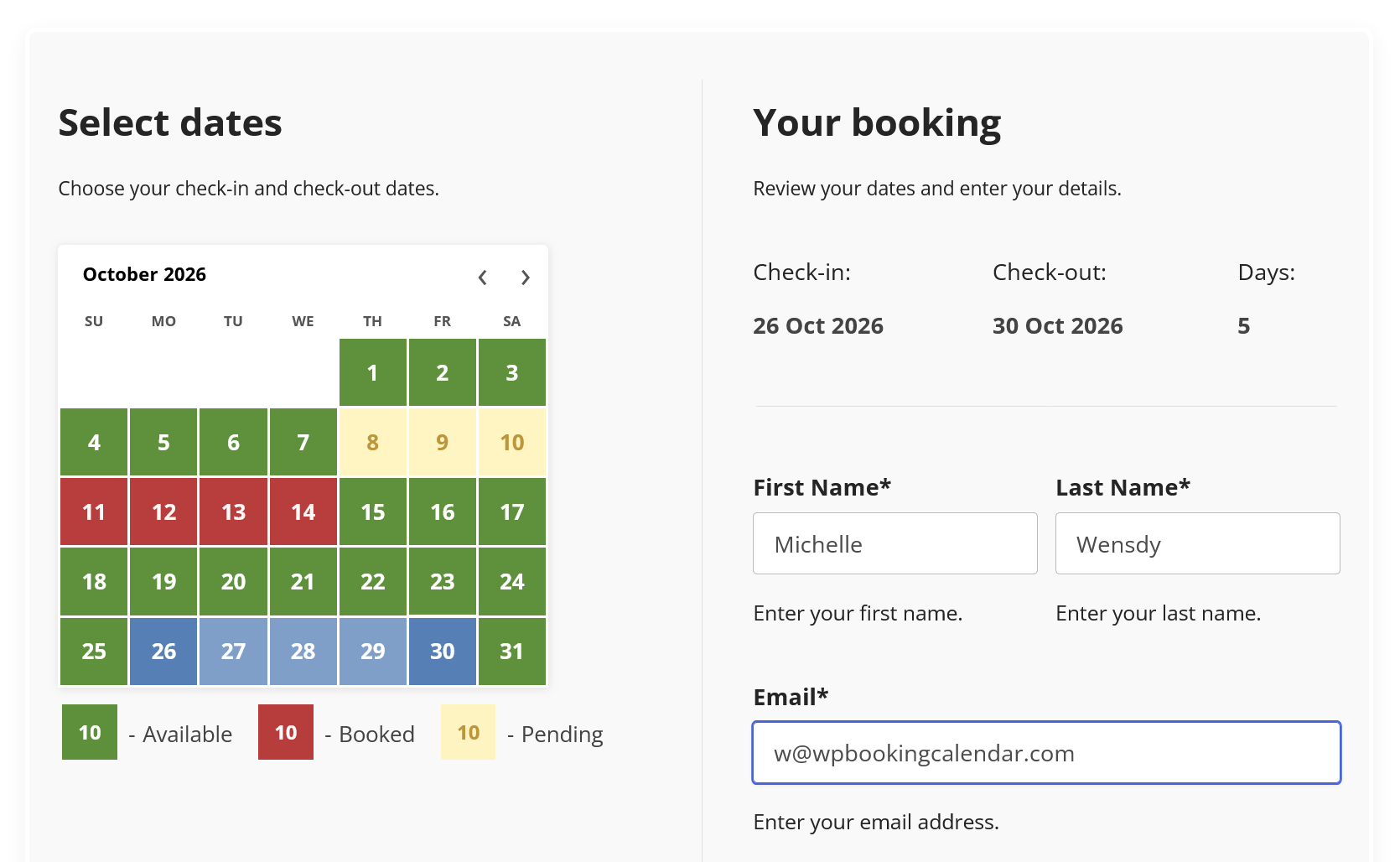
- Start with a clear two-column layout. Customers select dates in the calendar, then review their Check-in, Check-out, and Days beside the customer details.
- Vertical full-day layout. Vertical full-day booking form with a ability to use a two-month calendar and date summary
- Designed for full-day bookings. Use the live date summary with your saved full-day or changeover settings to make each selection easier to understand.
- Apply it when you need it. The templates are available in Form Builder without replacing existing forms or changing first-install defaults. Confirm its starter Terms links before publishing.
New Seasonal Availability Catalog
Minimum edition: Booking Calendar Business Medium or higher.
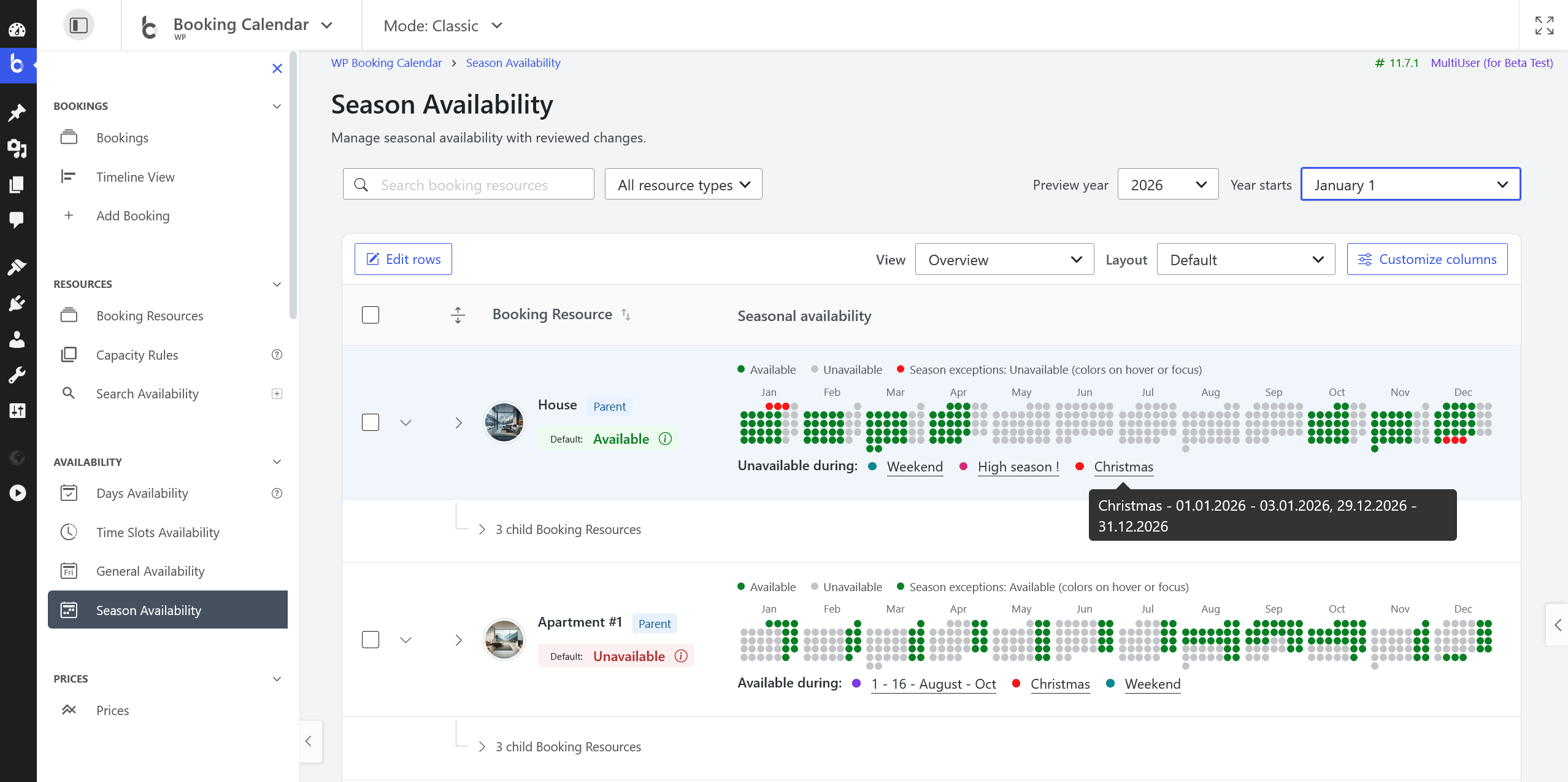
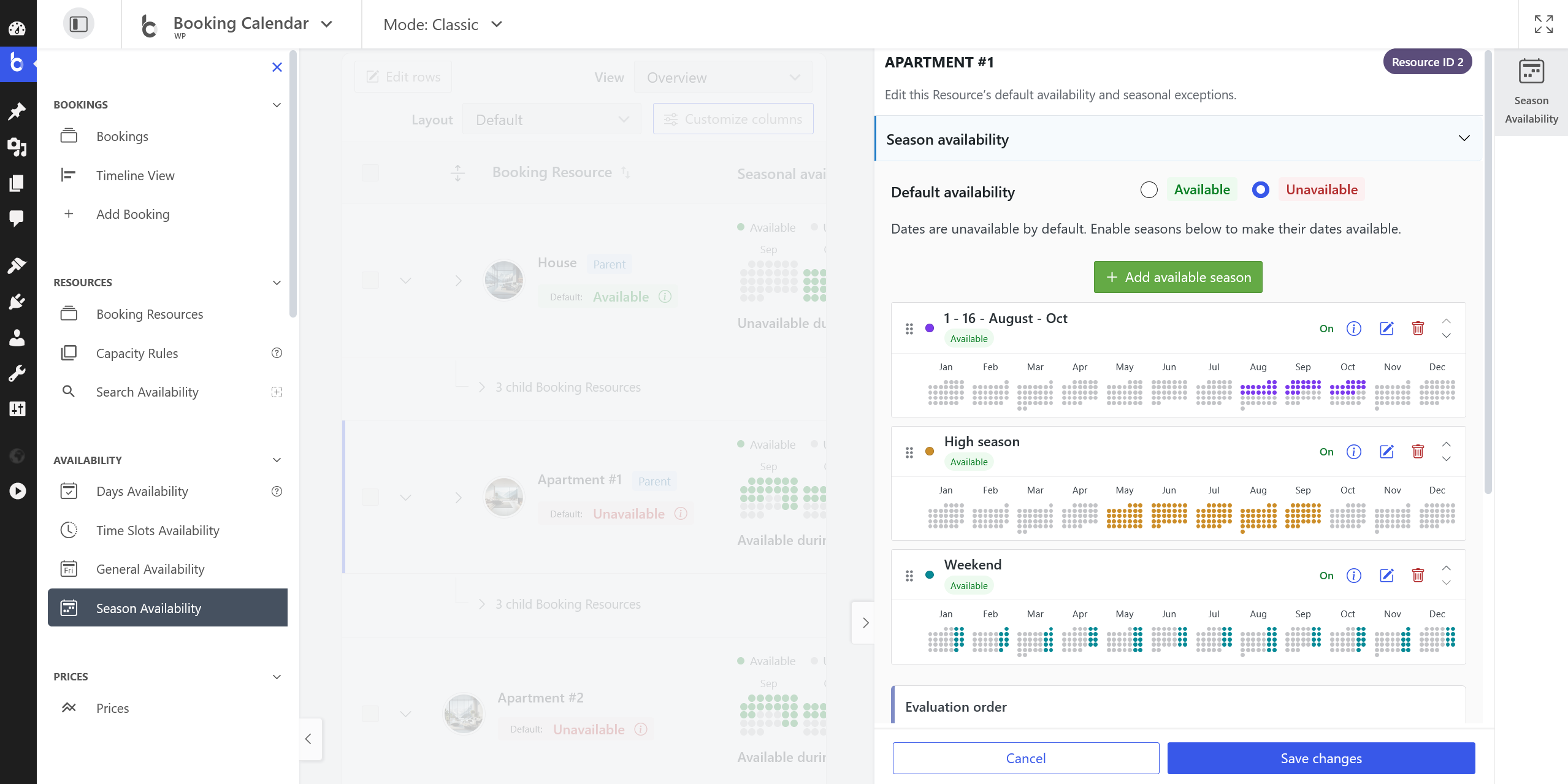
- Availability at a glance. Find your Resources in a clear list or Card view. See each Resource’s default availability below its name, search for the one you need, and choose the columns you want to see.
- See your seasonal dates clearly. Green dates are available and gray dates are unavailable according to your seasonal settings. Hover over a Resource or focus a control in its row to see which Season applies. The preview shows seasonal settings, not existing bookings or remaining capacity.
- Update selected Resources together. Select Resources and choose Edit selected to set their default availability, add one Season exception, or remove one Season exception. Other assignments are kept. Review every proposed change before applying; updated Resources are highlighted after a successful save.
- Edit availability without leaving the list. Open a Resource in the new sidebar editor. Choose its default, add Season exceptions, turn them on or off, and preview their dates. A plain-language overview explains the result before you review and apply your changes.
- Change defaults directly in the list. Choose Edit rows to change default availability for several Resources without opening each one. Changed rows are marked so you can check your work, then review the effect on existing Seasons before applying.
Minimum edition: Booking Calendar Business Medium or higher.
New Searchable Resources Catalog
Minimum edition: Booking Calendar Business Large or higher.
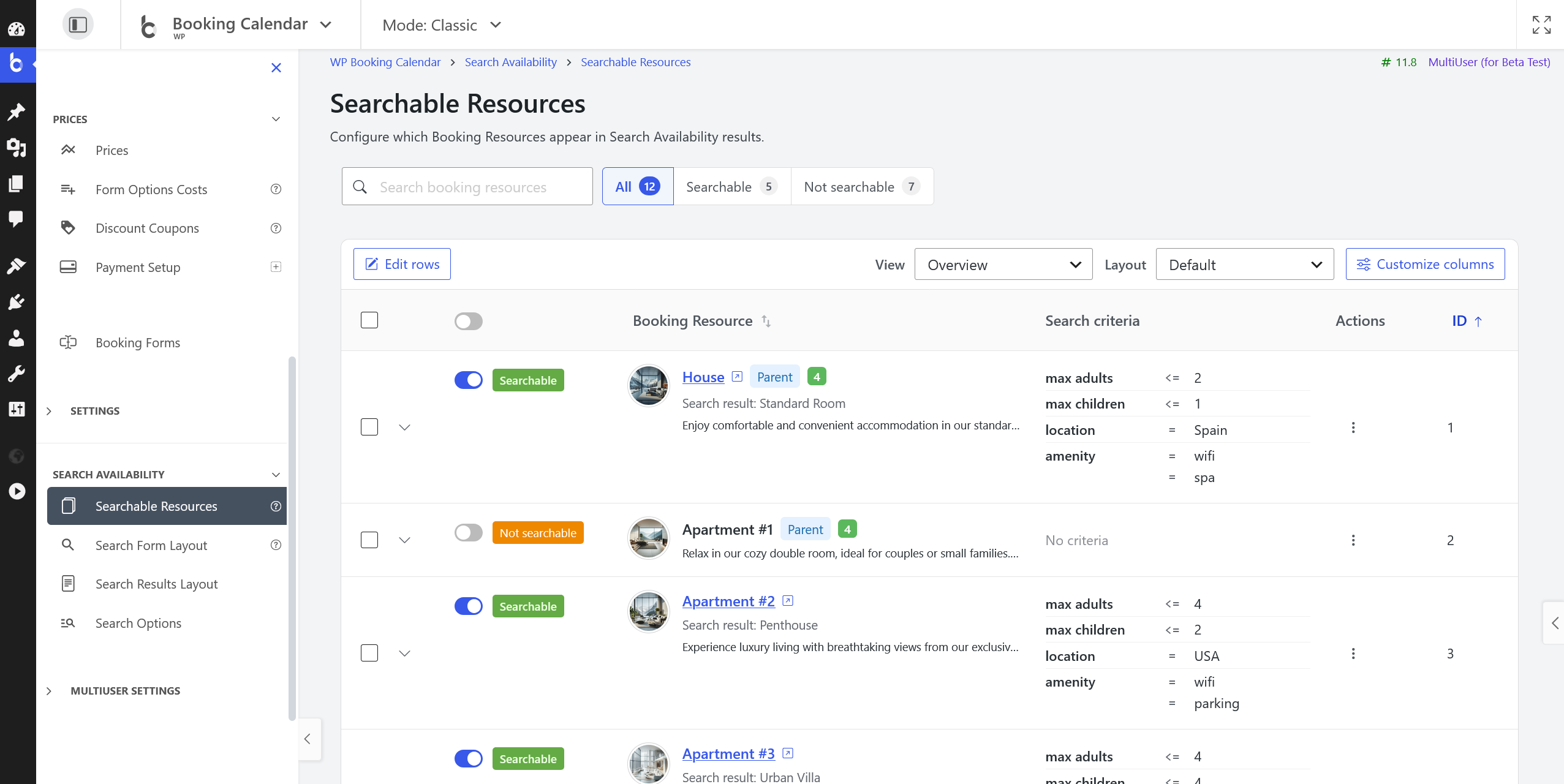
- Control each search result in one place. Open the direct Search Availability > Searchable Resources link, then edit Search visibility, result title, description, image, landing page, and supported criteria from the Inspector or directly in catalog rows. Search form, results, and options each have their own neighboring link.
- Find the right Resources quickly. Switch between All, Searchable, and Not searchable Resources, then use focused table views, compact rows, or image-led Cards.
- Review changes before saving. Stage direct, inline, and selected-Resource updates, review the affected fields, and apply only the changes you approve.
More Reliable Administration Modes
- Choose the view that fits your work. Switch between Classic, Appointments, and Rentals while continuing to use the familiar Booking Calendar pages and saved configuration.
- See the pages available to you. Each mode shows the pages provided by your installed edition and add-ons while safely omitting unavailable features.
- Continue where you were working. When possible, switching modes keeps the current Booking Calendar page and section, with a safe destination used when the equivalent page is unavailable.
- Complete Setup in five steps. The streamlined Setup flow now finishes in Form Builder, and the overlapping floating Setup Bar is disabled by default.