


Meet the New Timeline
Booking Calendar 12.0 introduces a completely redesigned administration Timeline for seeing Resources, bookings, working time, and unavailable periods in one responsive workspace. The previous Timeline remains available as Timeline Legacy while you become familiar with the new view.
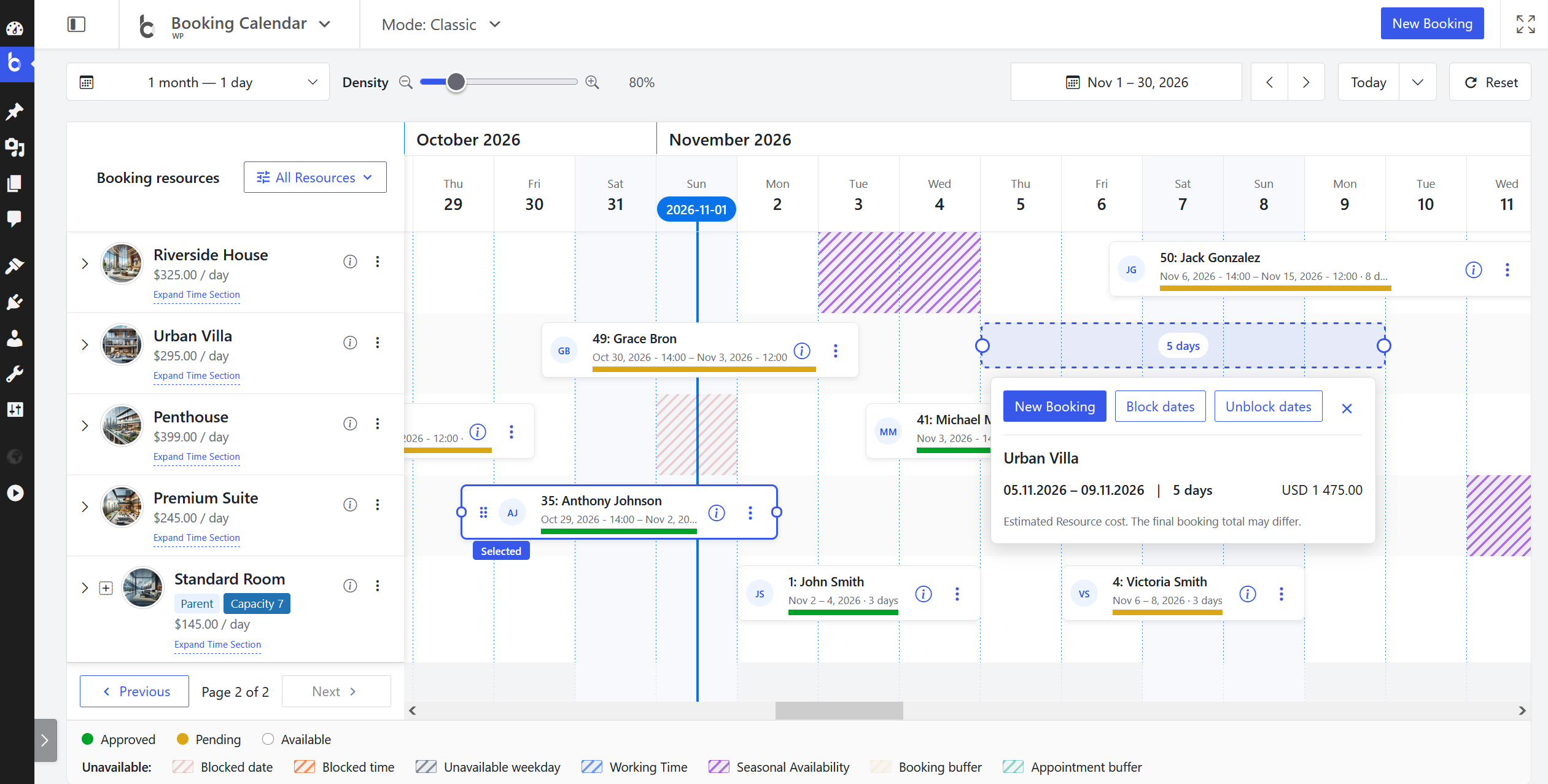
Expand a Resource into a Detailed Time Section
- See each day vertically by time. Expand any authorized Resource to show an All day band and a vertical time schedule beneath the normal Timeline row. Appointment mode opens the first authorized Resource automatically, making exact-time bookings and availability easier to understand.
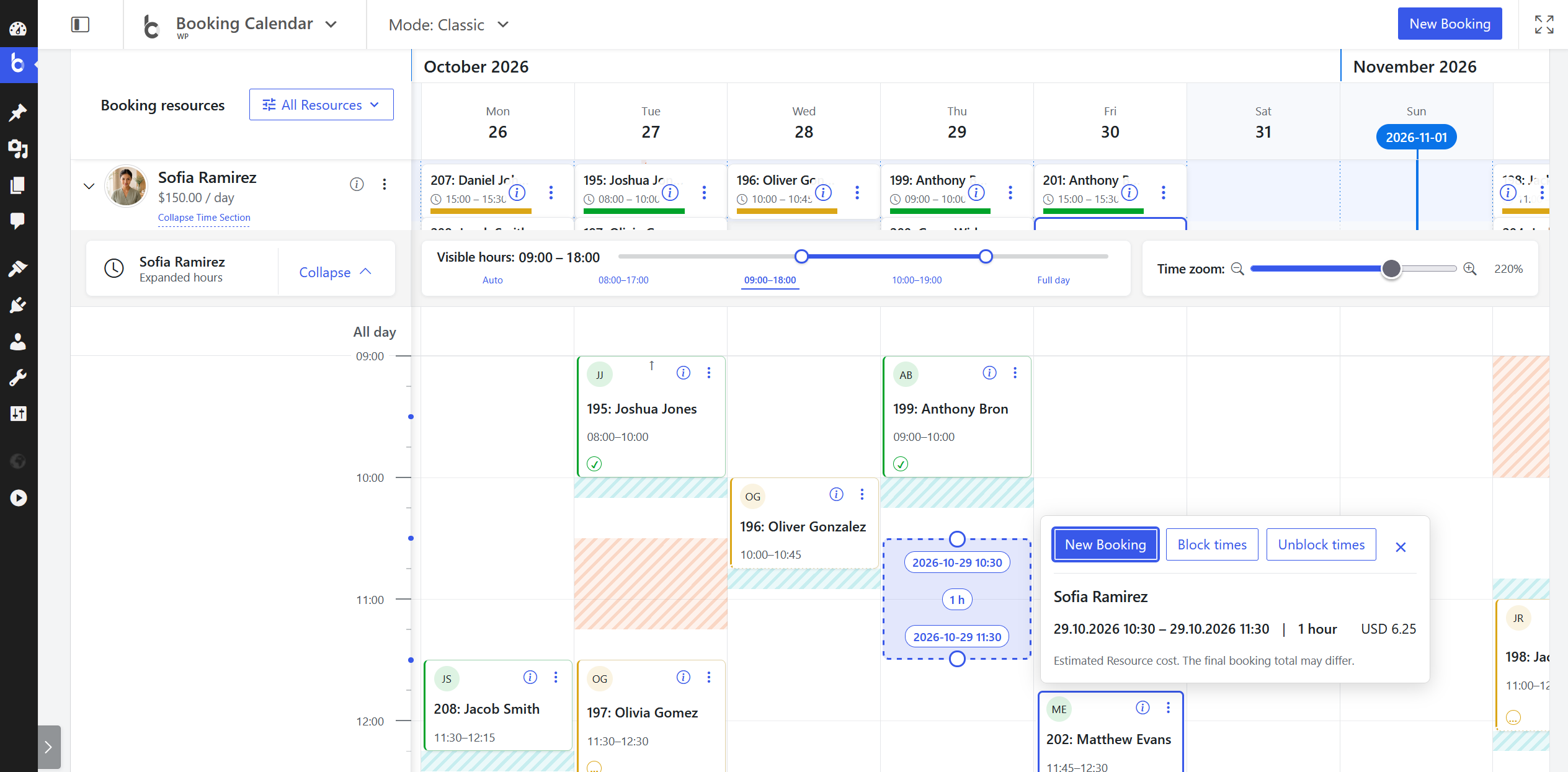
- Focus on the working hours you need. Use Auto, working-day presets, Full day, precise start and end sliders, and Time zoom to adjust the visible hours without changing booking data or reloading the Timeline.
- Work with exact timed bookings. Read overlapping appointments, unavailable intervals, and booking boundaries against an hour-and-minute scale. Select empty time, move eligible bookings, or resize supported time boundaries with the same Review and Apply protections used by the main Timeline.
Drag, Resize, and Review Schedule Changes
Move a booking to another date or Resource. Select an eligible booking and use its drag grip to move the complete schedule within the same Resource or to another visible authorized Resource. Full-day, timed, overnight, recurrent, and discontinuous schedules keep their duration and spacing.
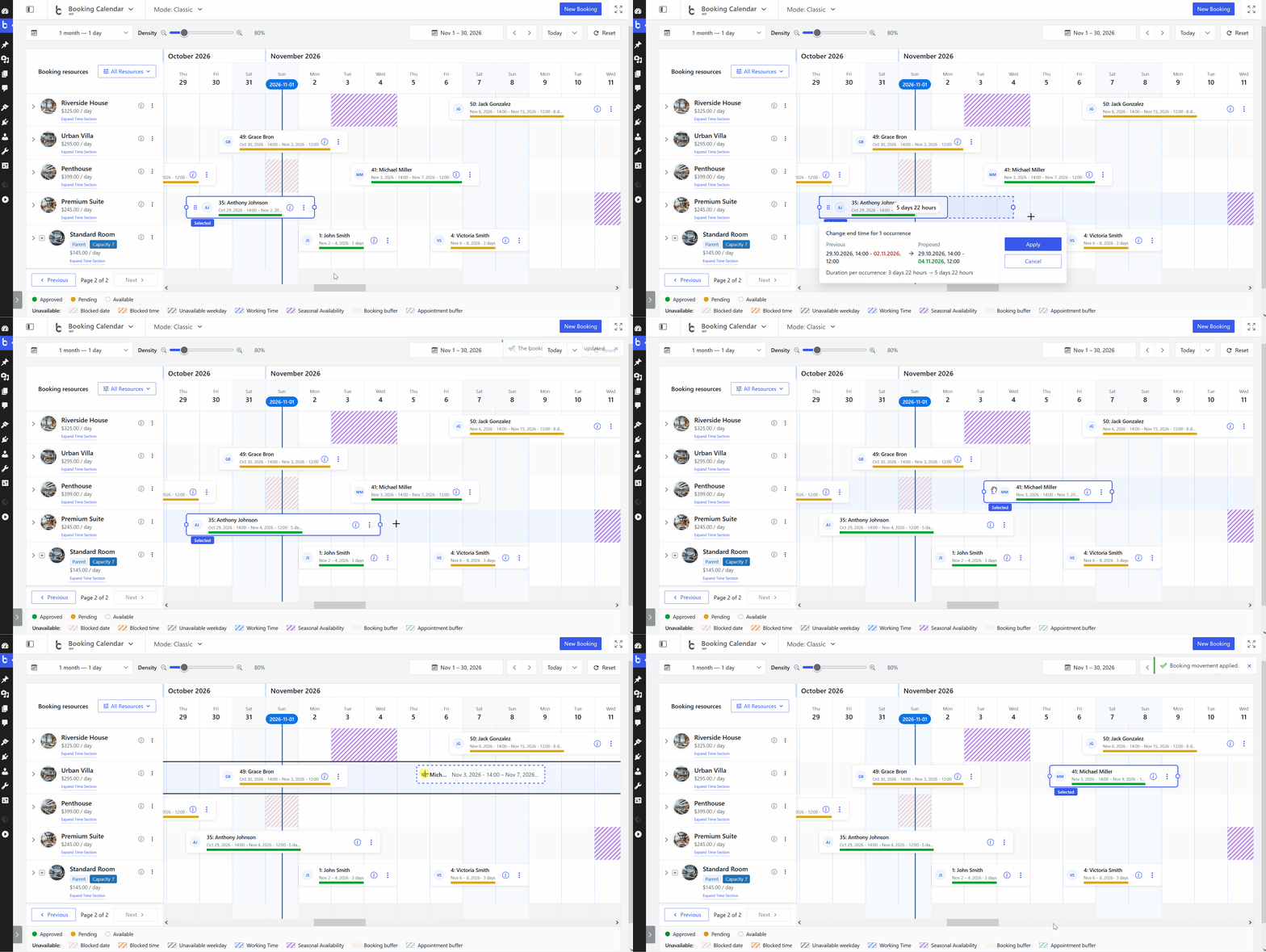
- Adjust supported start and end boundaries. Accessible boundary controls provide a dashed preview for supported full-day and timed bookings. Exact saved minutes remain intact until a deliberate snapped change is released.
- Confirm every change before it is saved. A Previous-to-Proposed Review shows the new Resource, dates, times, and duration. Apply repeats authorization, availability before refreshing Timeline.
Scroll, Navigate, and Organize Resources Faster
- Create your own Resource workspace. Search and select authorized Resources, sort them by standard order, name, or ID, and choose 10, 20, 30, or 50 Resources per page. Business Large keeps parent groups together and shows checked, mixed, and unchecked group selection.
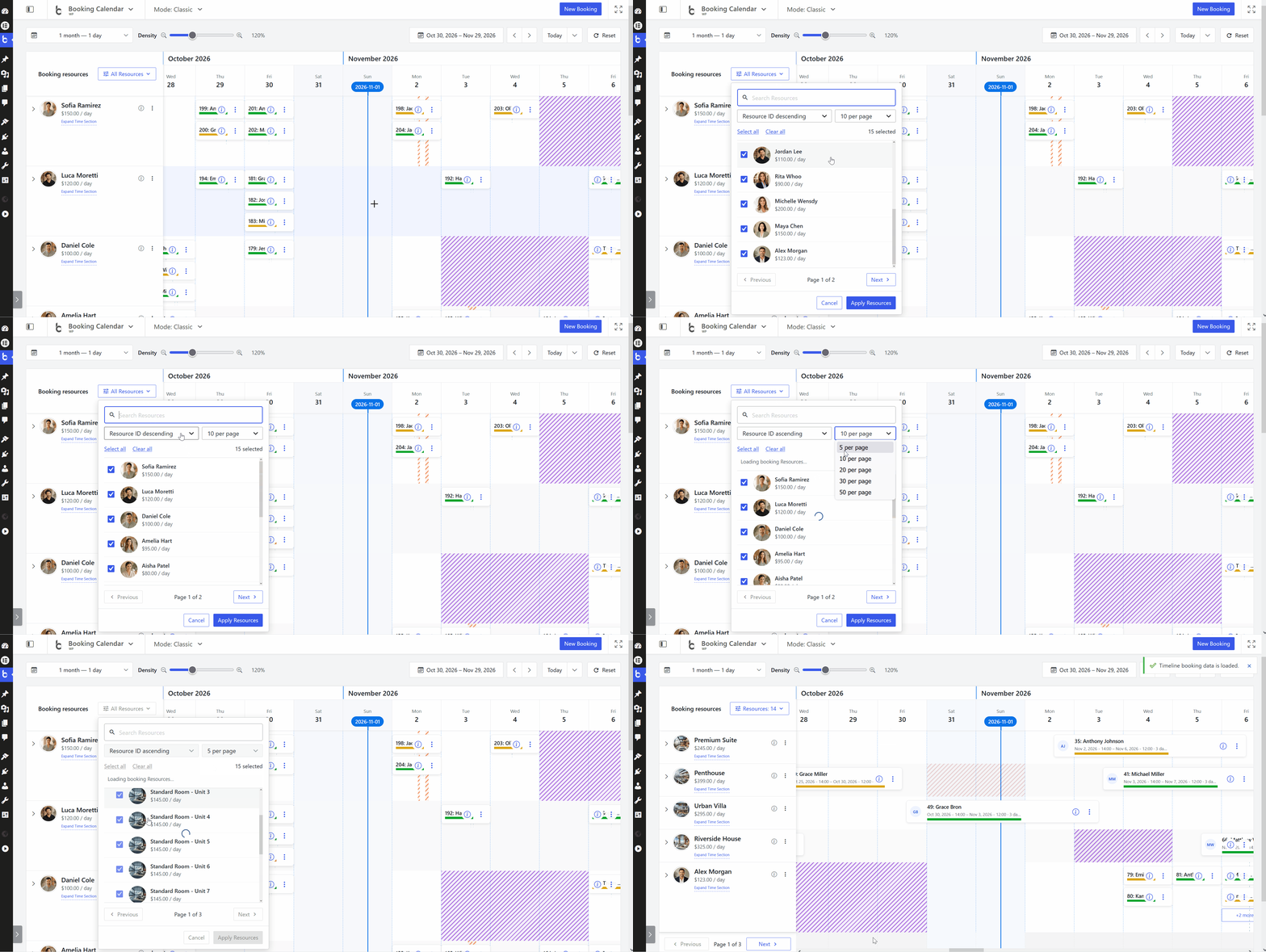
- Move through dates naturally. Use Previous, Next, Today, or the date picker to reach an exact date. Scrolling toward either edge loads the neighboring period while keeping the visible date anchored and retaining a bounded cache for quick return navigation.
- Remember the view per administrator and site. Timeline restores the last successful date, range, scale, density, Resource selection, ordering, paging, and expanded Time Sections. Reset returns to the configured defaults without changing bookings.
- Set booking titles per Resource. Each Resource can inherit the global Timeline booking-title template or use its own authorized title template, with the Timeline refreshed immediately after saving.
Create New Bookings Directly from Timeline
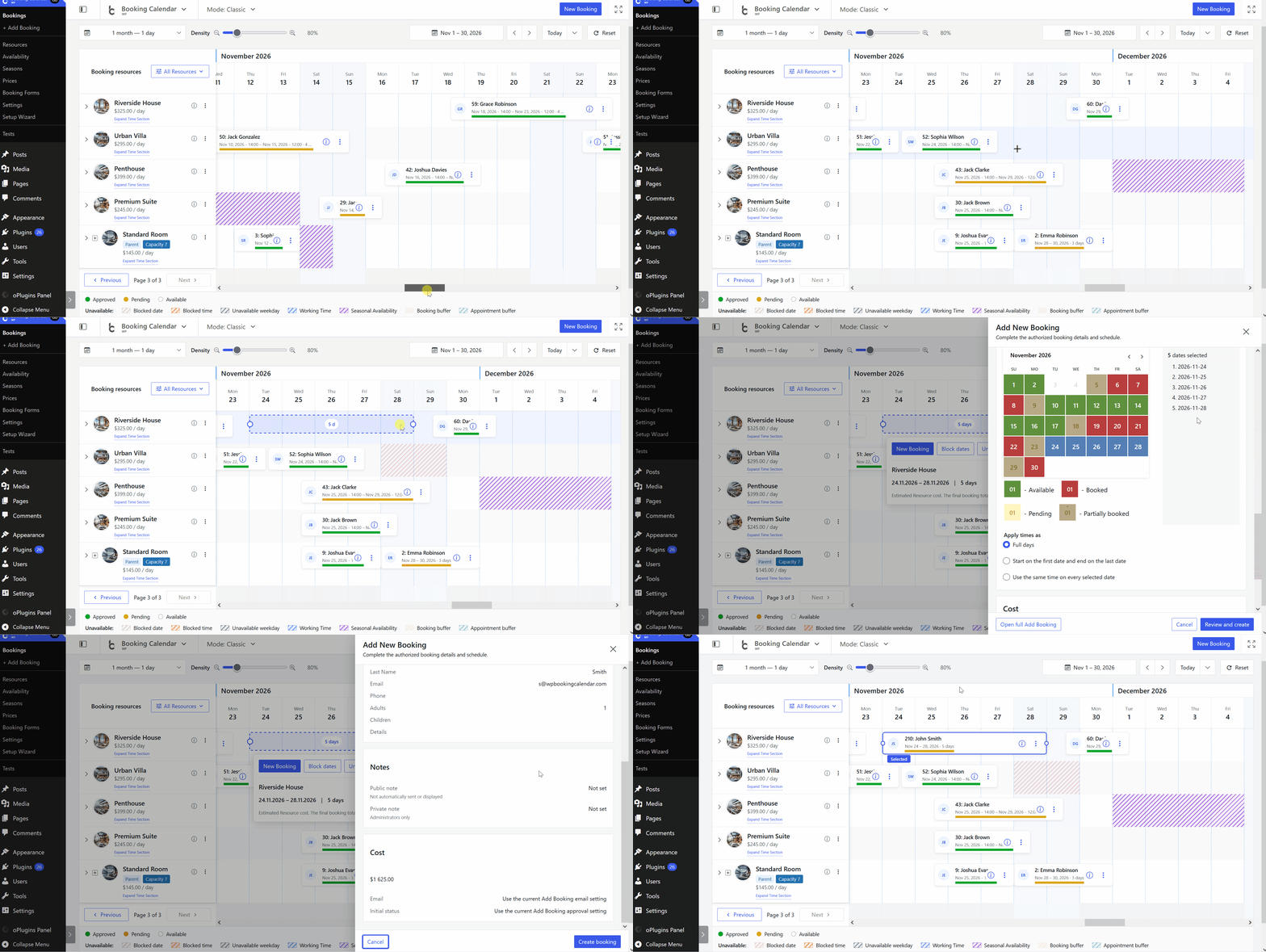
- Select an empty date or time range. Drag across a Resource row with a mouse, pen, or scroll-safe touch, or use the keyboard. Adjust either boundary, then review the Resource, exact dates and times, duration, availability, overlaps, capacity, and estimated Resource cost.
- Complete the booking in a focused Inspector. The Add New Booking Inspector keeps the selected Resource and schedule, lets you choose the authorized Booking Form, validates required fields, and shows a server-checked Review before creation.
- Return to the updated schedule automatically. After creation, Timeline reloads the authoritative booking and availability data, restores the working position, and closes the Inspector only after the new booking is visible.
- Use the same workflow in every edition. Free and Personal can create bookings from Timeline. Cost preview and cost correction are available in Business Small or higher, and the full Add Booking page remains available as a fallback.
Preview and Edit Bookings without Losing Context
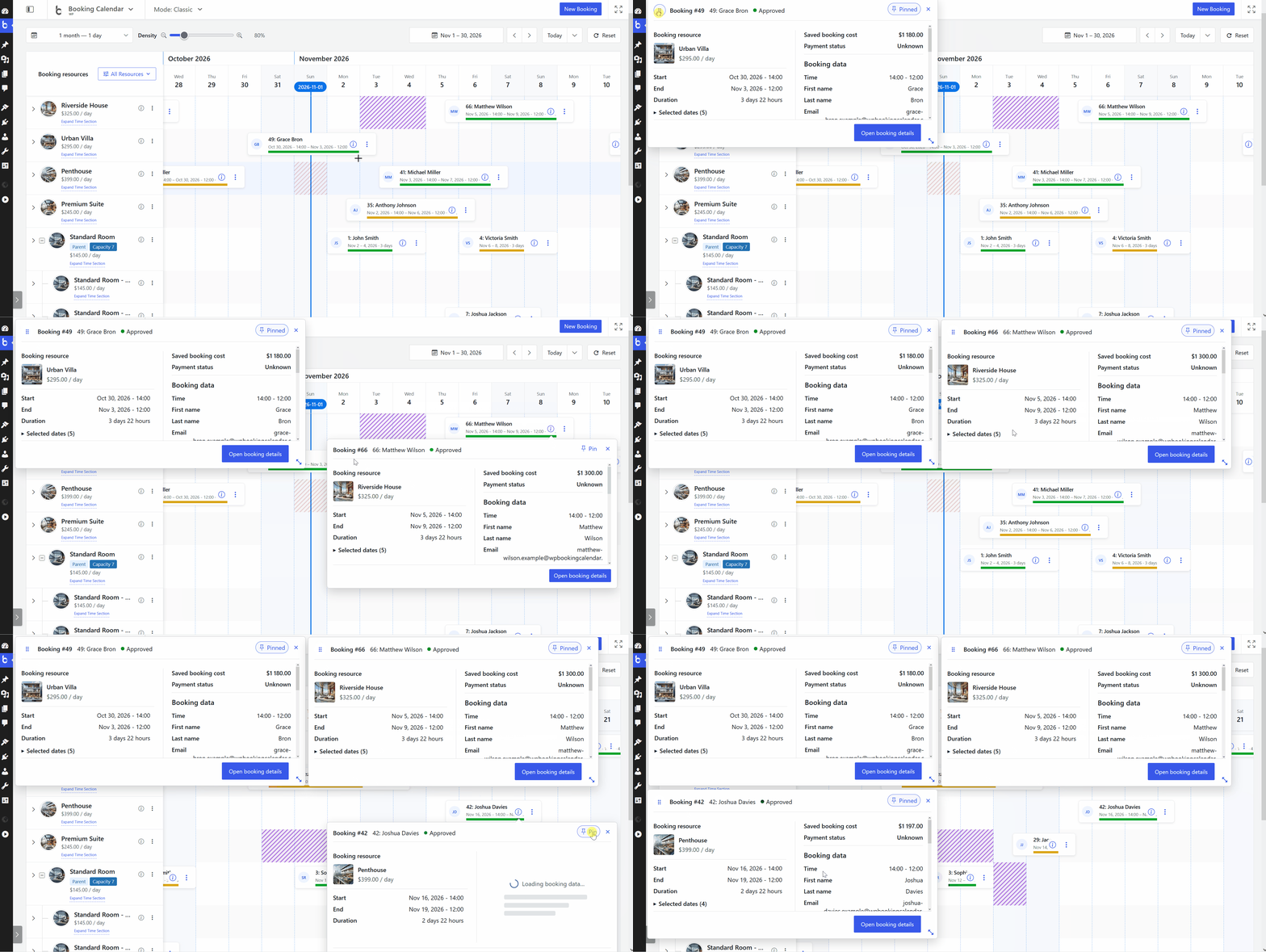
- Open quick Booking Overviews. Use a booking card information button to open a compact schedule and customer summary. Several Overviews can remain open, and a pinned Overview can be moved, resized, and kept in place while Timeline scrolls.
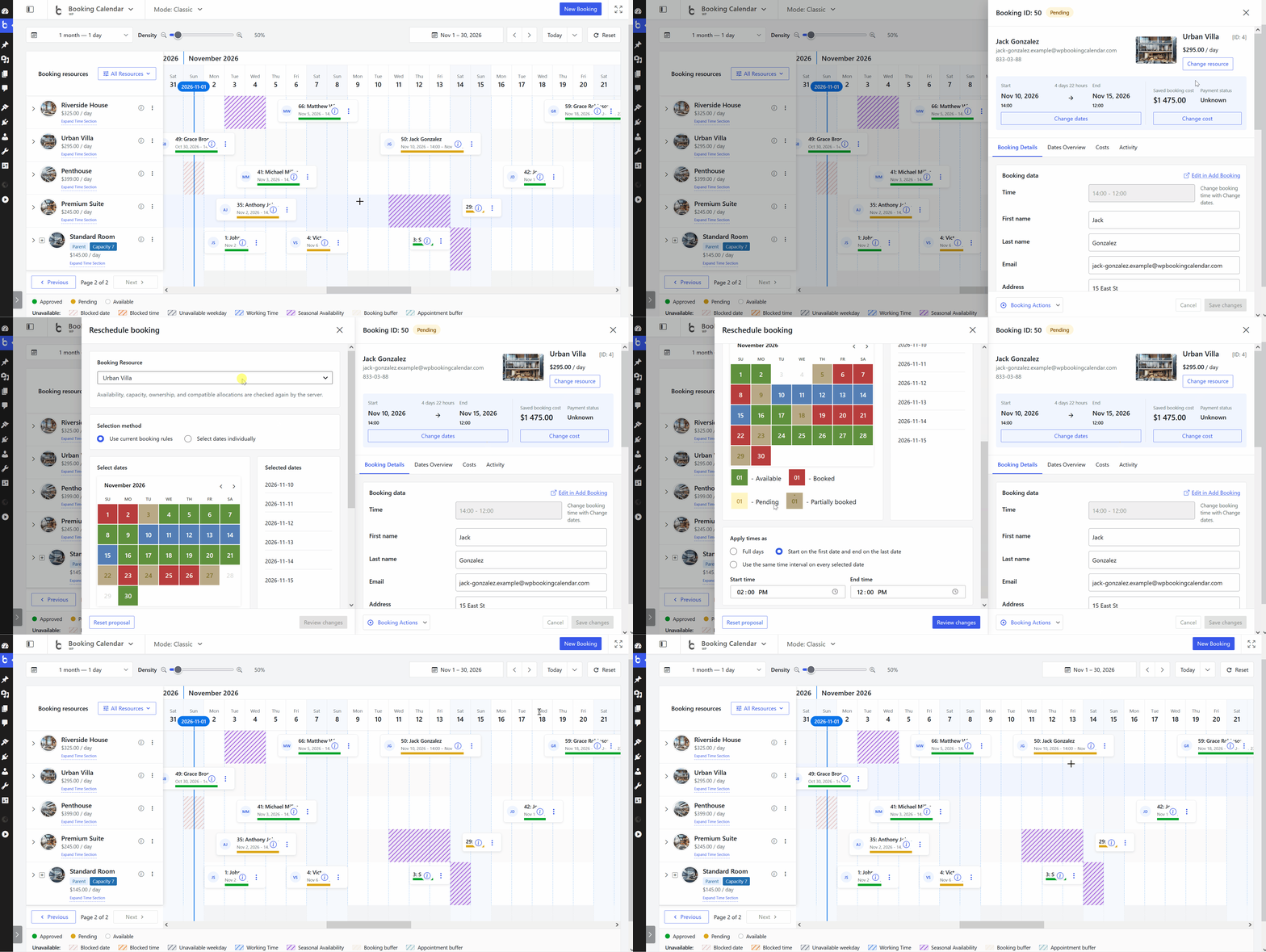
- Use one consistent Booking Inspector. Timeline, Booking Listing, Calendar, and Schedule now share the same Inspector with Booking Details, Dates, Costs where supported, and paginated Activity. The Inspector reproduces the form and field order saved with the booking, including Public and Private notes.
- Change dates with a clear before-and-after Review. The Date Editor restores the booking’s saved dates, supports current booking rules or individual dates, and handles full-day, first-date/last-date, and repeated-time schedules. Apply rechecks current availability, capacity, Seasons, changeovers, Appointment rules, and conflicts.
- Reschedule without dragging. Choose another authorized Resource, new dates, and exact times in the full Reschedule dialog. This keyboard-friendly workflow is also the fallback for booking shapes that cannot be changed directly on Timeline.
Choose the right level of detail
See the whole schedule clearly. A fixed Resource pane stays aligned with compact booking cards for full-day, timed, overnight, recurrent, and multi-day bookings. Overlapping bookings use separate lanes, while clipped bookings show that their schedule continues outside the loaded dates.
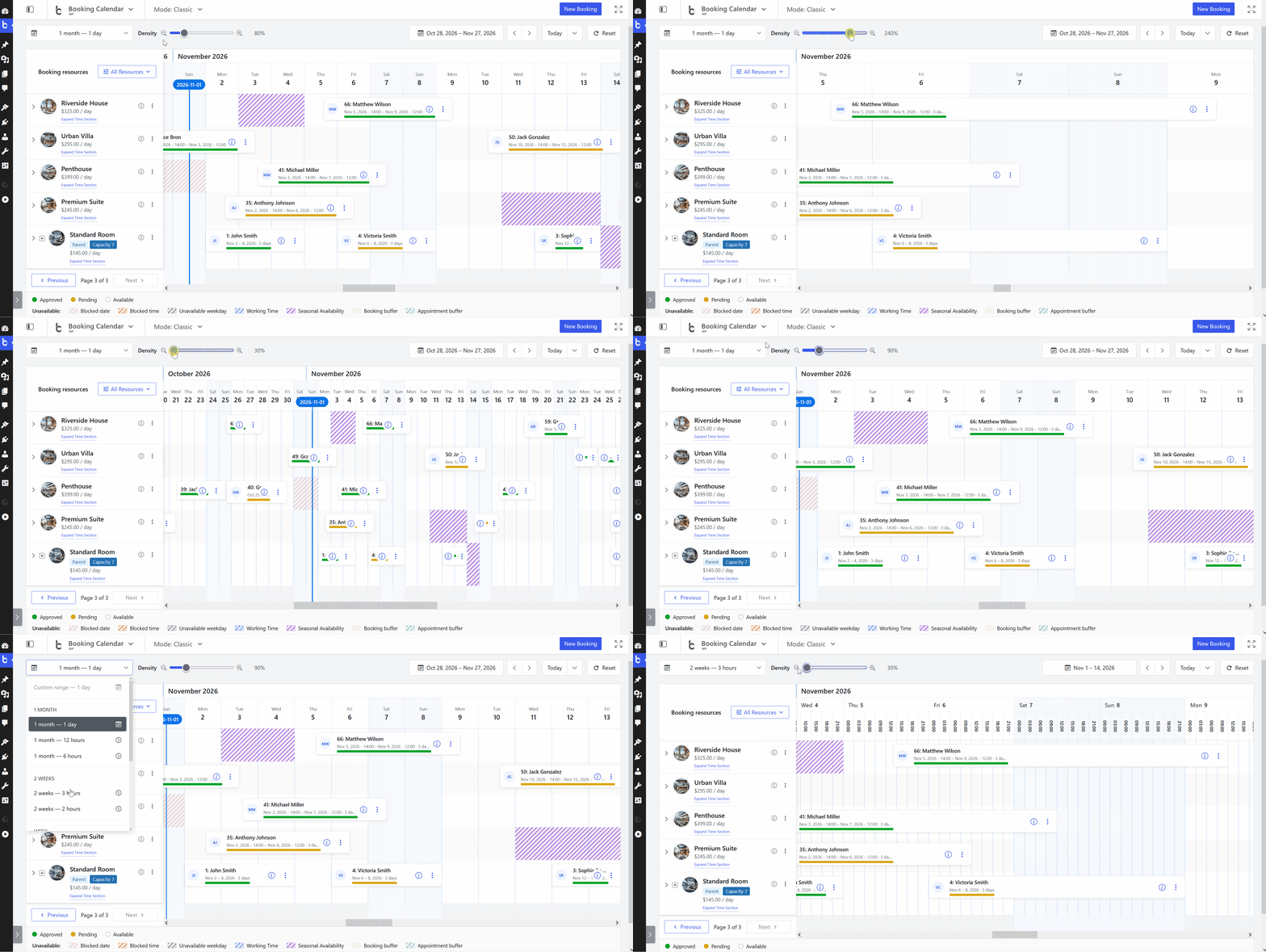
- Choose the right level of detail. Switch between focused day, week, two-week, and month combinations, adjust visual density from 30% to 300%, and keep the Resource and date headers visible while you work.
- Read availability without opening another page. Striped backgrounds and a labelled legend distinguish blocked dates and times, unavailable weekdays, Working Time, Seasonal Availability, booking buffers, and Appointment buffers without relying on color alone.
A Clearer Add Booking Workspace
Choose the Resource and form first. Booking Resource and Booking Form choices now share a clear section above the form while preserving edition, ownership, and reload behavior.
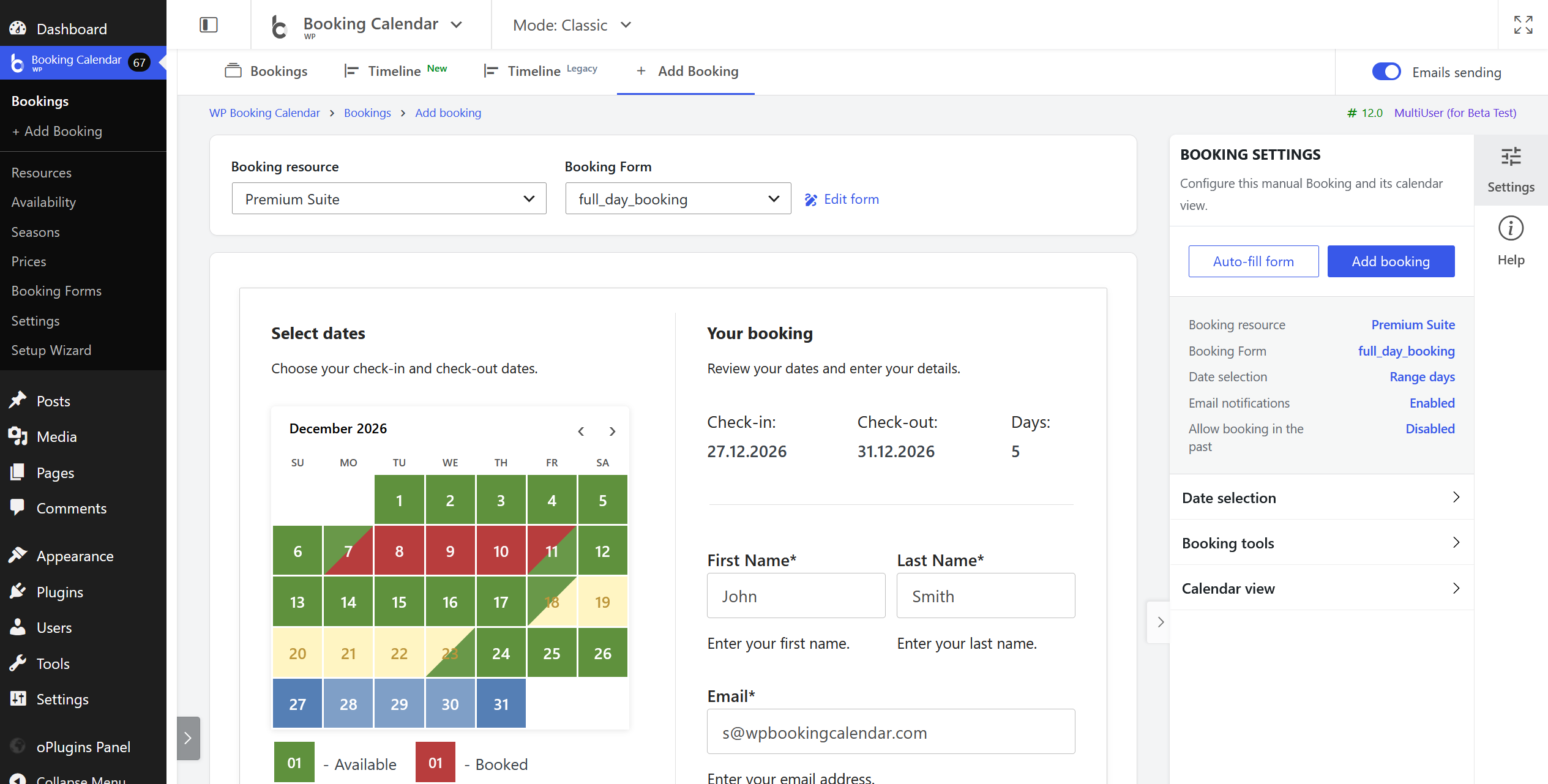
- Keep important tools together. The Settings Inspector retains the familiar Date selection and Calendar view controls, while Booking tools groups cost correction where supported with the temporary past-date option.
- Keep email delivery visible. Emails sending remains at the end of the Add Booking navigation and is also reflected in the Settings summary.
Cleaner Navigation across Booking Calendar
Give daily work more room. Normal work pages begin with the Booking Calendar side menu minimized when no preference has been saved, while Settings starts expanded. Work, Settings, and fullscreen remember their choices independently.
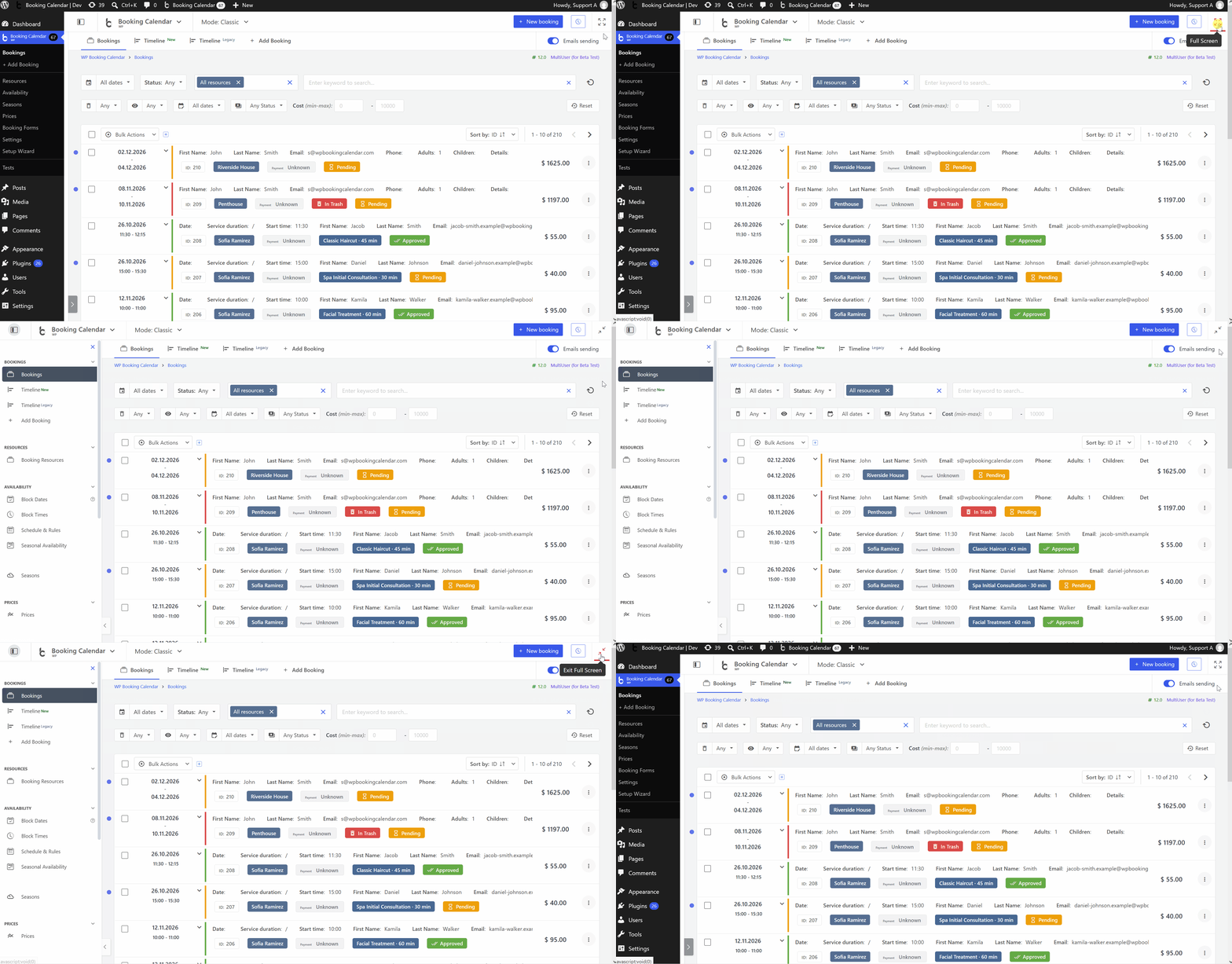
- Use one consistent page header. Authorized peer pages share a clear horizontal menu, current-page marker, breadcrumbs, version information, and responsive spacing without redundant one-link navigation rows.
- Reach Booking Forms quickly. Booking Forms now appears directly in the native WordPress Booking Calendar submenu in Classic, Appointments, and Rentals, immediately before Settings.
More Useful Improvements
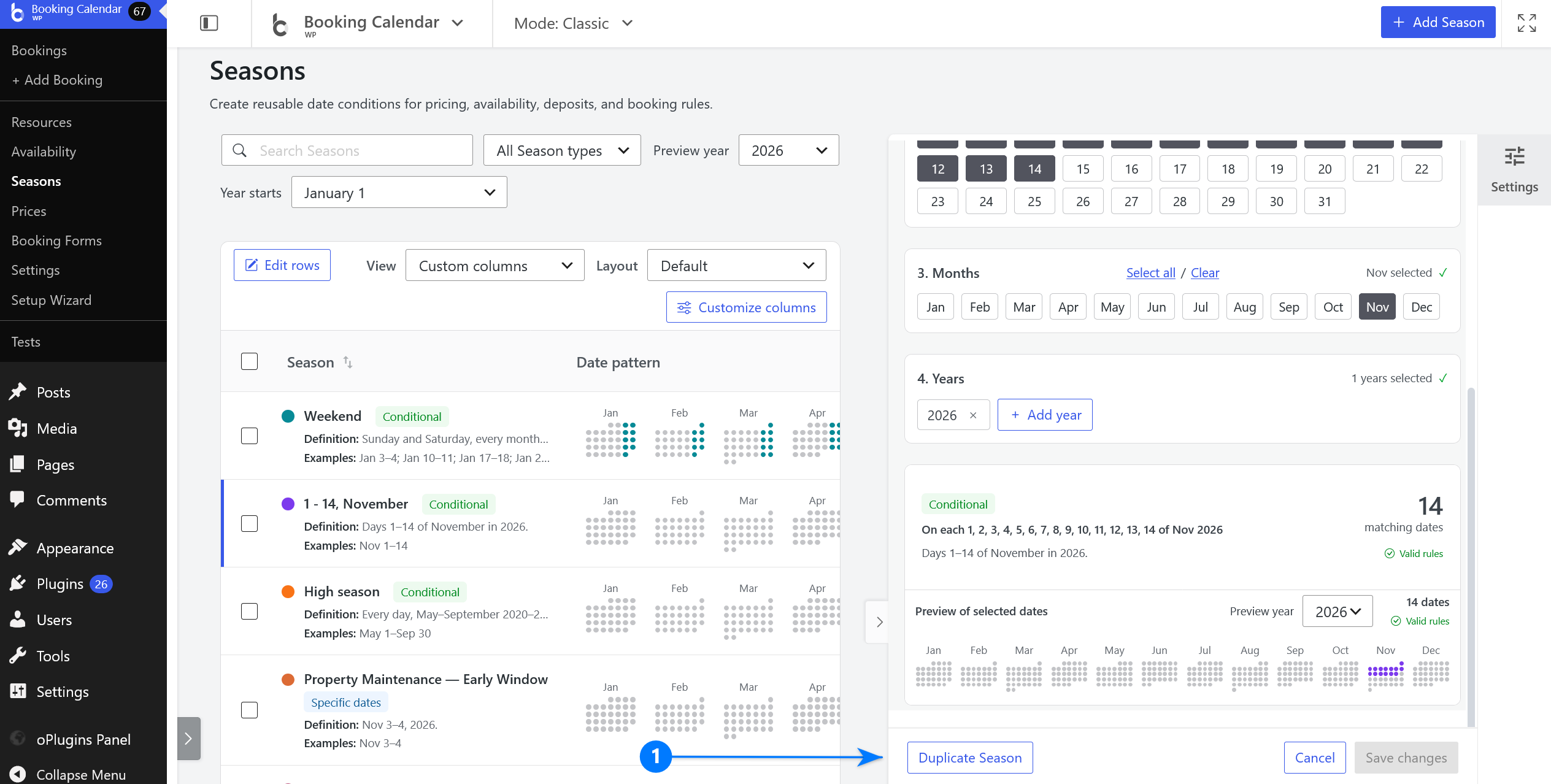
Duplicate Seasons. Business Medium or higher can create an independent copy of a Conditional or Specific-date Season. In MultiUser, a super administrator can assign the copy to another activated owner without changing the source Season.
- See accurate adjusted-cost hints. Form Option Cost hints remain correct when Early Booking or Last-minute adjustments apply, so fixed additional costs are no longer reduced or displayed as zero.
- Keep customer-facing errors private. Booking conflict messages no longer expose internal per-date Resource or capacity diagnostics, and booking-date database lookups now normalize Booking IDs at the shared query boundary.
- Translations Completed 100% local translations: Spanish (Spain), Dutch, French (France), German, Italian, Japanese, Portuguese (Brazil), Ukrainian, Czech.